

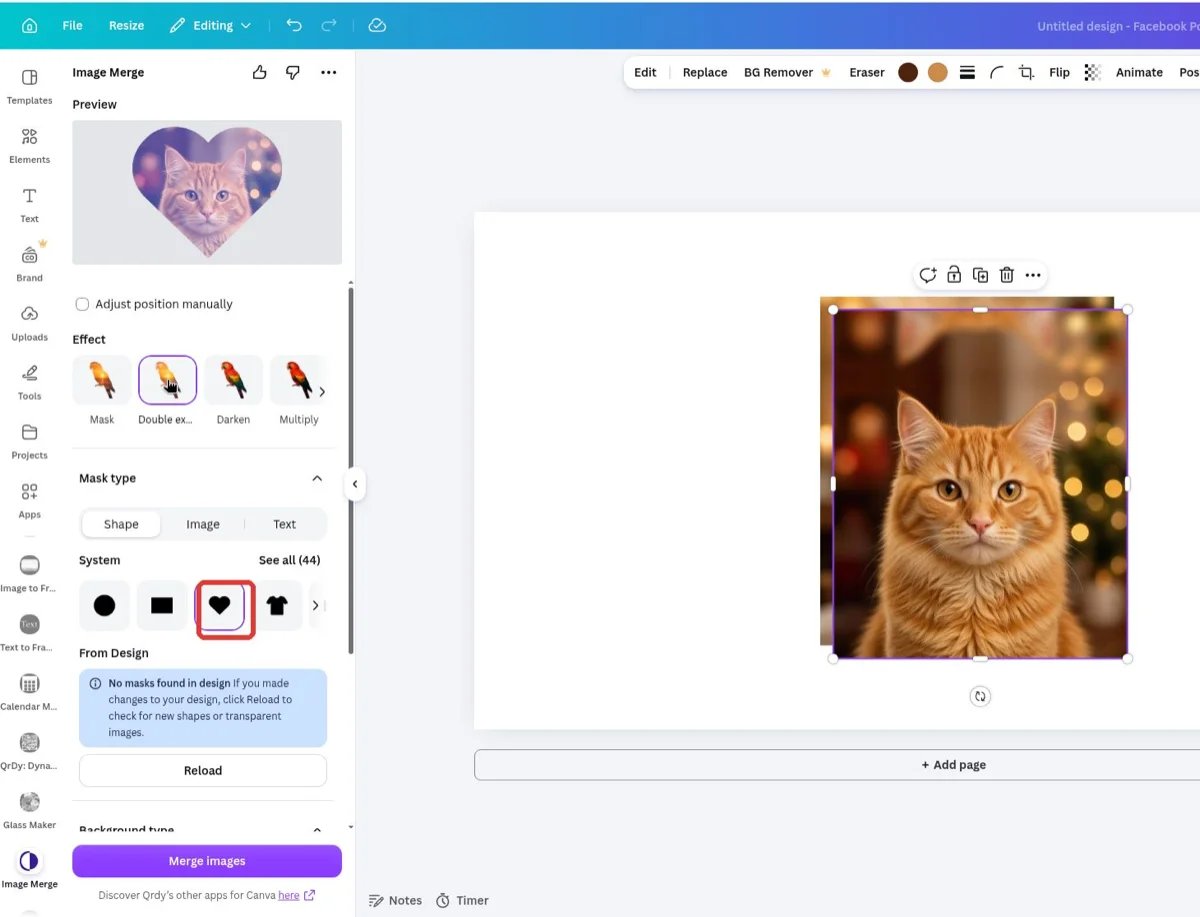
Image Merge in Canva: a photo poured into a heart mask, with the effect carousel above
What you can do
44 ready-made shapes
Circles, hearts, t-shirts, envelopes, puzzle pieces, brush strokes, leaves, butterflies and more — plus any vector shape from your own design.
Text masks
Type a word and fill it with a photo or gradient — font, bold, italic, and letter spacing included.
17 blend effects
Mask, Double exposure, Darken, Multiply, Screen, Overlay, Soft light, Hue, Color, Luminosity and more — each with live preview.
Bulk merge
Select multiple masks and merge them all with the same background in one click (Pro).
How it works
1
Pick a mask
Choose a shape from the Shape tab (or a shape from your design, an uploaded transparent image, or typed text).
2
Pick a background
Use an image from your design, flatten the whole page with Export design, or build a Linear/Radial gradient.
3
Choose an effect and merge
Tap one of the 17 effect thumbnails, fine-tune intensity, position, and color, then press Merge images. The merged PNG lands on your page.
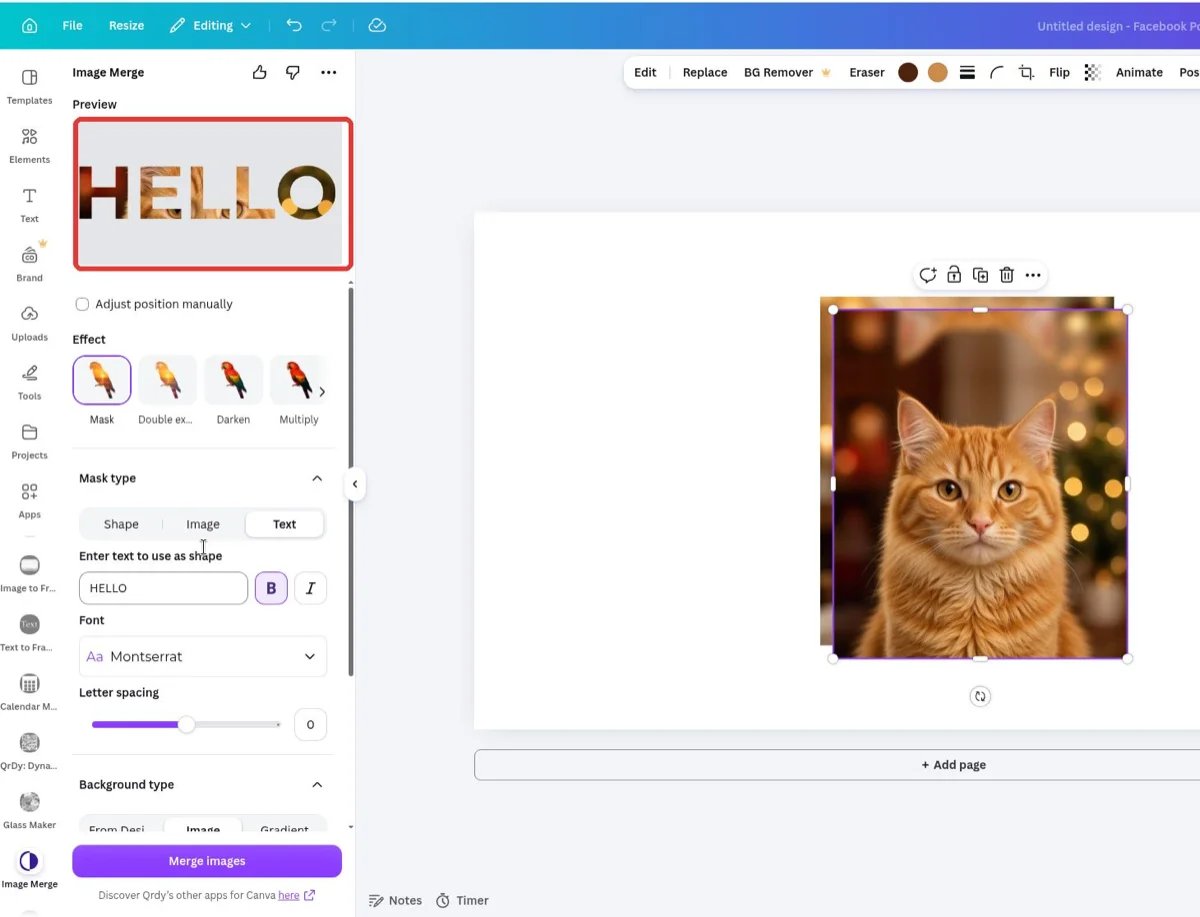
A text mask filled with a photo — one press of Merge images away from your page
Free vs Image Merge Pro
See the Image Merge Pro page for current pricing. Image Merge Pro is separate from Canva Pro.
Next steps
Open Image Merge in Canva
Pour an image into any shape and blend it in seconds.
Complete guide
Masks, backgrounds, all 17 effects, and bulk merge — with screenshots.