

The three tabs
Create
Build a new frame from five modes.
Explore
Pick a ready-made frame from themed collections.
Style
Re-add a recent frame with blur, border, or inner shadow.
Create tab — five modes
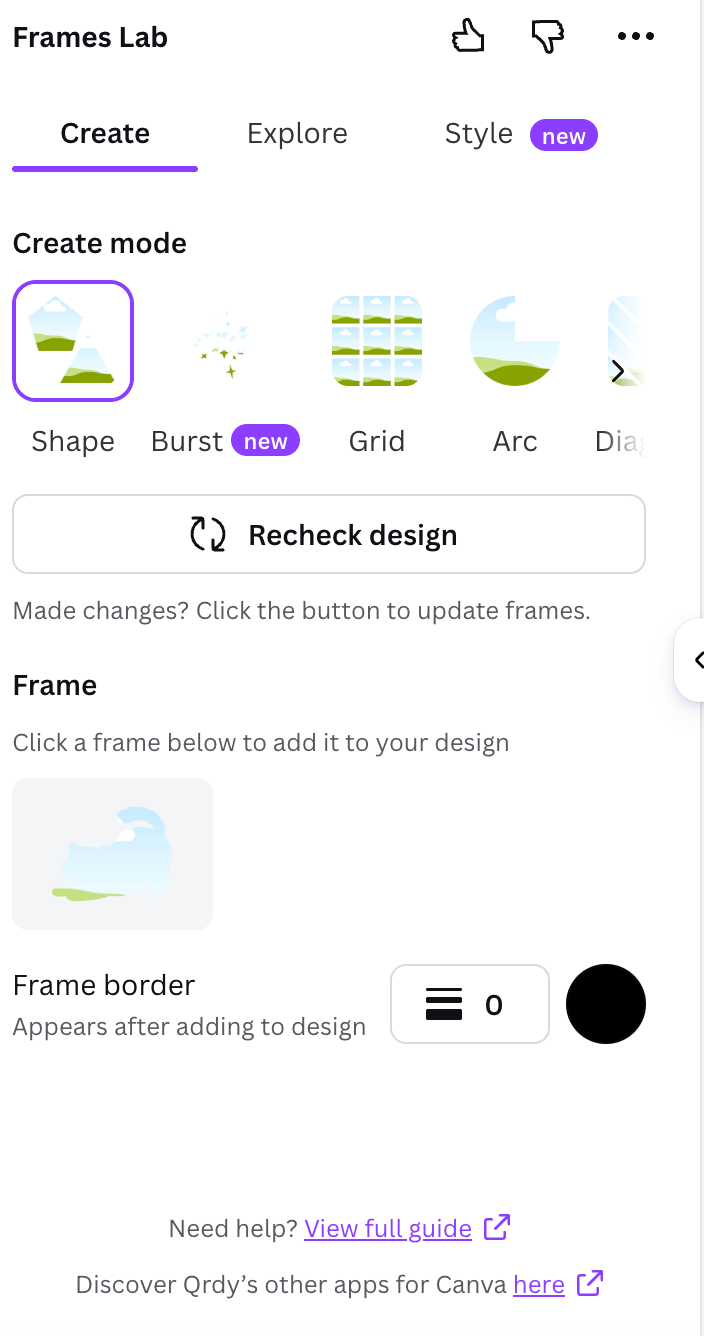
The Create tab and its five modes
Shape — turn a shape into a frame
1
Add a shape
From Elements → Shapes or Graphics, add a shape to your design.
2
Recheck design
Click Recheck design so the app detects it.
3
Add the frame
Click the detected frame to place it. Set a border first if you want one.
Burst — random sunburst frames

Burst mode — random spark/sunburst frames

Burst style options

The full set of Burst controls
Grid — collage frames
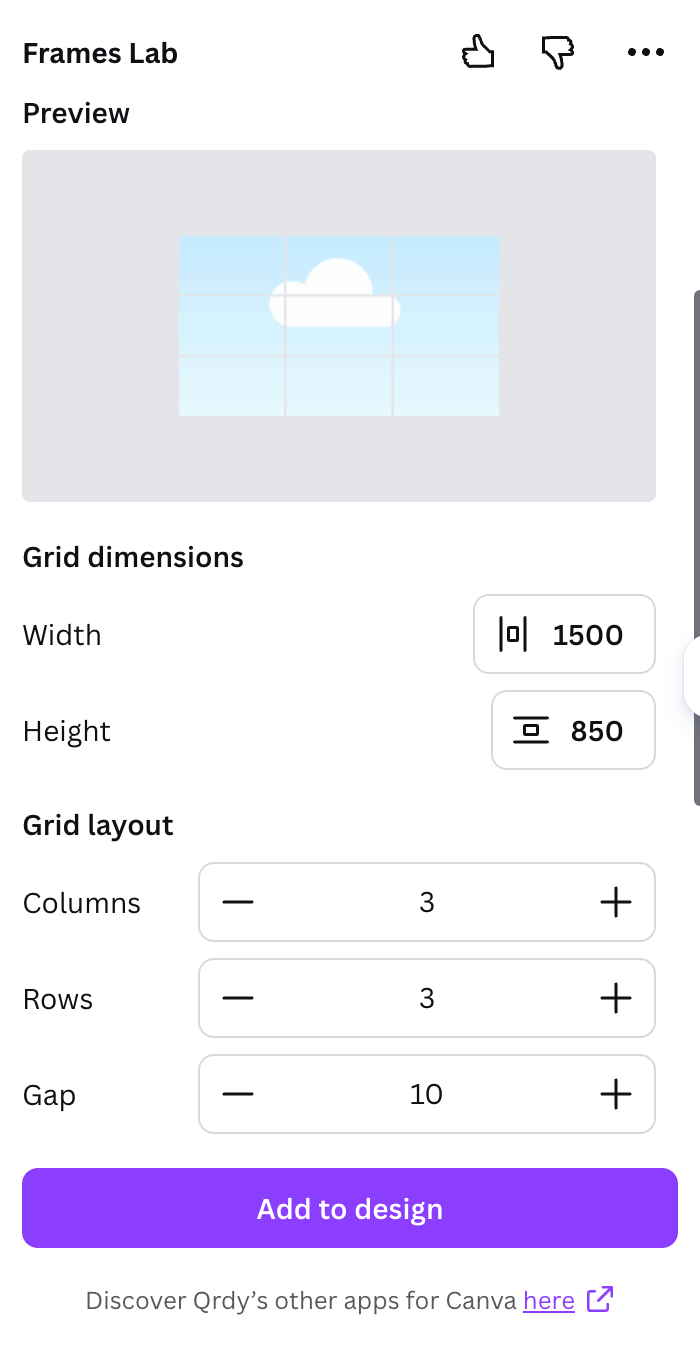
Grid mode — dimensions and layout
1
Set dimensions
Adjust the grid width and height.
2
Set the layout
Choose columns, rows, and gap. The preview updates live.
3
Add a wave and advanced options
Open Wave effect to curve the lines, or Advanced options for combined cells and corner radius.
4
Add to design
Click Add to design, then drop a photo into each cell.

Grid wave effect and advanced options
Very complex grids (too many cells or a strong wave) get blocked — reduce the rows/columns or wave strength.
Arc — curved frames

Arc mode — set the sweep angle
Diagonal — angled grid

Diagonal mode — strips on an angle
Explore tab — ready-made frames
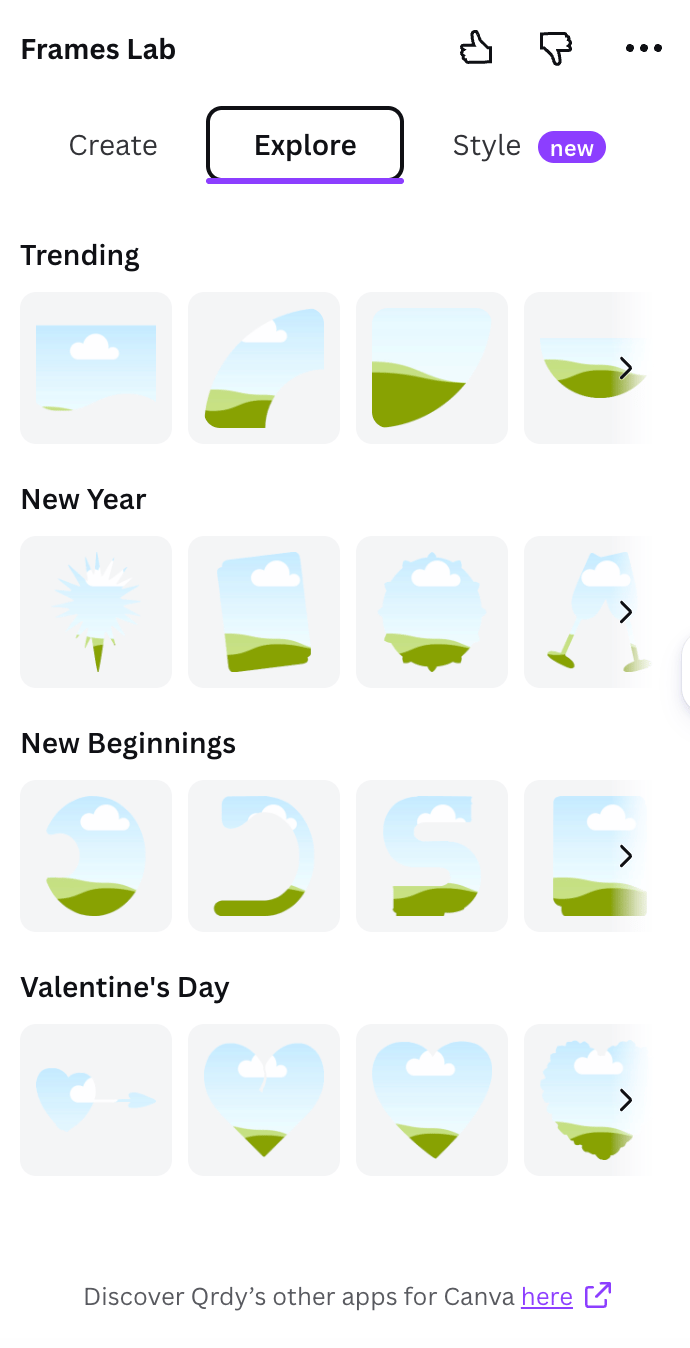
Explore — themed frame collections
Style tab — add effects
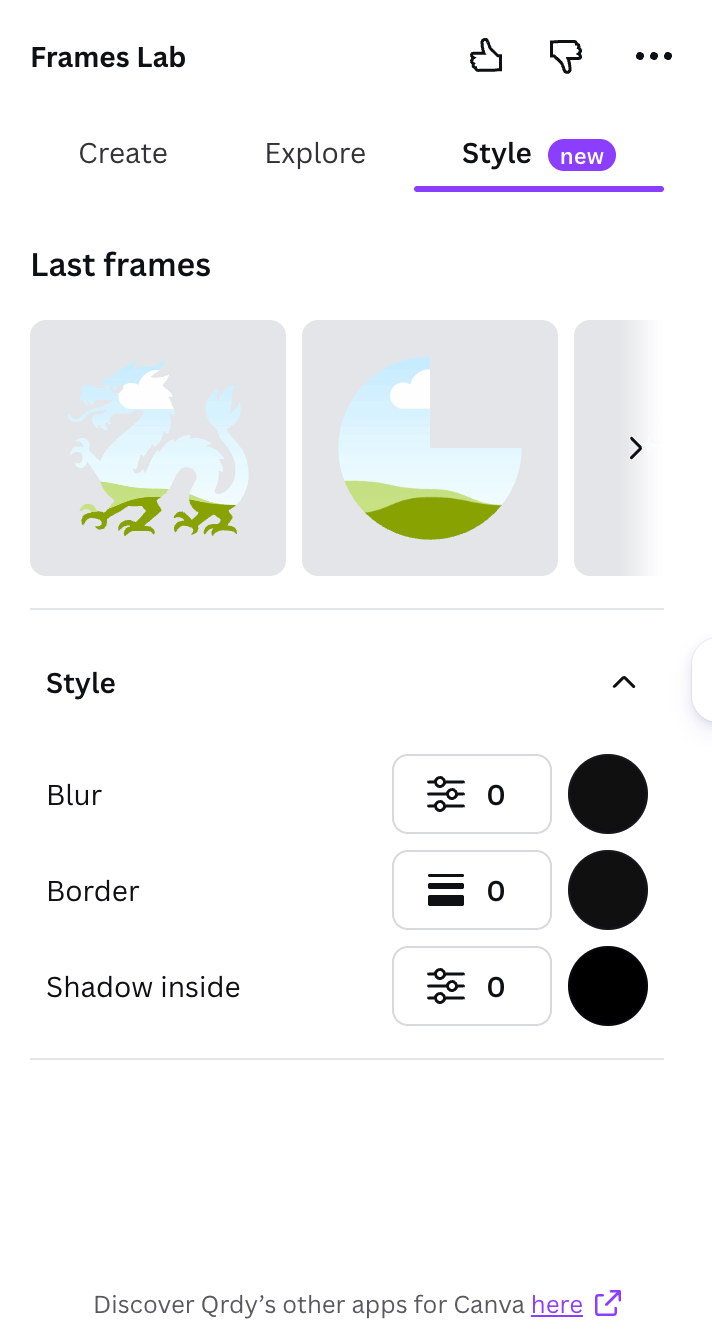
Style — blur, border, and inner shadow on your last frames
Drop in your photo
After any frame is in your design, drag a photo or video onto it — it crops to the frame’s shape automatically. Double-click to reposition inside.Free vs Pro
The free tier limits how many frames you can add; when you hit the limit, the app invites you to upgrade (the link opens qrdynamic.xyz in a new tab). Pro removes the limit. More Qrdy and Need help at the bottom link to other apps and support.Frequently asked questions
Why doesn't my shape show up as a frame?
Why doesn't my shape show up as a frame?
Add the shape from Elements → Shapes/Graphics, then click Recheck design.
My grid or diagonal won't add
My grid or diagonal won't add
It’s too complex — reduce rows/columns or the wave strength and try again.
My burst looks different every time
My burst looks different every time
Burst is fully random. When you see one you like, add it right away — changing a control regenerates the previews.
Open Frames Lab in Canva
Build grids, arcs, bursts, and custom frames in Canva.