

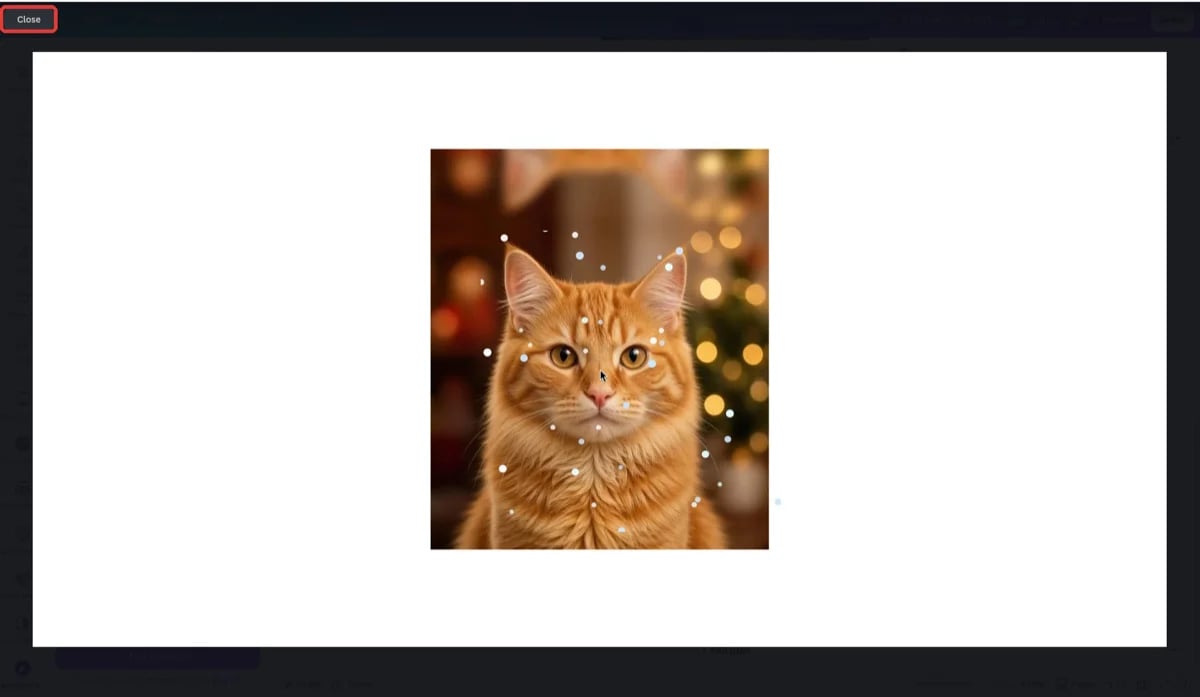
Animated Overlays in Canva — snow falling over a photo with a fully transparent background
What you can do
16 animated effects
Snow, Sparkle, Bokeh, Rain, Hearts, Bubbles, Confetti, and more — plus Pro effects like Fireworks, Film grain, Embers, and Light leak.
True transparent background
Stickers blend into any design with no black box or white edges — the background stays fully transparent.
Custom particle shapes
Pick from 15 built-in particle shapes, or scan a vector shape from your own design and use it as the particle.
Full control over the look
Adjust particle count, size, and speed with three sliders, then pick a preset color palette or set your own custom colors.
How it works
Open Animated Overlays from the left sidebar in Canva, pick an effect, choose particle shapes, tune the sliders and colors while watching the live preview, then press Add to design. The animated sticker lands on your page as a regular Canva element — drag, resize, and layer it like anything else.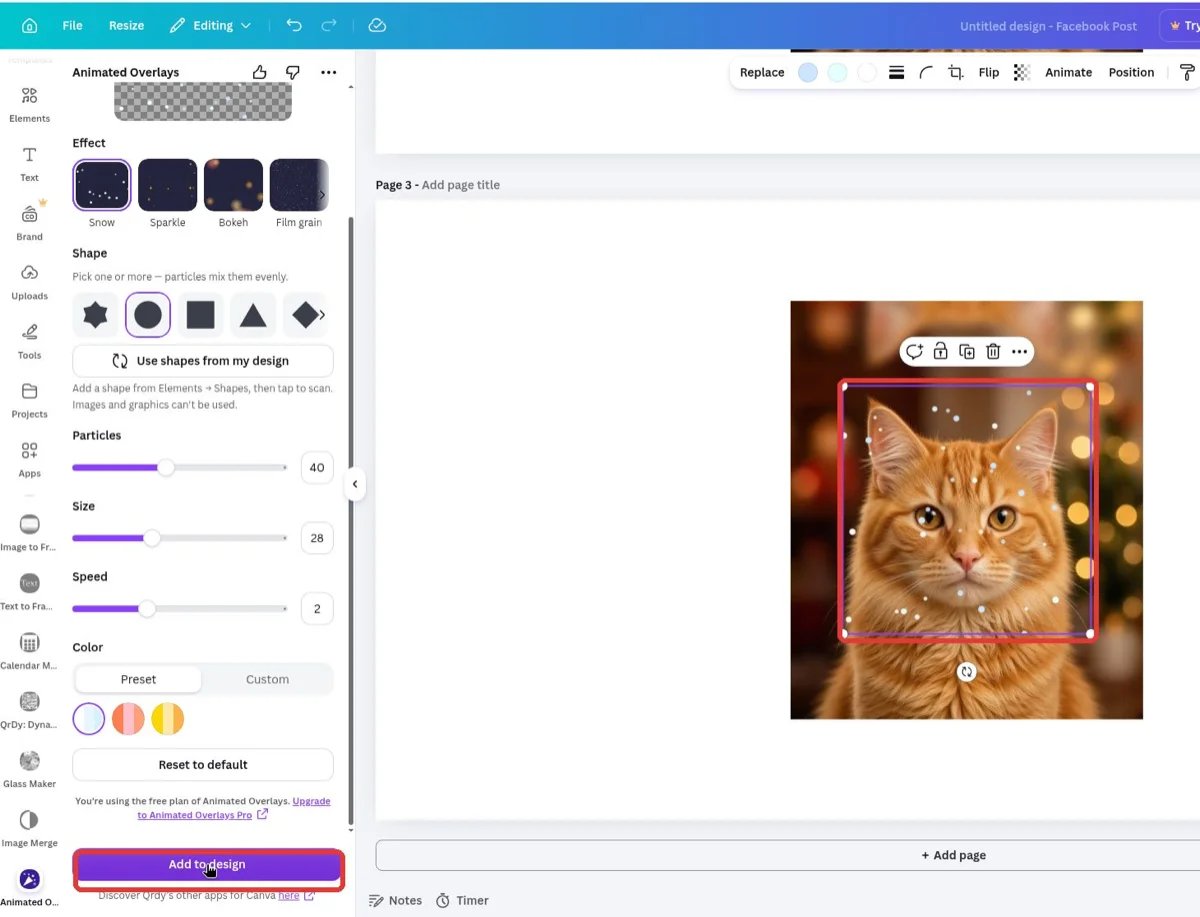
One click on Add to design places the animated sticker on your page
The animation plays in Canva’s Preview mode and in video (MP4) exports. On the editing canvas the sticker appears as a static element until you press play.
Free vs Animated Overlays Pro
You can preview and adjust every Pro effect on the free plan before deciding to upgrade. See the Animated Overlays Pro page for current pricing.
Animated Overlays Pro is a separate subscription from Canva Pro — it unlocks the Pro effects inside this app only.
Next steps
Complete guide
Every effect, shape, slider, and setting explained step by step — with screenshots.
Add a snow effect in Canva
A quick walkthrough of the most popular use case.