

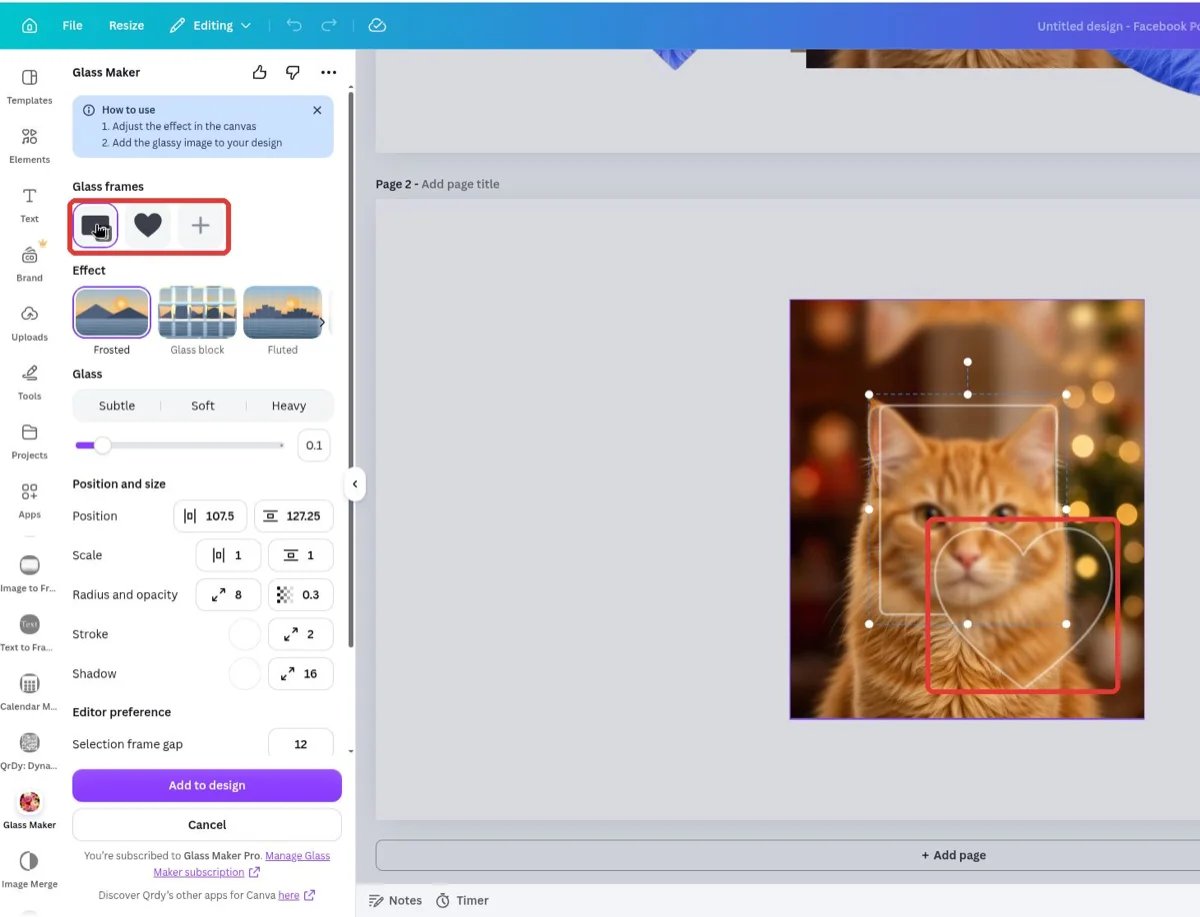
Glass Maker in Canva: glass frames placed and styled directly on the photo
- Photo glass — select an image in your design, drag one or more glass frames onto it, pick an effect per frame, and press Add to design to get the finished image at full resolution.
- Text glass — type your text, pick a font and style (Crystal or Neon), and the app renders it as glass lettering on a transparent PNG you can drop anywhere.
What you can do
5 glass effects
Frosted, Glass block, Fluted, Cracked, and Stained — each with its own styles and fine-tuning controls.
Multiple frames per photo
Place several glass panes on one image, each with its own shape, effect, and settings.
12 frame shapes
Rectangles, pills, circles and more — plus organic shapes like hearts, stars, and leaves, or a shape scanned from your own design.
3D glass text
Crystal and Neon glass lettering from 100+ Google fonts, exported as a transparent PNG.
How it works
1
Select a photo and start
Click an image on your page, then press Start glass effect. The editor overlays your photo with a default glass frame.
2
Shape, place, and style the glass
Drag, resize, and rotate frames right on the image. Add more frames with +, and pick an effect and settings for each.
3
Add to design
The app rebuilds the result at the image’s original resolution — no watermark — and adds the finished image to your page.
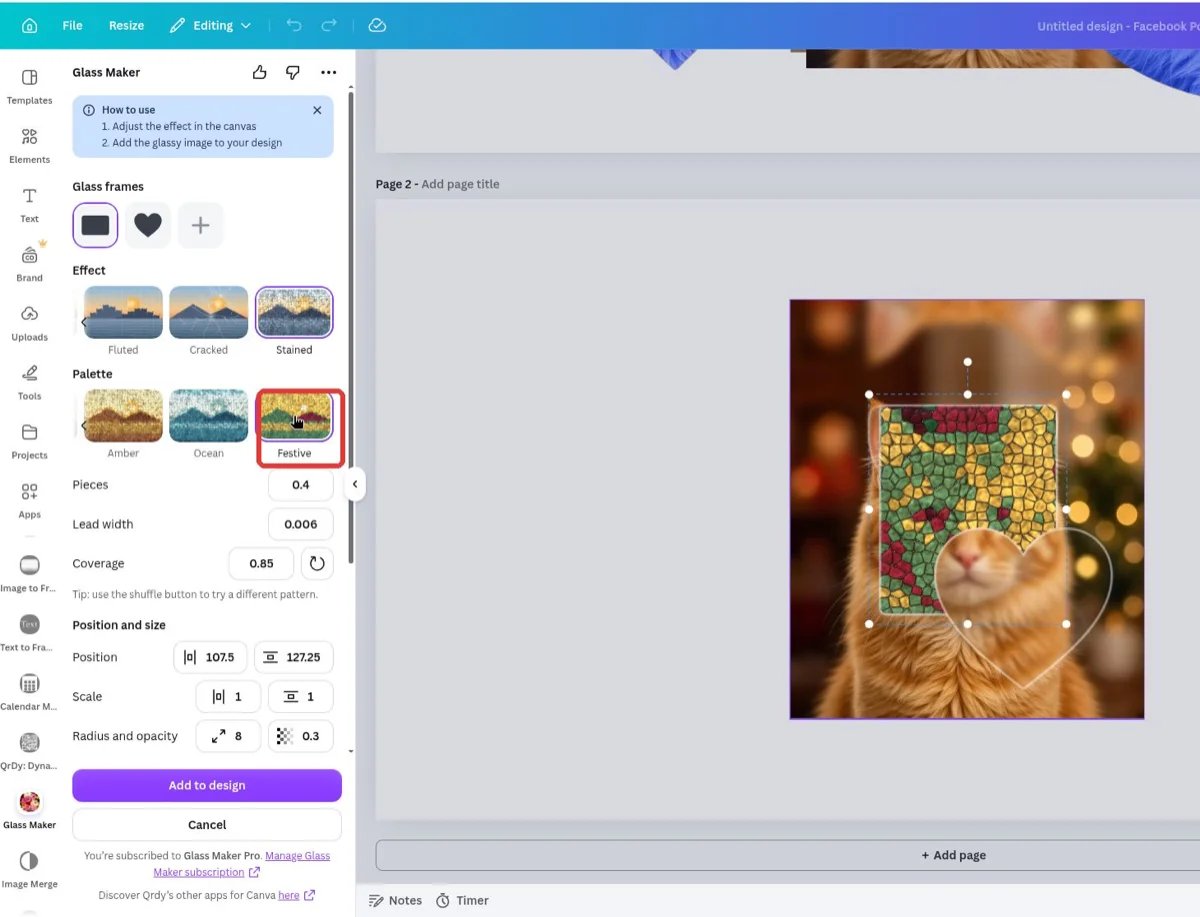
Each frame gets its own effect — here a Stained pane with the Festive palette
The result is a baked image, not a live effect layer. To change the glass afterwards, run the effect again from the original photo.
Free vs Glass Maker Pro
You can try every Pro feature before buying — Pro effects stay previewable on the free plan, and only Add to design asks you to upgrade. Pricing is a one-time purchase (lifetime) or a 24-hour day pass; see the Glass Maker Pro page for current prices. Glass Maker Pro is separate from Canva Pro.
Next steps
Open Glass Maker in Canva
Add frosted panes and glass text to your next design.
Complete guide
Every effect, shape, and slider explained step by step — with screenshots.