Blend two images in Canva with Image Merge — double exposure, multiply, overlay and 14 more blend modes, with a live preview and a transparent PNG result.
Canva’s built-in transparency slider only gets you so far when you want a real blend — double exposure, multiply, overlay, or a color-based mix. The Image Merge app brings 17 Photoshop-style blend effects into Canva, with a live preview and a clean transparent PNG as the result.
In a design that contains your two photos, open Image Merge from the left sidebar (or find it via Apps).
2
Set the first photo as the mask
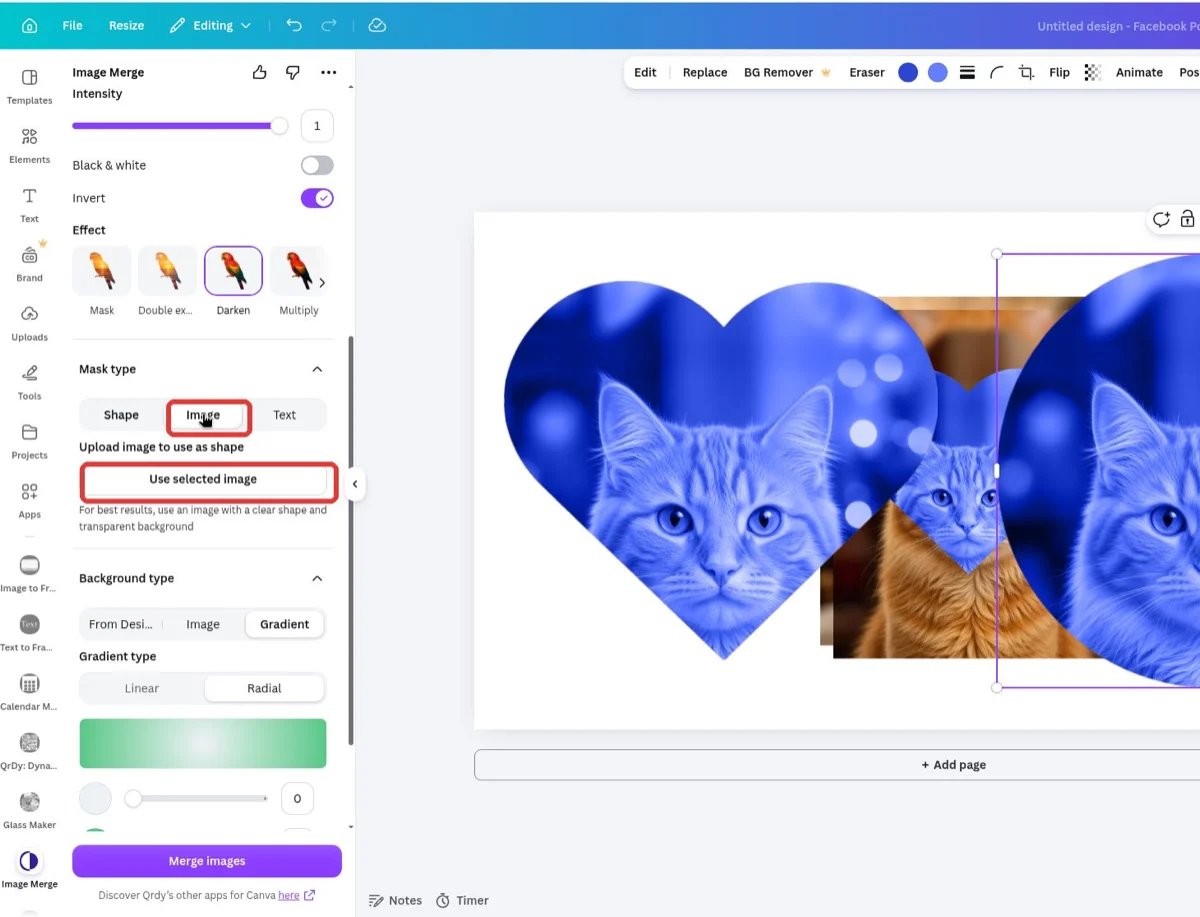
In Mask type, open the Image tab, click your first photo on the page (a portrait works beautifully), then press Use selected image. A photo with a clear subject — ideally on a transparent background — gives the cleanest blend.
Mask type → Image → Use selected image
3
Set the second photo as the background
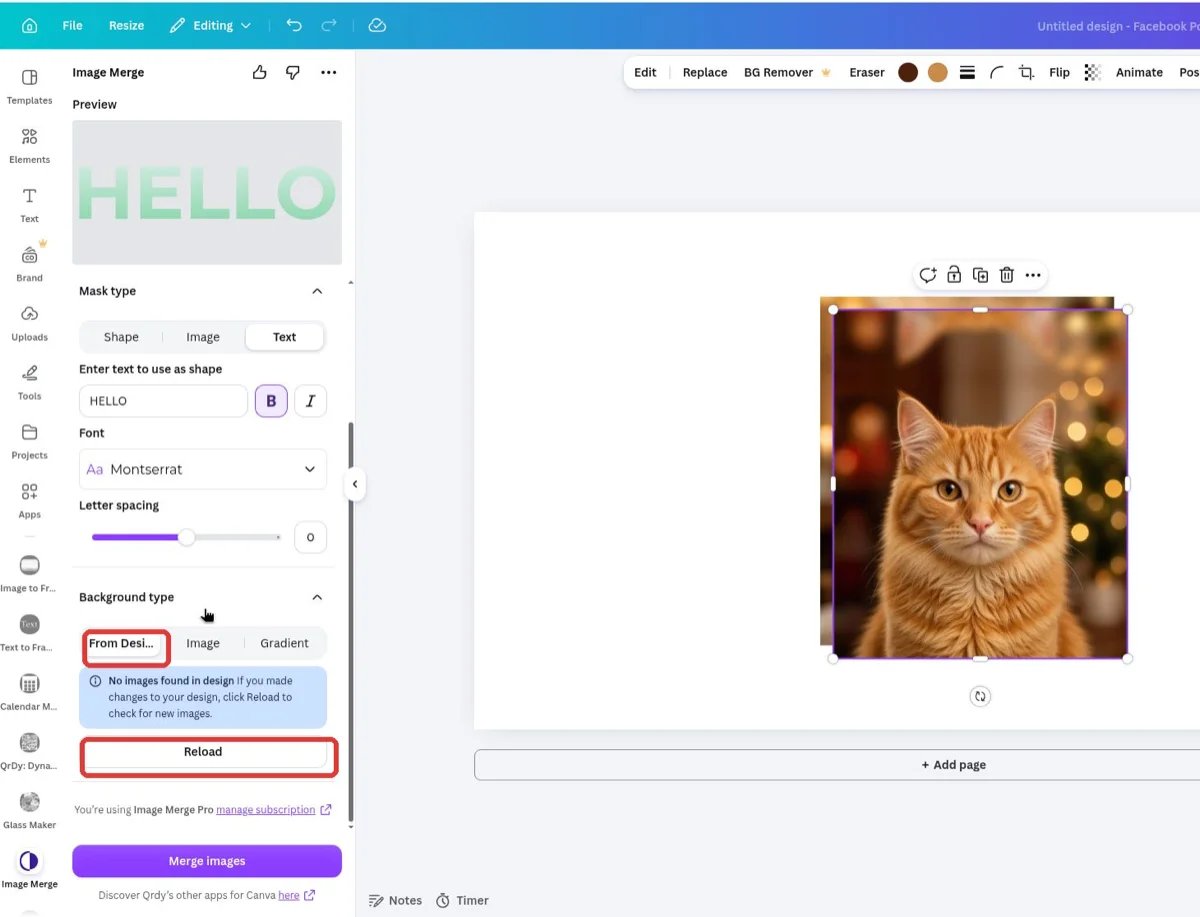
In Background type, open From Design and tap your second photo (a landscape, texture, or skyline). If it’s not listed yet, press Reload.
Background type → From Design lists the images on your page
4
Pick a blend effect
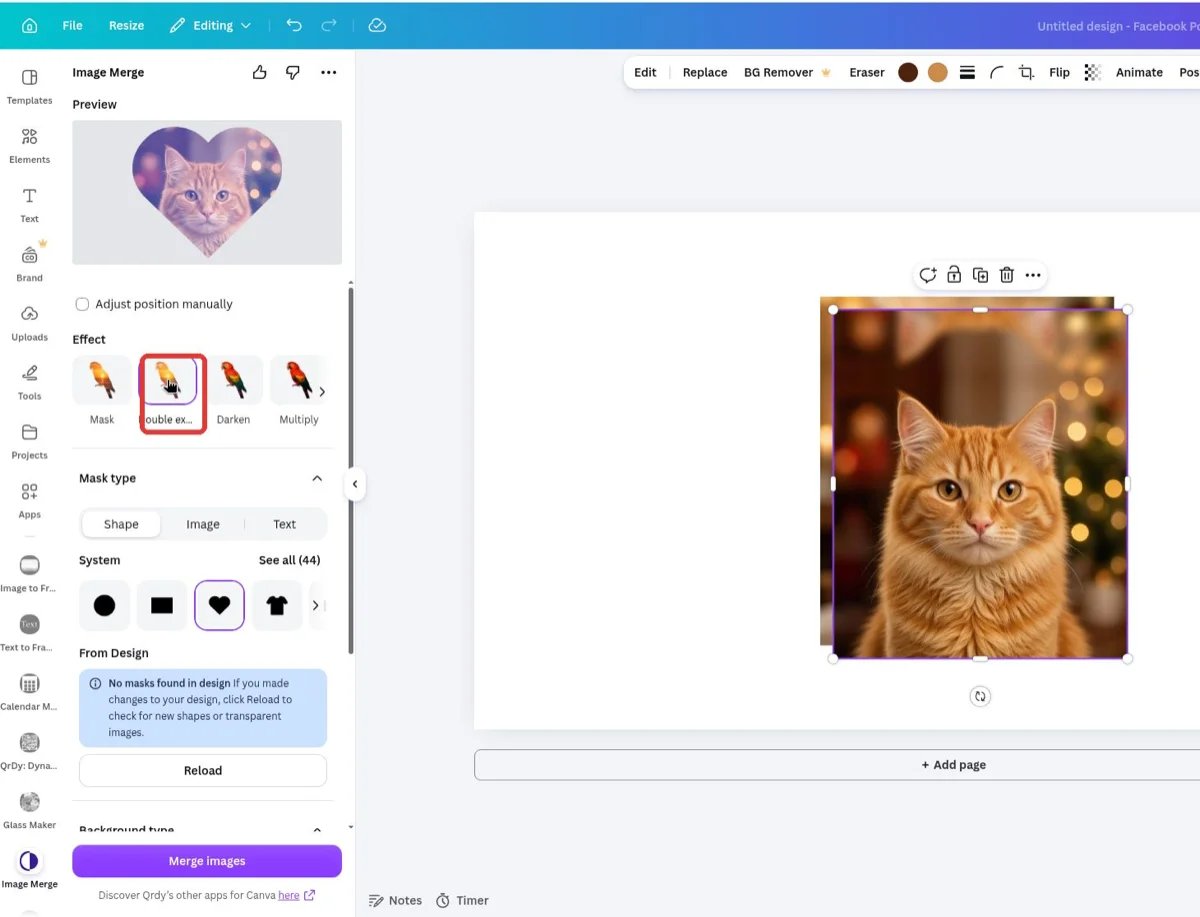
Tap Double exposure for the classic look, or try Multiply, Screen, Overlay, or Soft light. The preview at the top updates instantly with each tap.
Double exposure selected — the preview shows the blend immediately
5
Fine-tune the blend
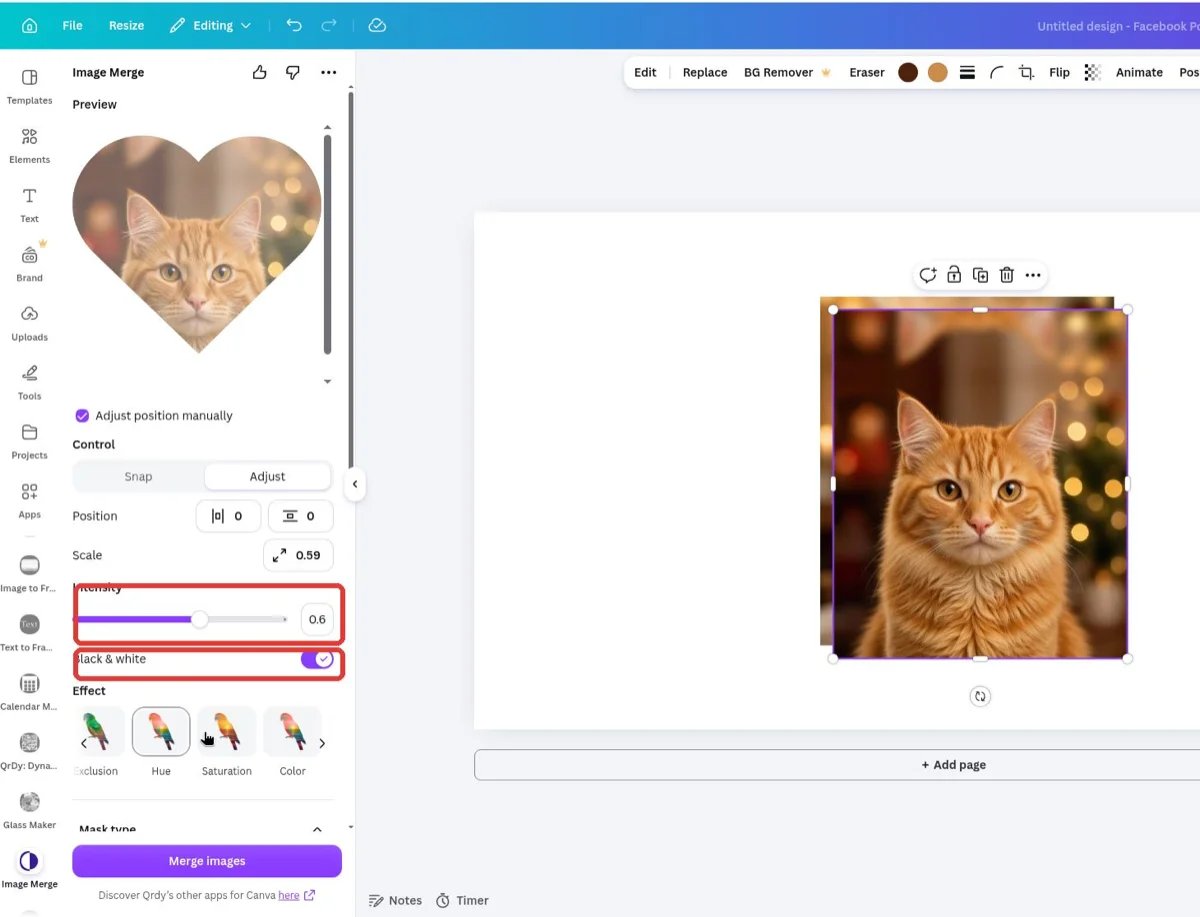
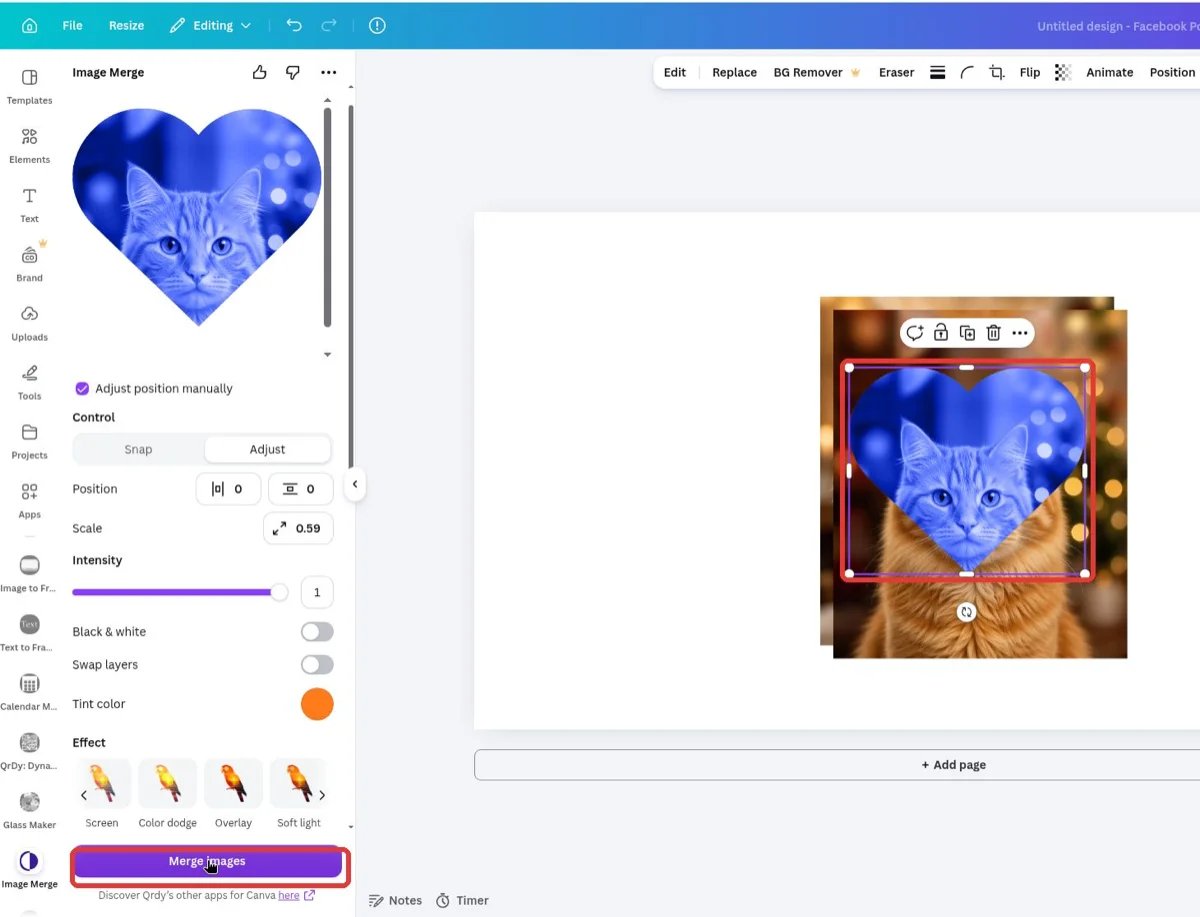
Drag Intensity to control the strength, toggle Black & white for a monochrome base, or set a Tint color for a duotone finish. Tick Adjust position manually to reposition the background inside the subject with the Snap arrows or exact Position/Scale values.
Intensity and Black & white — the quickest way to dial a blend in
6
Press Merge images
The blended result is added to your page as a transparent PNG — move, resize, and layer it like any image.
The merged result on the page, ready to use
Open Image Merge in Canva
17 blend effects, 44 shape masks, text masks, and bulk merge.
The same workflow works with the Shape tab (44 built-in masks like hearts, circles, and brush strokes) or the Text tab (your word filled with the second image). That turns a blend into a graphic element — ideal for thumbnails, posters, and social posts. See the complete guide for every option.
Only roughly — you can lower a photo’s transparency and stack it. For real blend modes (multiply, screen, overlay, double exposure), use Image Merge.
Does the result have a background?
No — the merged PNG is cut to the mask with a transparent background, so it sits cleanly on any design.
Can I redo the blend with different settings?
Yes. The panel keeps your settings after each merge — change the effect or intensity and merge again. Each merge adds a new image and leaves the previous one untouched.
Is blending free?
Yes — all 17 effects and their controls are free. Using a photo as the mask (Image tab), text masks, and bulk merge are part of Image Merge Pro.