Create 3D glass text in Canva with Glass Maker — Crystal or Neon glass lettering on a transparent background, no Photoshop needed. Step-by-step guide with screenshots.
A glass text effect — transparent, embossed lettering that lets the background shine through — normally takes layer styles in Photoshop. With the Glass Maker app you can build it directly in Canva and get a transparent PNG you can place over any photo or video.
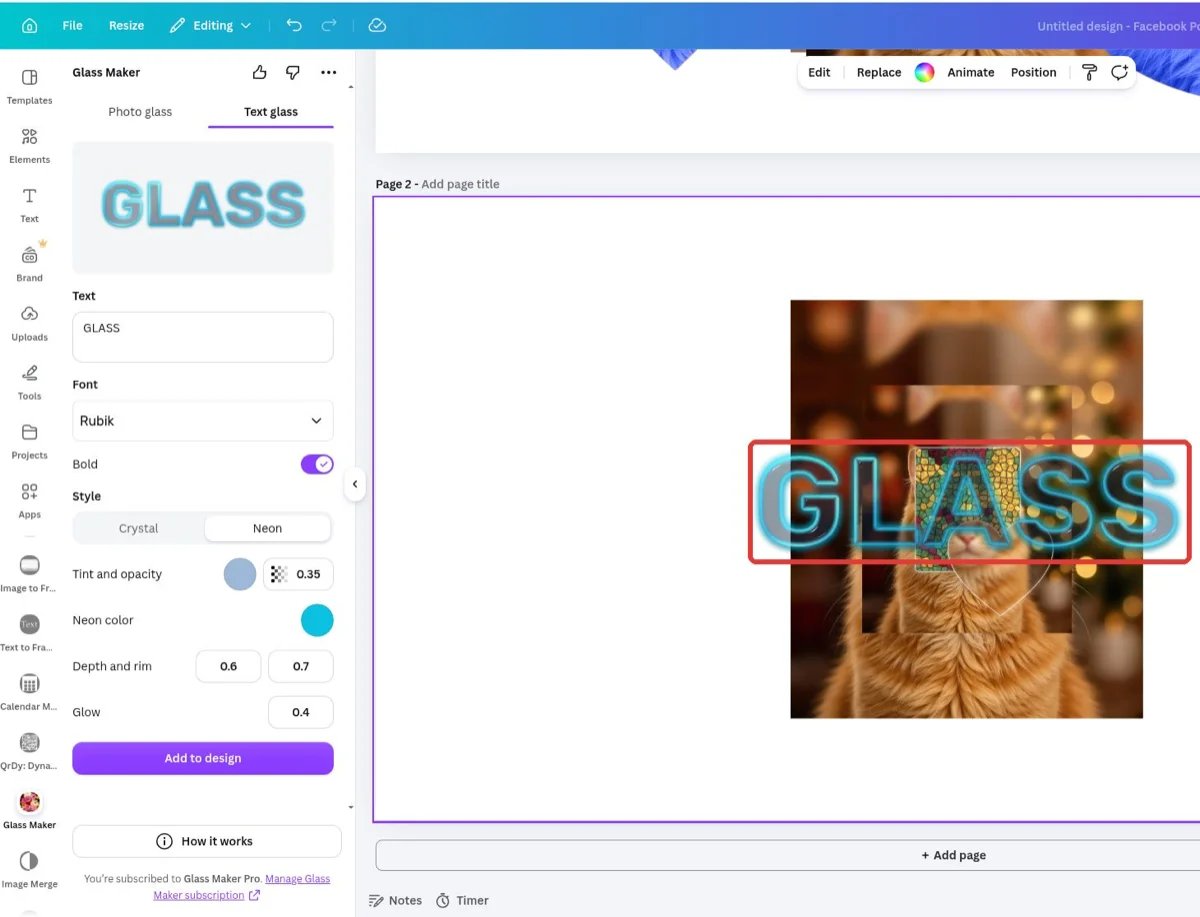
The finished glass text placed over a photo in Canva
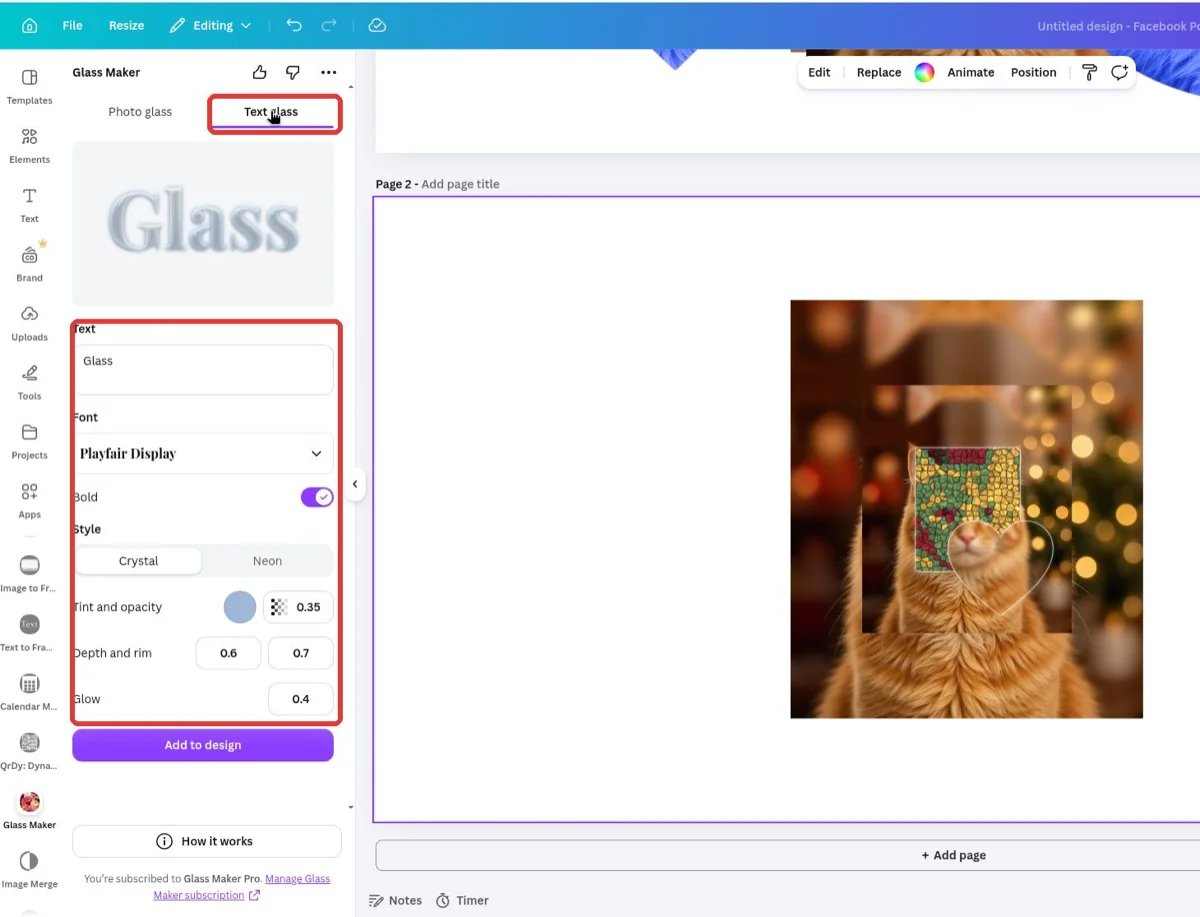
In the Canva editor, open Glass Maker from the left sidebar, then click the Text glass tab. You don’t need an image selected for this tab.
The Text glass tab: Text box, Font, Bold, Style, and glass controls
2
Type your text
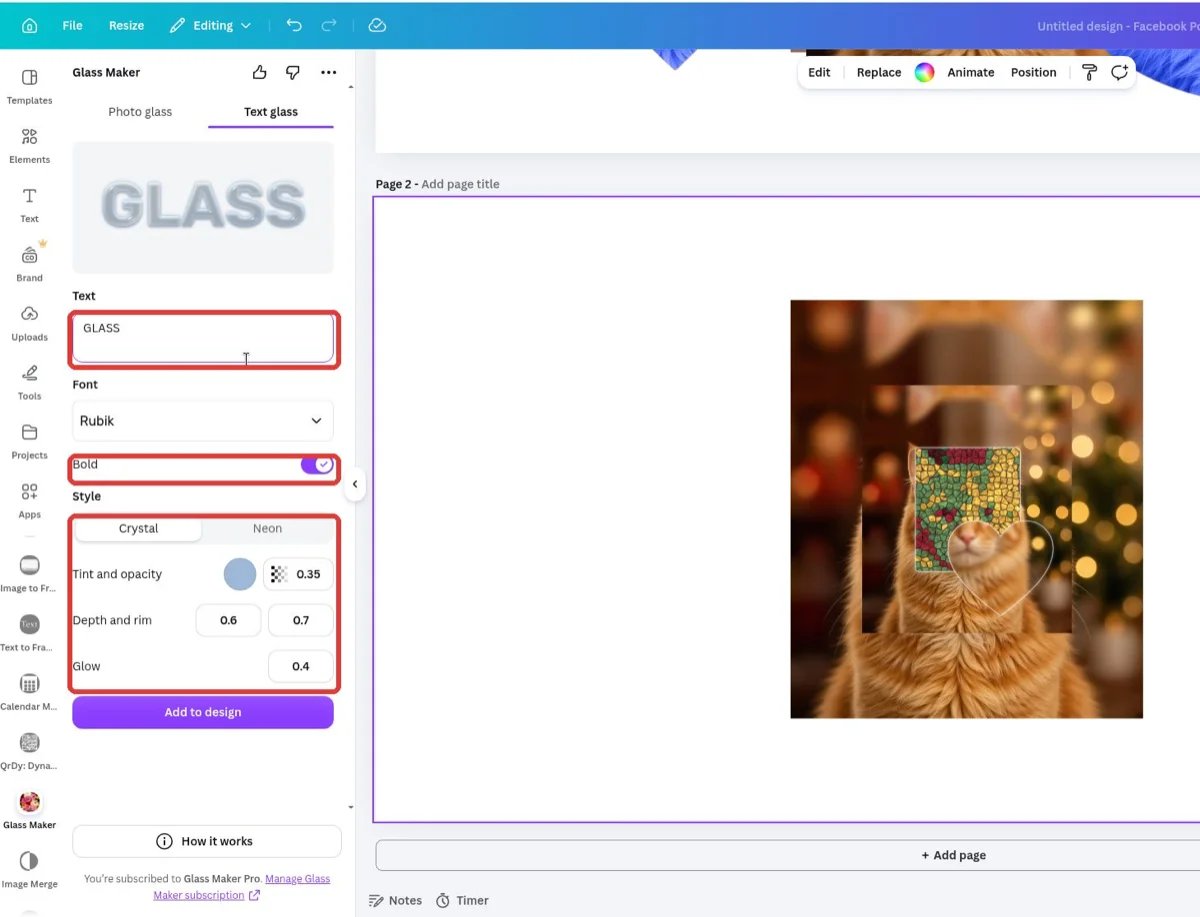
Enter your word or phrase in the Text box. The preview updates as you type, and multi-line text is supported.
3
Pick a font and weight
Click the Font box to browse 100+ Google fonts (default is Playfair Display). Toggle Bold for heavier letterforms — bold glass reads better at small sizes.
4
Choose the style: Crystal or Neon
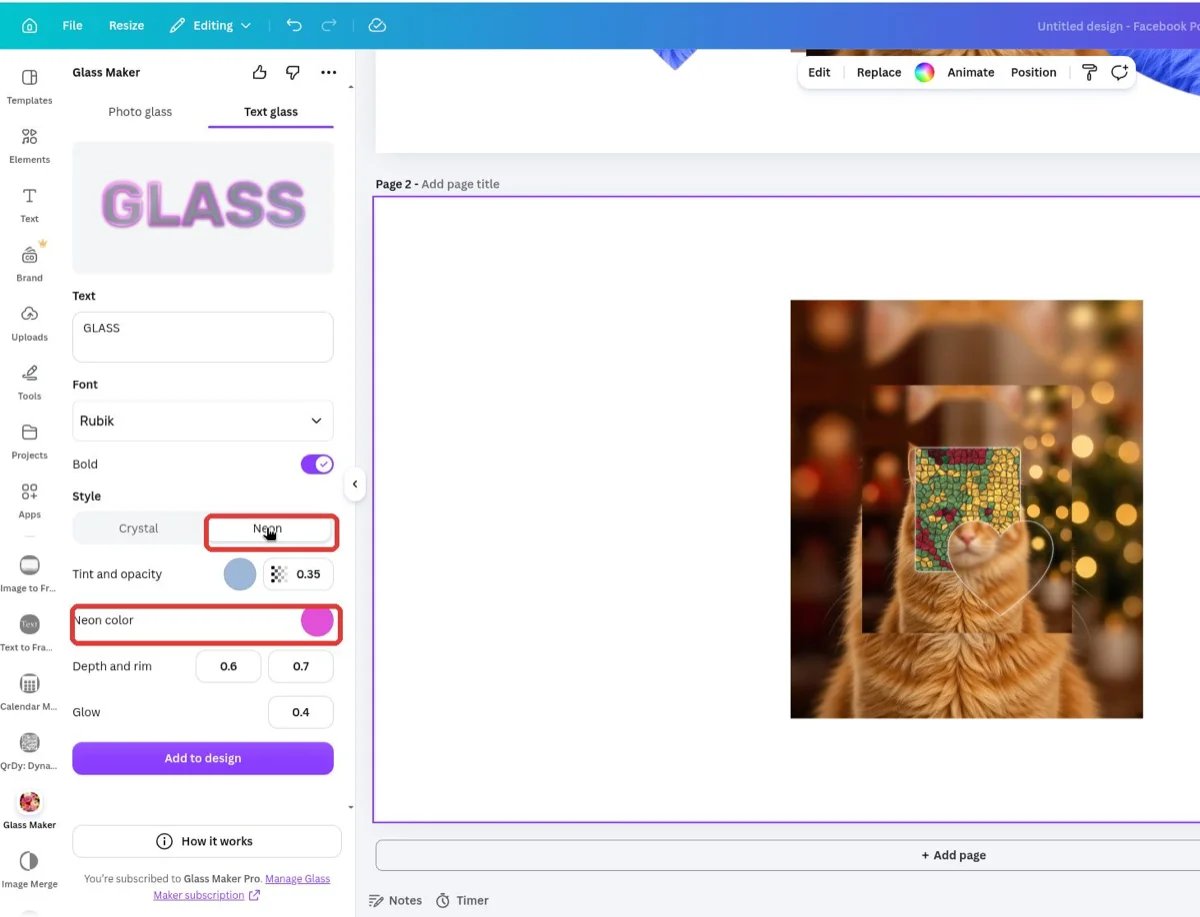
Crystal is clear embossed glass. Neon adds a glowing colored outline — pick the glow color with the Neon color swatch (Neon is a Glass Maker Pro style).
Crystal style: GLASS in Rubik Bold
5
Tune the glass look
Adjust Tint and opacity (glass body color and transparency), Depth and rim (3D depth and edge lighting), and Glow (soft halo) until the preview looks right. Both color swatches open Canva’s color picker, with your design colors and Brand Kit.
Neon style with its Neon color swatch
6
Add to design
Press Add to design. The lettering lands on your page as a transparent PNG — drag it over your photo, resize it, and layer it like any image.
Open Glass Maker in Canva
Crystal and Neon glass text, plus 5 glass effects for photos.