

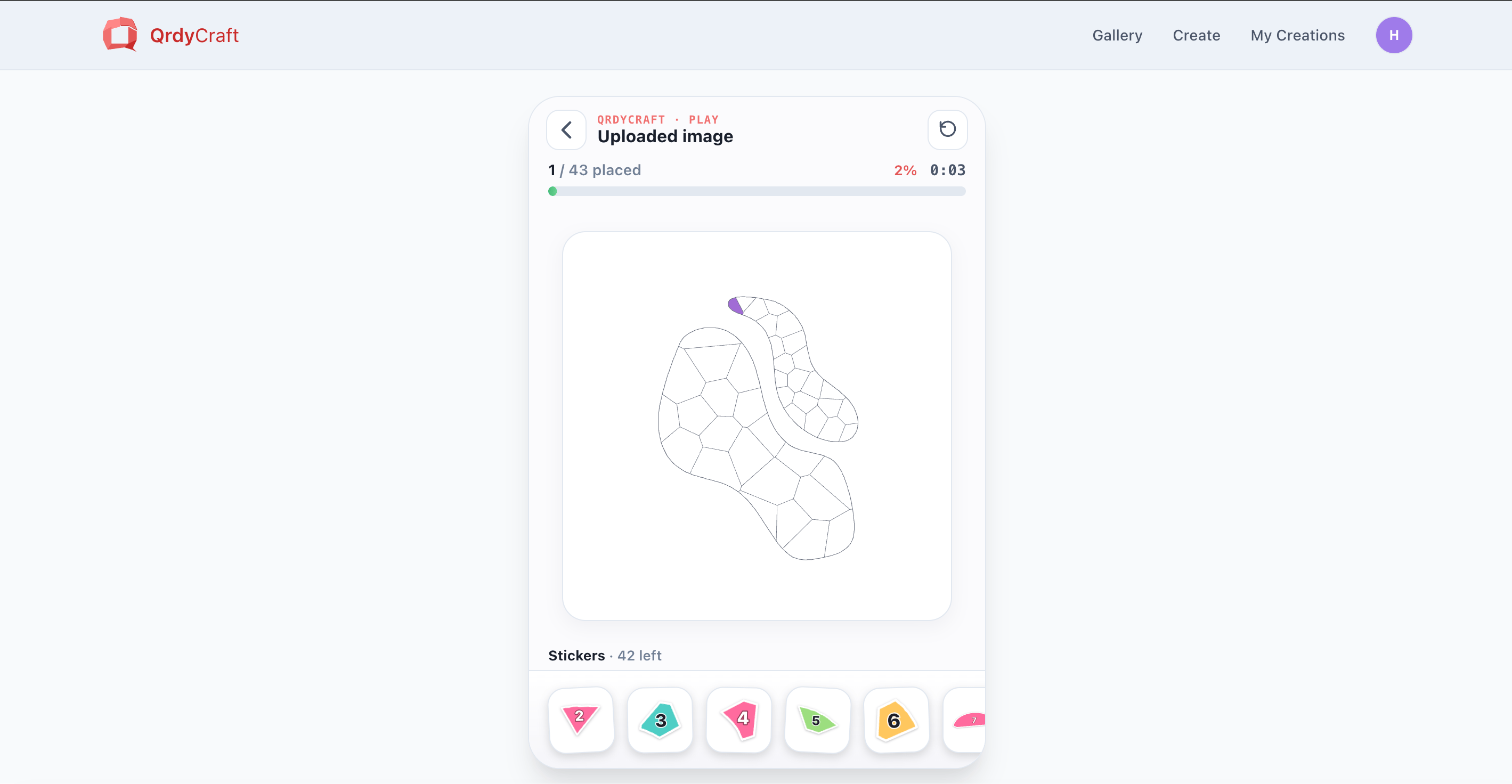
Playing online — drag each numbered sticker from the tray into the matching cell on the grid
Before you start
All you need is a free QrdyAI account (the first creation is free) and a device to play on. There’s no printing, no print shop, and no special materials — the whole thing runs in the browser.Prefer a physical craft? The same mosaic can be printed as peel-and-stick decals instead. See How to Print Sticker-by-Number Decals at Home. This guide covers the play-online path.
Step 1 — Make your paint-by-numbers mosaic
1
Open the Create page
Go to qrdyai.com/craft and click Create yours — free. If you’re not signed in, QrdyCraft sends you to sign in and brings you back.
2
Add a photo or a keyword
Type a keyword (like rainbow butterfly) for a gallery-friendly design, or switch to the Upload photo tab to use your own picture — your kid, the family dog, a drawing. Uploaded photos stay private and are never published to the public gallery.
3
Generate
Click Generate. In a few seconds you’ll see the finished color mosaic. You can preview it as Mosaic art, Numbered grid, Sticker sheet, or Color legend.
4
Pick difficulty and palette
Match the difficulty to your child’s age, then choose a palette (Pastel, Vibrant, Ocean, Forest, Rainbow, Candy) and click Re-tessellate to rebuild the pieces on the same picture. For a first try, Medium · Rainbow keeps a 6-year-old busy for about 30 minutes.
Open QrdyCraft
Turn any photo or keyword into a paint-by-numbers mosaic — free to start.
Step 2 — Start playing online
Once your mosaic is ready, click Play online. You can also reach the play screen later from My Creations or from any design in the public gallery. The play screen looks like a game board: a title, a progress bar (for example, “38 / 48”), the numbered mosaic grid, and a tray of round numbered stickers along the bottom.1
Match the numbers
Your child drags a sticker from the tray to the grid cell that shows the same number. Each correct placement bumps the progress bar up.
2
Fix mistakes easily
Pieces snap into their cells, so it’s forgiving — a wrong number simply won’t lock into the wrong spot.
3
Finish the picture
When the last sticker is placed, the puzzle celebrates with confetti and reveals the full-color image.
Step 3 — Share it with your kids
Because the game is online, you don’t have to hand over your own device. Public designs can be shared by link or QR code — send it to a tablet, or let a child scan the QR to open the game themselves.Share a link
Copy the play link and send it by message or email to any phone or tablet.
Share a QR code
Let your child scan the QR code to open the mosaic and start playing right away.
Keyword-based designs are public and shareable by anyone with the link. Designs made from an uploaded photo are private and can only be opened by the owner while signed in.
No design of your own? Play from the gallery
You don’t have to create anything to try it. Open the public gallery, pick a mosaic, and click Play online to start immediately — a fast way to see how the game works before making your own.Free vs Pro for online play
Free
Create 3 keyword mosaics and 1 photo upload per month, save up to 5 projects, and play any of them online. No card needed to start.
Pro
Unlimited AI creations and uploads, unlimited saved projects, priority processing, and early access to new game types. 79/year.
Doing it in Canva
QrdyCraft also runs as a Canva app, where you can generate a mosaic and add it to your design as a PNG. The play-online game and PDF download are web features, so for the interactive paint-by-numbers experience use the web app at qrdyai.com/craft.Frequently asked questions
Do I need to print anything to play?
Do I need to print anything to play?
No. The play-online path runs entirely in the browser — generate a mosaic, open Play online, and drag numbered stickers into place. Printing is only for the separate peel-and-stick decal path.
Is this a paint-by-numbers maker for my own photos?
Is this a paint-by-numbers maker for my own photos?
Yes. Upload a photo and QrdyCraft turns it into a numbered mosaic you can play online. Uploaded photos are traced for their outline, the original is discarded, and those designs never appear in the public gallery.
What device is best for playing?
What device is best for playing?
A phone or tablet works well for dragging stickers, but any browser is fine. Share the play link or QR code to open the game on your child’s device.
What age is this good for?
What age is this good for?
Roughly 4–12. Match the difficulty to the child: Easy (30–50 pieces) for ages 4–6, Medium (60–100) for 7–9, and Hard (120–200) for 10–12.