> ## Documentation Index
> Fetch the complete documentation index at: https://docs.qrdyai.com/llms.txt
> Use this file to discover all available pages before exploring further.
# How to Print Sticker-by-Number Decals at Home (Step by Step)
> Turn a photo or keyword into printable sticker-by-number decals with QrdyCraft. Step-by-step: generate the mosaic, download the two PDFs, and get real peel-and-stick decals printed and cut.
Want a real, peel-and-stick craft your kids can finish at the kitchen table? **QrdyCraft** turns any photo — or even just a keyword like "rainbow butterfly" — into a **mosaic sticker-by-number**, then gives you two print-ready PDFs. This guide walks through the whole print path: generate the mosaic, download the files, get the decals printed and kiss-cut, and set your child up to stick by number.
QrdyCraft is **parent-operated, kid-played**: you create and print it, your child (roughly ages 4–12) does the sticking. The whole print run usually costs about \$1–3 per sheet at a local decal shop.
 ## Before you start
You'll need a QrdyAI account (free to start — the first creation is free) and access to a **print-and-cut decal shop**. That's any print shop with a print-and-cut machine such as a Roland VersaSTUDIO or Mimaki CJV. Many local sign, sticker, and copy shops have one.
Prefer no printing at all? Every mosaic can also be played online — share a link or QR code and your child drags numbered stickers into place on a phone or tablet. This guide covers the **print** path; the online path needs no setup beyond sharing the link.
## Step 1 — Generate your mosaic
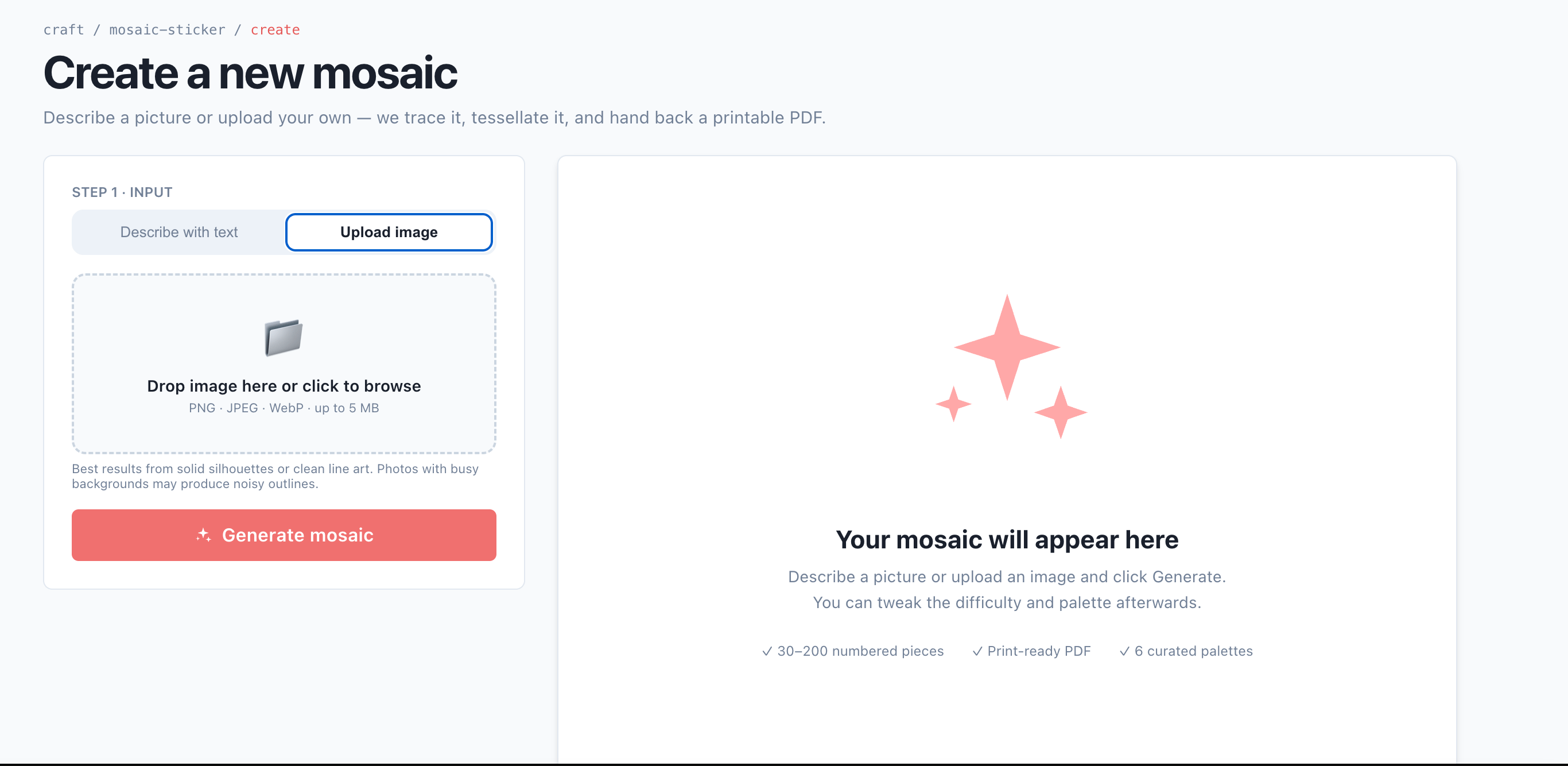
Go to [qrdyai.com/craft](https://qrdyai.com/craft) and click **Create yours — free**. If you're not signed in, QrdyCraft will send you to sign in and bring you back.
Type a keyword (like *rainbow butterfly*) for a gallery-friendly design, or switch to the **Upload photo** tab to use your own picture — your kid, the family dog, a drawing. Uploaded photos stay private and are never published to the public gallery.
Click **Generate**. In a few seconds you'll see the finished color mosaic. You can preview it as **Mosaic art**, **Numbered grid**, **Sticker sheet**, or **Color legend**.
Match the difficulty to your child's age, then choose a palette (Pastel, Vibrant, Ocean, Forest, Rainbow, Candy) and click **Re-tessellate** to rebuild the pieces on the same picture. For a first try, **Medium · Rainbow** keeps a 6-year-old busy for about 30 minutes.
| Difficulty | Sticker pieces | Suggested age |
| ---------- | -------------- | ------------- |
| Easy | 30–50 | 4–6 |
| Medium | 60–100 | 7–9 |
| Hard | 120–200 | 10–12 |
## Step 2 — Download the two PDFs
Click **Download**. QrdyCraft gives you a ZIP with two files, each for a different purpose:
* **`mosaic-preview.pdf`** (5 pages, for your family): cover, finished art, numbered grid, sticker sheet, and color key.
* **`stickers-print-and-cut.pdf`** (1 page, for the print shop): the sticker sheet with a special **CutContour** line so a print-and-cut machine knows exactly where to kiss-cut each decal.
On the free plan, a small `Made with QrdyCraft` watermark appears only on the cover and finished-art pages. The **numbered grid, sticker sheet, and color key — the pages your child actually uses — never carry a watermark**, and on the print-and-cut file the watermark sits outside the cut line, so the machine trims it away.
## Step 3 — Get the decals printed and cut
Take **`stickers-print-and-cut.pdf`** to a decal print shop and ask for:
> "A4, transparent PVC decal, print and kiss-cut on the CutContour spot color. One sheet."
That "kiss-cut" instruction tells the machine to cut through the sticker layer but not the backing, so each numbered piece peels off cleanly. This usually takes 5–15 minutes and costs about **\$1–3 per sheet**.
Print results, materials, machine compatibility, pricing, and turnaround vary by shop. **Always confirm the file, material, cut line, and price with your print shop before you order.** QrdyCraft and QRdy are not responsible for print quality, cutting accuracy, or any costs from a third-party print service. When possible, ask for a single test sheet first.
## Step 4 — Print the reference pages at home
From **`mosaic-preview.pdf`**, print **pages 3–5** on plain A4 paper:
* **Page 3 — numbered grid:** the board your child sticks onto.
* **Page 4 — sticker sheet:** shows where each numbered piece goes.
* **Page 5 — color key:** matches numbers to colors.
No special paper or printer needed here — a home inkjet or laser printer is fine.
## Step 5 — Peel and stick by number
Give your child the printed numbered grid and the cut decal sheet. They **peel a sticker, find the grid cell with the same number, and press it down**. For the first few seconds each decal can still slide, so a slightly crooked piece is easy to nudge straight. When the grid is full, the picture appears.
## Before you start
You'll need a QrdyAI account (free to start — the first creation is free) and access to a **print-and-cut decal shop**. That's any print shop with a print-and-cut machine such as a Roland VersaSTUDIO or Mimaki CJV. Many local sign, sticker, and copy shops have one.
Prefer no printing at all? Every mosaic can also be played online — share a link or QR code and your child drags numbered stickers into place on a phone or tablet. This guide covers the **print** path; the online path needs no setup beyond sharing the link.
## Step 1 — Generate your mosaic
Go to [qrdyai.com/craft](https://qrdyai.com/craft) and click **Create yours — free**. If you're not signed in, QrdyCraft will send you to sign in and bring you back.
Type a keyword (like *rainbow butterfly*) for a gallery-friendly design, or switch to the **Upload photo** tab to use your own picture — your kid, the family dog, a drawing. Uploaded photos stay private and are never published to the public gallery.
Click **Generate**. In a few seconds you'll see the finished color mosaic. You can preview it as **Mosaic art**, **Numbered grid**, **Sticker sheet**, or **Color legend**.
Match the difficulty to your child's age, then choose a palette (Pastel, Vibrant, Ocean, Forest, Rainbow, Candy) and click **Re-tessellate** to rebuild the pieces on the same picture. For a first try, **Medium · Rainbow** keeps a 6-year-old busy for about 30 minutes.
| Difficulty | Sticker pieces | Suggested age |
| ---------- | -------------- | ------------- |
| Easy | 30–50 | 4–6 |
| Medium | 60–100 | 7–9 |
| Hard | 120–200 | 10–12 |
## Step 2 — Download the two PDFs
Click **Download**. QrdyCraft gives you a ZIP with two files, each for a different purpose:
* **`mosaic-preview.pdf`** (5 pages, for your family): cover, finished art, numbered grid, sticker sheet, and color key.
* **`stickers-print-and-cut.pdf`** (1 page, for the print shop): the sticker sheet with a special **CutContour** line so a print-and-cut machine knows exactly where to kiss-cut each decal.
On the free plan, a small `Made with QrdyCraft` watermark appears only on the cover and finished-art pages. The **numbered grid, sticker sheet, and color key — the pages your child actually uses — never carry a watermark**, and on the print-and-cut file the watermark sits outside the cut line, so the machine trims it away.
## Step 3 — Get the decals printed and cut
Take **`stickers-print-and-cut.pdf`** to a decal print shop and ask for:
> "A4, transparent PVC decal, print and kiss-cut on the CutContour spot color. One sheet."
That "kiss-cut" instruction tells the machine to cut through the sticker layer but not the backing, so each numbered piece peels off cleanly. This usually takes 5–15 minutes and costs about **\$1–3 per sheet**.
Print results, materials, machine compatibility, pricing, and turnaround vary by shop. **Always confirm the file, material, cut line, and price with your print shop before you order.** QrdyCraft and QRdy are not responsible for print quality, cutting accuracy, or any costs from a third-party print service. When possible, ask for a single test sheet first.
## Step 4 — Print the reference pages at home
From **`mosaic-preview.pdf`**, print **pages 3–5** on plain A4 paper:
* **Page 3 — numbered grid:** the board your child sticks onto.
* **Page 4 — sticker sheet:** shows where each numbered piece goes.
* **Page 5 — color key:** matches numbers to colors.
No special paper or printer needed here — a home inkjet or laser printer is fine.
## Step 5 — Peel and stick by number
Give your child the printed numbered grid and the cut decal sheet. They **peel a sticker, find the grid cell with the same number, and press it down**. For the first few seconds each decal can still slide, so a slightly crooked piece is easy to nudge straight. When the grid is full, the picture appears.
 ## Tips and troubleshooting
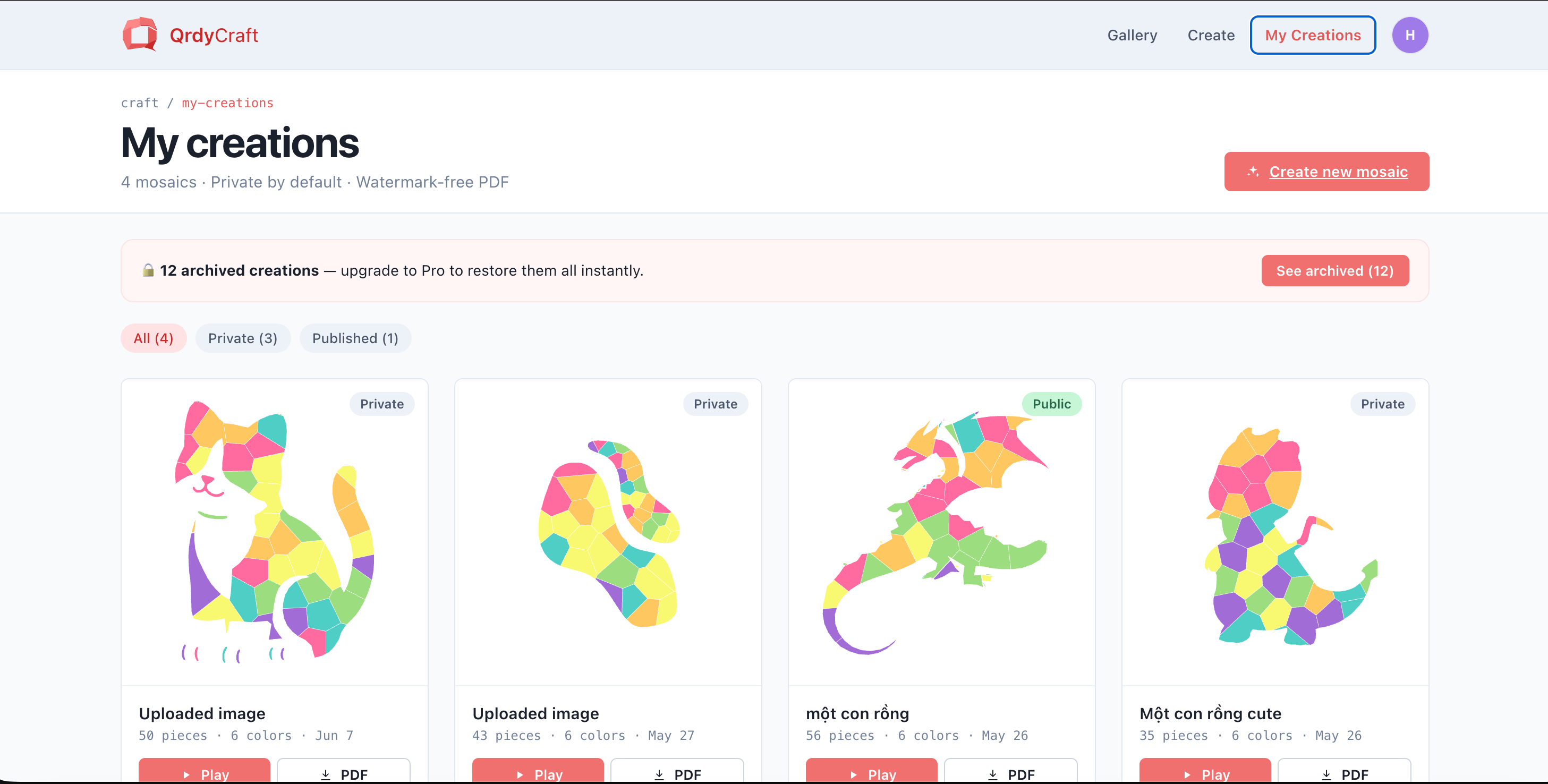
Save your project so you can reprint later — every mosaic lives in **My Creations**, where you can re-download the PDFs, tweak difficulty or palette and re-tessellate, or share a play-online link. On the free plan you can keep up to 5 projects (older ones are hidden, not deleted); Pro removes the limit.
If a print shop asks about the extra line in the file, explain it's a **spot color named CutContour** used to drive the cutter — they'll recognize it. If your shop can't do transparent PVC, matte white sticker vinyl works too; the decals just won't be see-through.
## Do it in Canva instead
QrdyCraft also runs as a **Canva app**. Inside Canva you can generate a mosaic and add it straight to your design as a PNG. Note that **PDF download isn't available in the Canva version yet** — for the print-and-cut decal files, use the web app at [qrdyai.com/craft](https://qrdyai.com/craft).
## Frequently asked questions
No. The at-home pages (numbered grid, sticker sheet, color key) print fine on any inkjet or laser printer. Only the decal sheet needs a print-and-cut machine, which is why you take that one file to a print shop.
Typically about \$1–3 per A4 sheet at a local decal shop, and it usually takes 5–15 minutes.
Yes. QrdyCraft traces only the outline of an uploaded photo and discards the original, and mosaics made from uploads are never added to the public gallery. Only keyword-based designs can appear there.
Roughly 4–12. Match the difficulty to the child: Easy (30–50 pieces) for ages 4–6, Medium (60–100) for 7–9, and Hard (120–200) for 10–12.
## Tips and troubleshooting
Save your project so you can reprint later — every mosaic lives in **My Creations**, where you can re-download the PDFs, tweak difficulty or palette and re-tessellate, or share a play-online link. On the free plan you can keep up to 5 projects (older ones are hidden, not deleted); Pro removes the limit.
If a print shop asks about the extra line in the file, explain it's a **spot color named CutContour** used to drive the cutter — they'll recognize it. If your shop can't do transparent PVC, matte white sticker vinyl works too; the decals just won't be see-through.
## Do it in Canva instead
QrdyCraft also runs as a **Canva app**. Inside Canva you can generate a mosaic and add it straight to your design as a PNG. Note that **PDF download isn't available in the Canva version yet** — for the print-and-cut decal files, use the web app at [qrdyai.com/craft](https://qrdyai.com/craft).
## Frequently asked questions
No. The at-home pages (numbered grid, sticker sheet, color key) print fine on any inkjet or laser printer. Only the decal sheet needs a print-and-cut machine, which is why you take that one file to a print shop.
Typically about \$1–3 per A4 sheet at a local decal shop, and it usually takes 5–15 minutes.
Yes. QrdyCraft traces only the outline of an uploaded photo and discards the original, and mosaics made from uploads are never added to the public gallery. Only keyword-based designs can appear there.
Roughly 4–12. Match the difficulty to the child: Easy (30–50 pieces) for ages 4–6, Medium (60–100) for 7–9, and Hard (120–200) for 10–12.