> ## Documentation Index
> Fetch the complete documentation index at: https://docs.qrdyai.com/llms.txt
> Use this file to discover all available pages before exploring further.
# Get Free Calendar Maker Code
> [Download the NoteMe app](https://qrdynamic.app/govip/5nio05), create a note with key 'calendar', and receive a free 1-month Calendar Maker code instantly. Perfect for creating monthly, weekly, or custom calendars in Canva.
## Quick steps
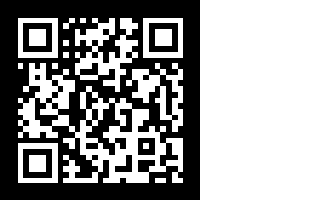
[Download the NoteMe app](https://qrdynamic.app/govip/5nio05) on your mobile device. Scan the QR code below for quick access, or use the direct links:
 * **iOS**: Download from [App Store](https://apps.apple.com/app/id6754964197)
* **Android**: Download from [Google Play](https://play.google.com/store/apps/details?id=com.qrdy.atme)
The QR code automatically detects your device and redirects you to the correct app store!
Open the NoteMe app, log in (or create a free account), and create a new note with the key **"calendar"** in the content field.
* **iOS**: Download from [App Store](https://apps.apple.com/app/id6754964197)
* **Android**: Download from [Google Play](https://play.google.com/store/apps/details?id=com.qrdy.atme)
The QR code automatically detects your device and redirects you to the correct app store!
Open the NoteMe app, log in (or create a free account), and create a new note with the key **"calendar"** in the content field.
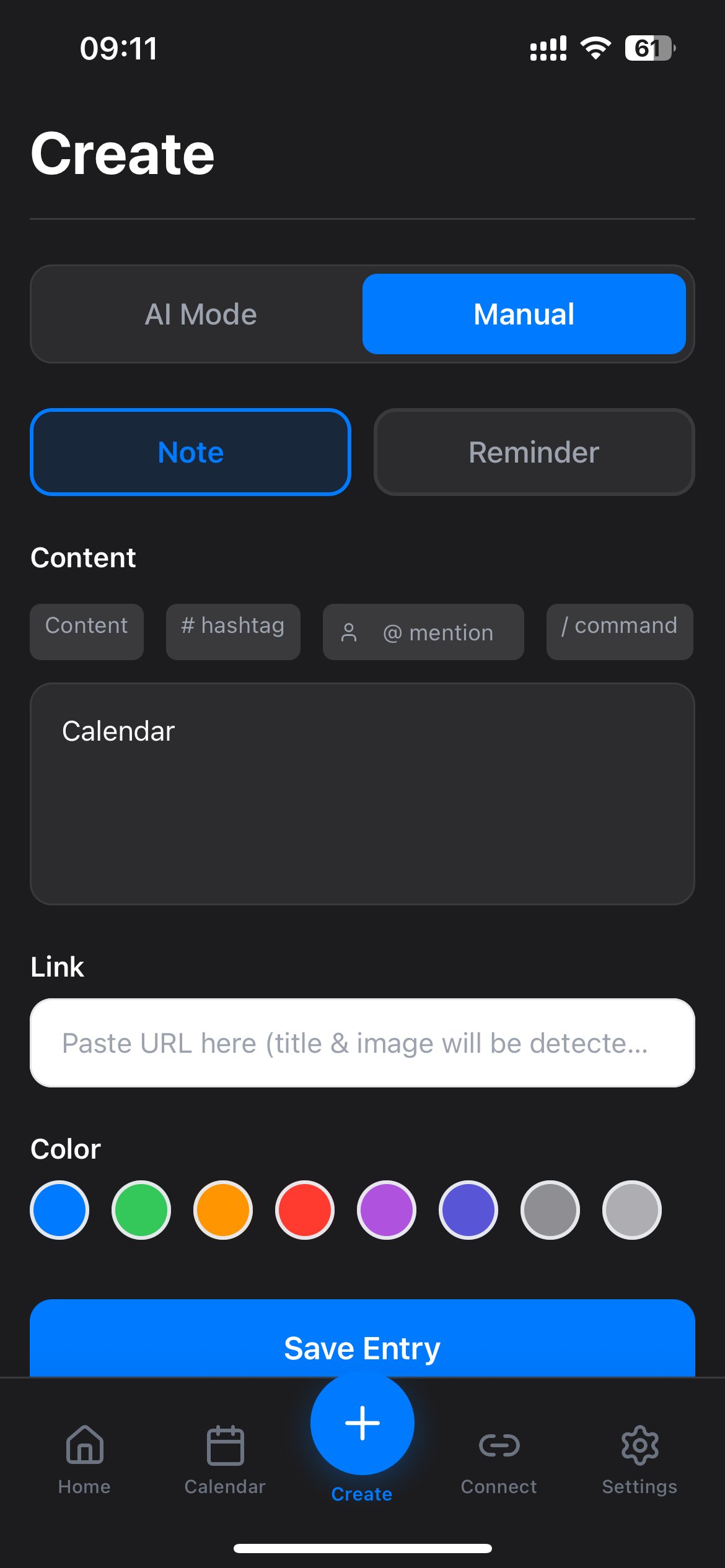 Note created with "calendar" key? Perfect! The system will process your request and return a code.
After creating the note with key "calendar", you'll receive your free Calendar Maker code instantly. The code will appear in your NoteMe app.
Note created with "calendar" key? Perfect! The system will process your request and return a code.
After creating the note with key "calendar", you'll receive your free Calendar Maker code instantly. The code will appear in your NoteMe app.
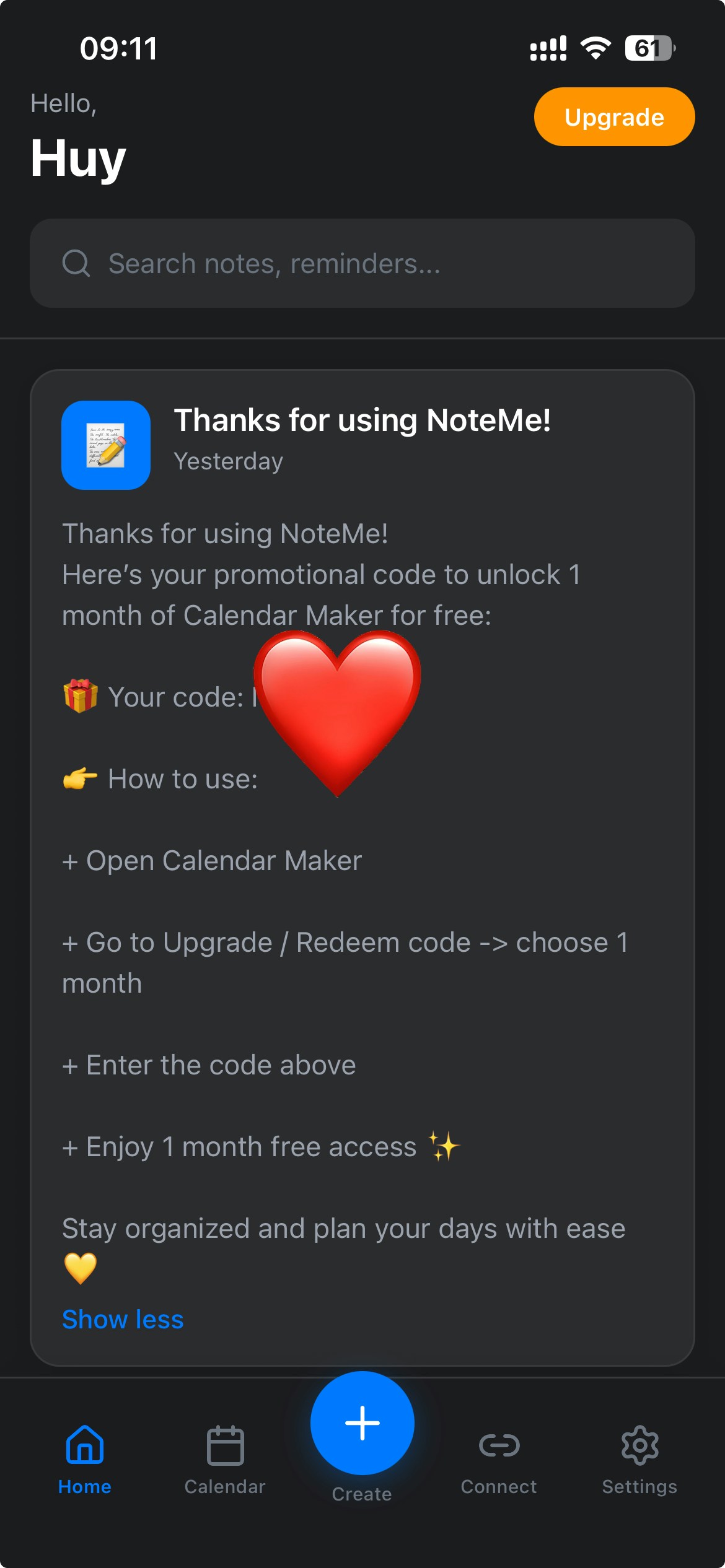 The code will be displayed in your NoteMe app. Make sure to copy it before proceeding to redeem.
Once you have your code:
1. Visit [Calendar Maker in Canva](https://qrdynamic.xyz/calendarmaker-in-canva)
2. Go to the payment/subscription page
3. **Select the 1-month plan** (the code only works for the 1-month subscription)
4. Enter your code during checkout
5. Enjoy your free month of Calendar Maker!
**Important**: The code only applies to the 1-month subscription plan. Make sure you select the 1-month option when redeeming.
## About Calendar Maker
Calendar Maker is a powerful Canva app that lets you create beautiful calendars effortlessly:
* **Monthly calendars**: Generate full-month calendars with just a few clicks
* **Weekly calendars**: Create weekly planners and schedules
* **Custom date ranges**: Choose any date range to create custom calendars
* **Perfect for organization**: Track deadlines, events, and important dates
Create your first calendar in Canva with Calendar Maker.
## Troubleshooting
Make sure you've completed all steps correctly:
* Downloaded the **mobile app** (iOS or Android) - this doesn't work on the web version
* Created a note with the exact key **"calendar"** (lowercase) in the content field
* Logged in to your NoteMe account
If you've completed all steps correctly and still don't see the code, try:
* Refreshing the app or restarting it
* Checking if the note was saved successfully
* Creating another note with "calendar" key
If the issue persists, contact support at [support@qrdynamic.xyz](mailto:support@qrdynamic.xyz).
Make sure you:
* Selected the **1-month subscription plan** (not annual or other plans)
* Entered the code exactly as shown (check for any extra spaces or characters)
* The code hasn't expired (check the notification for expiration date if mentioned)
If the code still doesn't work, contact support with a screenshot of the error.
No, this offer is only available on the mobile app (iOS or Android). You need to download the app from the App Store or Google Play to participate.
This offer is typically for new users. If you already have an active Calendar Maker subscription, the code may not apply. Contact support for clarification.
No! This offer is available to all NoteMe users, including free users. You just need to download the mobile app and create a note with the key "calendar".
Make sure to use lowercase "calendar" as the key. The system looks for the exact key "calendar" (all lowercase) in your note content.
## Related guides
Learn how to use NoteMe effectively.
Complete guide to NoteMe mobile features.
The code will be displayed in your NoteMe app. Make sure to copy it before proceeding to redeem.
Once you have your code:
1. Visit [Calendar Maker in Canva](https://qrdynamic.xyz/calendarmaker-in-canva)
2. Go to the payment/subscription page
3. **Select the 1-month plan** (the code only works for the 1-month subscription)
4. Enter your code during checkout
5. Enjoy your free month of Calendar Maker!
**Important**: The code only applies to the 1-month subscription plan. Make sure you select the 1-month option when redeeming.
## About Calendar Maker
Calendar Maker is a powerful Canva app that lets you create beautiful calendars effortlessly:
* **Monthly calendars**: Generate full-month calendars with just a few clicks
* **Weekly calendars**: Create weekly planners and schedules
* **Custom date ranges**: Choose any date range to create custom calendars
* **Perfect for organization**: Track deadlines, events, and important dates
Create your first calendar in Canva with Calendar Maker.
## Troubleshooting
Make sure you've completed all steps correctly:
* Downloaded the **mobile app** (iOS or Android) - this doesn't work on the web version
* Created a note with the exact key **"calendar"** (lowercase) in the content field
* Logged in to your NoteMe account
If you've completed all steps correctly and still don't see the code, try:
* Refreshing the app or restarting it
* Checking if the note was saved successfully
* Creating another note with "calendar" key
If the issue persists, contact support at [support@qrdynamic.xyz](mailto:support@qrdynamic.xyz).
Make sure you:
* Selected the **1-month subscription plan** (not annual or other plans)
* Entered the code exactly as shown (check for any extra spaces or characters)
* The code hasn't expired (check the notification for expiration date if mentioned)
If the code still doesn't work, contact support with a screenshot of the error.
No, this offer is only available on the mobile app (iOS or Android). You need to download the app from the App Store or Google Play to participate.
This offer is typically for new users. If you already have an active Calendar Maker subscription, the code may not apply. Contact support for clarification.
No! This offer is available to all NoteMe users, including free users. You just need to download the mobile app and create a note with the key "calendar".
Make sure to use lowercase "calendar" as the key. The system looks for the exact key "calendar" (all lowercase) in your note content.
## Related guides
Learn how to use NoteMe effectively.
Complete guide to NoteMe mobile features.