> ## Documentation Index
> Fetch the complete documentation index at: https://docs.qrdyai.com/llms.txt
> Use this file to discover all available pages before exploring further.
# Image to Frames
> Image to Frames is a Canva app that converts images into custom frames with one click. Access 40,000+ premium frames and growing or create your own. Pro subscription required.
## Welcome to Image to Frames
Image to Frames is a powerful Canva app that instantly converts any image into a custom frame. With one click, transform photos, illustrations, or SVG files into frames you can use directly in your Canva designs. No design skills needed - it's that simple.
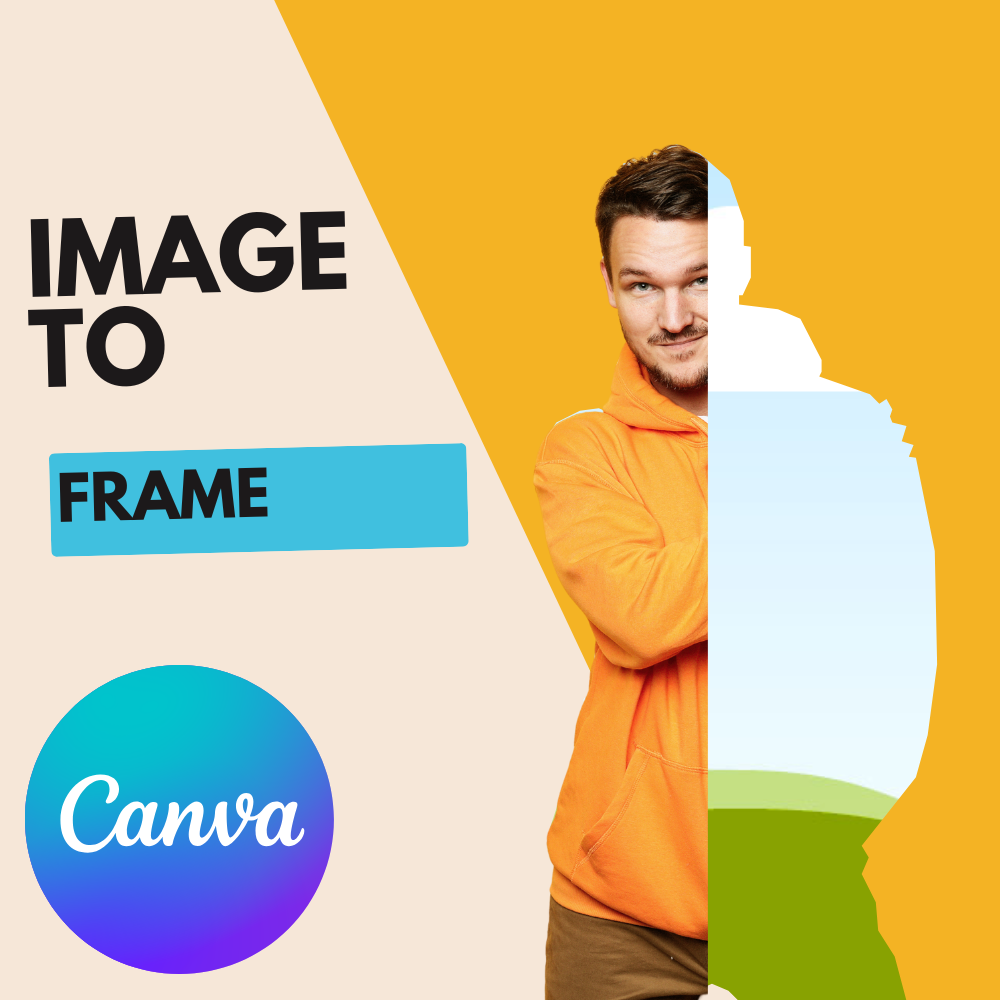 Learn how to install and use Image to Frames in Canva.
## What you can do
Upload any image and convert it to a frame instantly. Fully automatic - no manual editing required.
Browse and download from our extensive frame library. Search by tags and import frames into Canva.
Use images from your Canva design, upload files, or import frames from our store - choose what works best.
Frames work directly in Canva. Drag images into frames to crop them perfectly.
## Quick start guide
Add the Image to Frames app to your Canva workspace from the Apps panel.
Use an image from your design, upload a file, or import from our Frame Library.
Click convert - your image is instantly transformed into a frame. Fully automatic!
Drag images into your frame to crop them perfectly. Resize and style as needed.
## Popular use cases
Convert text images into individual character frames for creative typography.
Transform country maps into stunning artwork with embedded images.
Create unique frames for Instagram, Facebook, and TikTok that make your content stand out.
Create professional double exposure effects using frames and opacity controls.
## Pro subscription required
Image to Frames requires a Pro subscription. Free users cannot access any features. Students and teachers can get a free 1-year Pro subscription. Visit the [Pro Features page](/image-to-frames/pro-features) for pricing details.
**Pro includes:**
* ✅ Unlimited image-to-frame conversions
* ✅ Access to 40,000+ premium frames and growing
* ✅ All future feature updates
* ✅ Priority support
See all Pro features and start your 1-day free trial.
## Important: Import frames correctly
When you download frames from our library, you must import them into the Image to Frames app in Canva. Simply downloading the SVG file won't work - the frame needs to be imported into the app to display correctly.
## Need help?
Find answers to common questions about Image to Frames.
Can't find what you're looking for? Our support team is here to help.
Learn how to install and use Image to Frames in Canva.
## What you can do
Upload any image and convert it to a frame instantly. Fully automatic - no manual editing required.
Browse and download from our extensive frame library. Search by tags and import frames into Canva.
Use images from your Canva design, upload files, or import frames from our store - choose what works best.
Frames work directly in Canva. Drag images into frames to crop them perfectly.
## Quick start guide
Add the Image to Frames app to your Canva workspace from the Apps panel.
Use an image from your design, upload a file, or import from our Frame Library.
Click convert - your image is instantly transformed into a frame. Fully automatic!
Drag images into your frame to crop them perfectly. Resize and style as needed.
## Popular use cases
Convert text images into individual character frames for creative typography.
Transform country maps into stunning artwork with embedded images.
Create unique frames for Instagram, Facebook, and TikTok that make your content stand out.
Create professional double exposure effects using frames and opacity controls.
## Pro subscription required
Image to Frames requires a Pro subscription. Free users cannot access any features. Students and teachers can get a free 1-year Pro subscription. Visit the [Pro Features page](/image-to-frames/pro-features) for pricing details.
**Pro includes:**
* ✅ Unlimited image-to-frame conversions
* ✅ Access to 40,000+ premium frames and growing
* ✅ All future feature updates
* ✅ Priority support
See all Pro features and start your 1-day free trial.
## Important: Import frames correctly
When you download frames from our library, you must import them into the Image to Frames app in Canva. Simply downloading the SVG file won't work - the frame needs to be imported into the app to display correctly.
## Need help?
Find answers to common questions about Image to Frames.
Can't find what you're looking for? Our support team is here to help.