> ## Documentation Index
> Fetch the complete documentation index at: https://docs.qrdyai.com/llms.txt
> Use this file to discover all available pages before exploring further.
# What is Image to Frames?
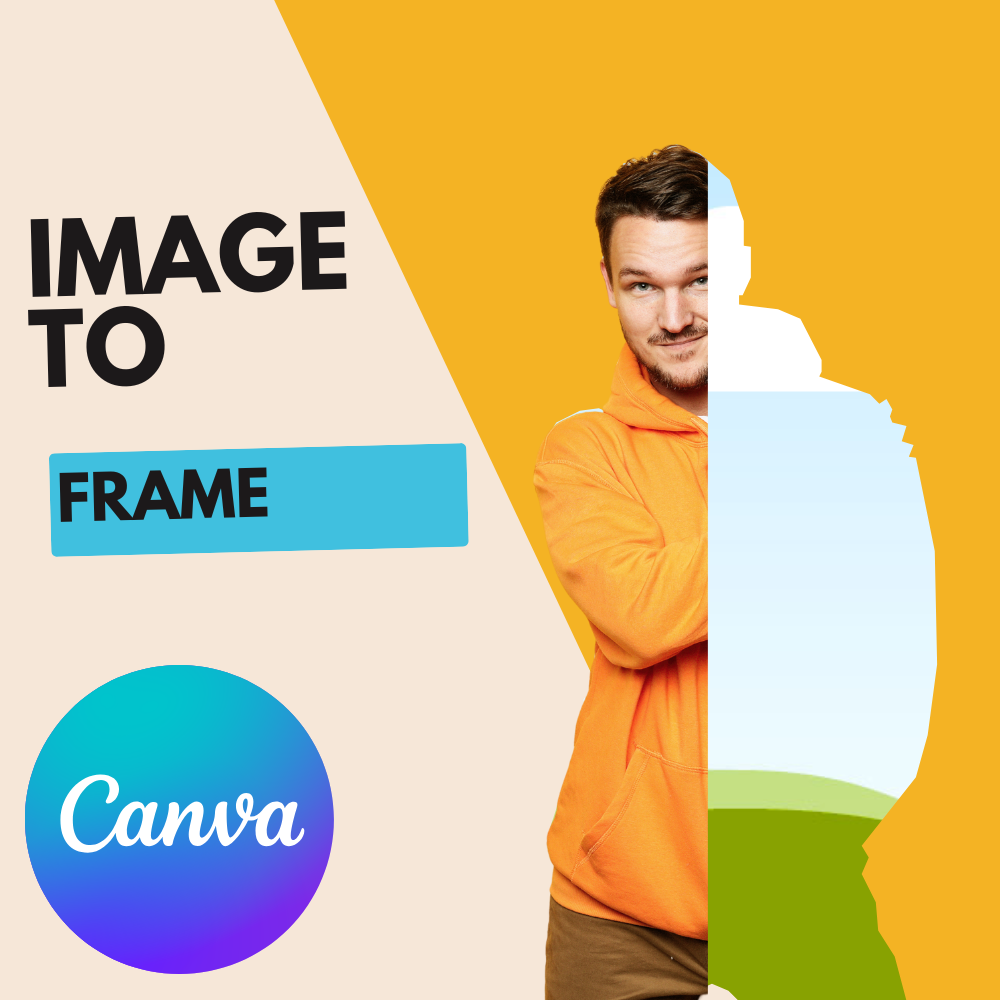
> Image to Frames is a Canva app that converts images into custom frames with one click. Access 40,000+ premium frames and growing or create your own from any image.
Image to Frames is a powerful Canva app that instantly converts any image into a custom frame. With one click, transform photos, illustrations, or SVG files into frames you can use directly in your Canva designs. No design skills needed - it's that simple.
## What you can do
Upload any image and convert it to a frame instantly. Fully automatic - no manual editing required.
Browse and download from our extensive frame library. Search by tags like animal, map, heart, cute, or man.
Use images from your Canva design, upload files, or import frames from our store - choose what works best for you.
Supports PNG, SVG, and JPG formats. Perfect for photos, illustrations, and vector graphics.
## How it works
Image to Frames offers three simple ways to create frames:
Tap on any image in your Canva design. This is the fastest way - no upload needed!
This method is recommended because it's the quickest and most convenient.
Upload a photo, illustration, or SVG file from your device. Perfect for importing SVG files and converting them to frames.
Download frames from our library of [40,000+ premium frames and growing](https://frames.qrdyai.com/frames), then import them into the Image to Frames app in Canva.
Click convert and your image is instantly transformed into a frame. Fully automatic - no tracing or manual editing needed.
Your frame is ready to use in Canva. Simply drag images into the frame to crop them perfectly.
## Perfect for
✅ **Social media posts** - Create unique frames for Instagram, Facebook, and TikTok\
✅ **Text to frames** - Convert text images into individual character frames\
✅ **Map art** - Transform country maps into stunning artwork with embedded images\
✅ **Product mockups** - Showcase products with custom-shaped frames\
✅ **Double exposure effects** - Create professional double exposure designs\
✅ **Puzzle games** - Design interactive puzzle pieces for Facebook games
## Important: Import frames correctly
When you download frames from our library, you must import them into the Image to Frames app in Canva. Simply downloading the SVG file won't work - the frame needs to be imported into the app to display correctly.
## Pro features
Image to Frames Pro unlocks unlimited conversions and full access to our premium frame library:
* ✅ Unlimited image-to-frame conversions
* ✅ Access to 40,000+ premium frames and growing
* ✅ All future feature updates
* ✅ Priority support
## Video tutorial
Watch our complete tutorial to learn all features and functions:
Learn how to install and use Image to Frames in Canva.
 ## What you can do