> ## Documentation Index
> Fetch the complete documentation index at: https://docs.qrdyai.com/llms.txt
> Use this file to discover all available pages before exploring further.
# Image to Frames: The Complete Guide (Every Feature, Step by Step)
> The full Image to Frames guide for Canva — turn any PNG, JPG, or SVG into a custom Canva frame. Three input methods, borders, the Frame Store, and the key remove-background tip, with screenshots.
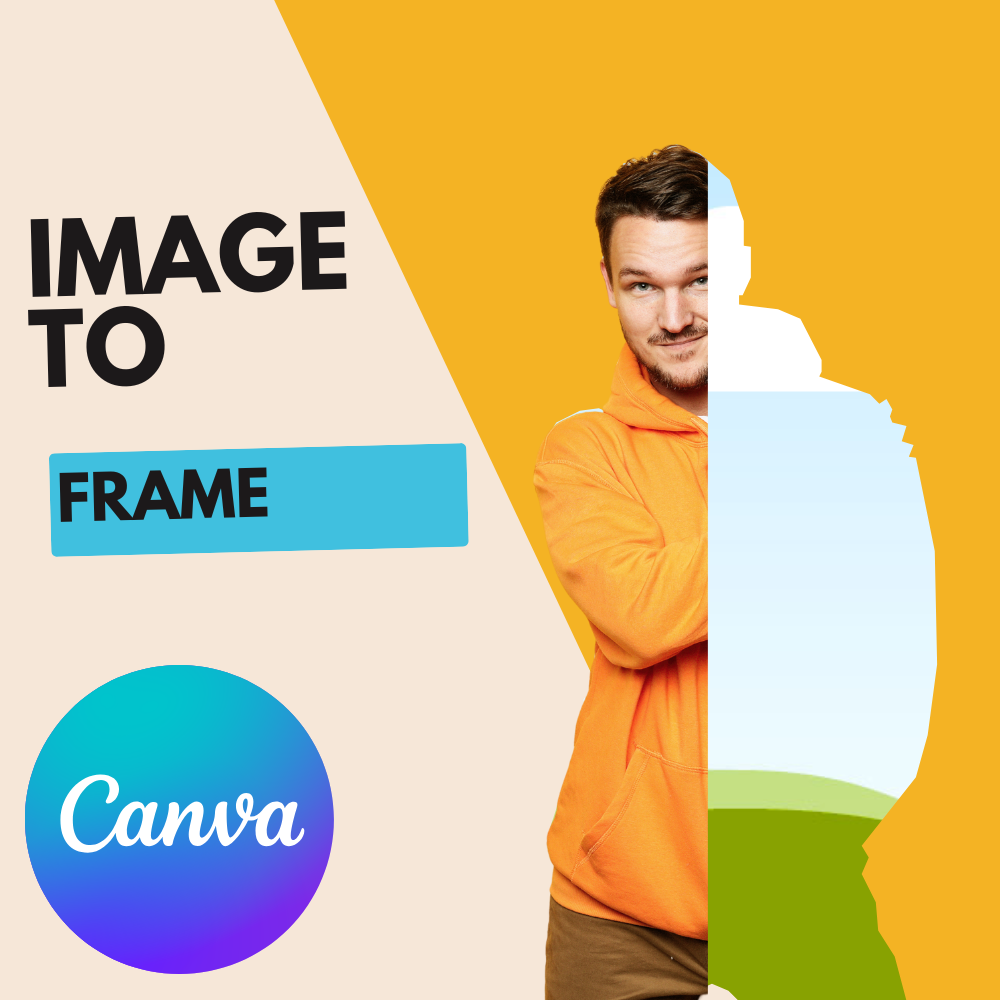
**Image to Frames** is a Canva app that turns any image into a valid Canva frame — a shape you can drop other photos or videos into. Have a star, a letter, or a logo? Image to Frames turns it into a star/letter/logo-shaped frame you can fill with any image. This guide covers **every feature**, step by step, with screenshots.
## What Image to Frames does
Canva's built-in frames are basic shapes. Image to Frames lets you define the frame yourself from any image, so you're not limited to the built-in set.
 * **Formats:** PNG, SVG, JPG (up to **5MB** per file).
* **One-click convert:** add an image, click **Add frame to design**, and the frame appears.
* **True-to-outline frames:** if the image has a transparent background, the frame follows its real shape (not a rectangle).
* **Border control:** set border weight and color.
* **Frame Store:** a library of ready-made frames.
## Three ways to bring in an image
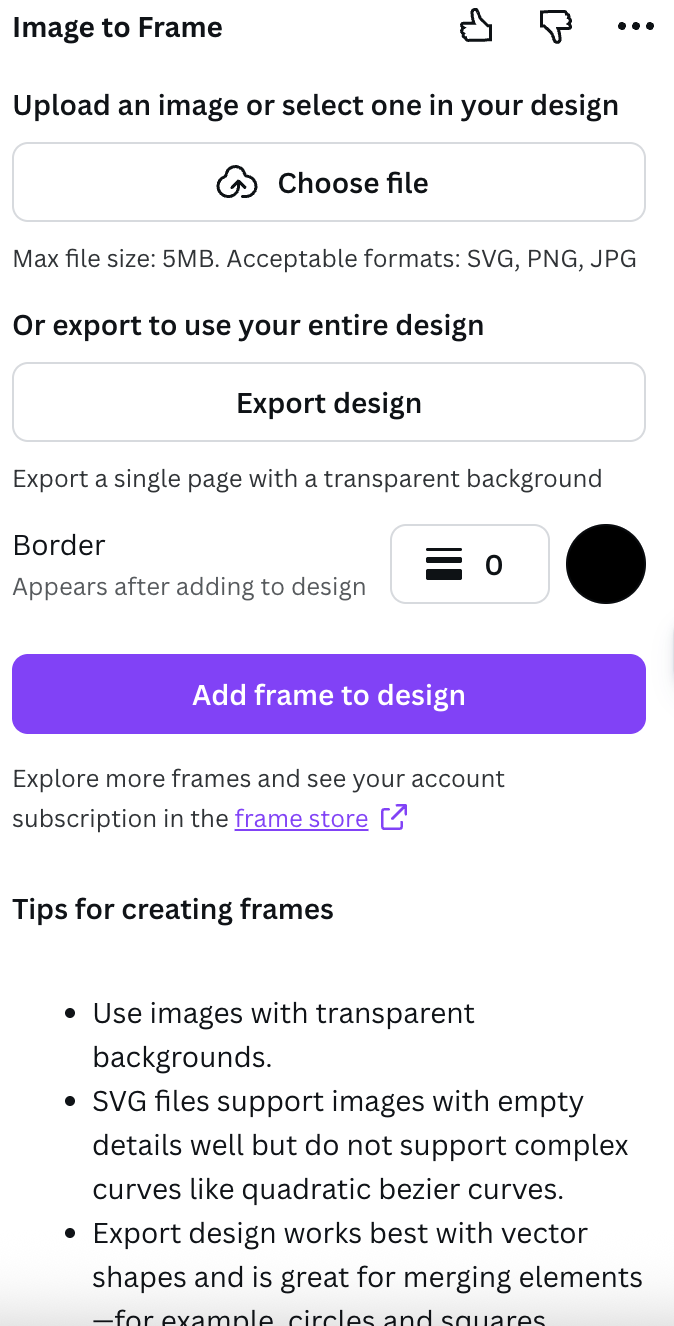
Use an image from your device — SVG, PNG, or JPG, up to 5MB.
Pick a single image already on your Canva page.
Export the whole page as a transparent PNG to combine several elements into one frame.
## Step-by-step
Launch Image to Frames from the Canva **Apps** panel. It signs you in automatically through your Canva account.
Click **Upload**, click **Export design**, or select an image already on the page.
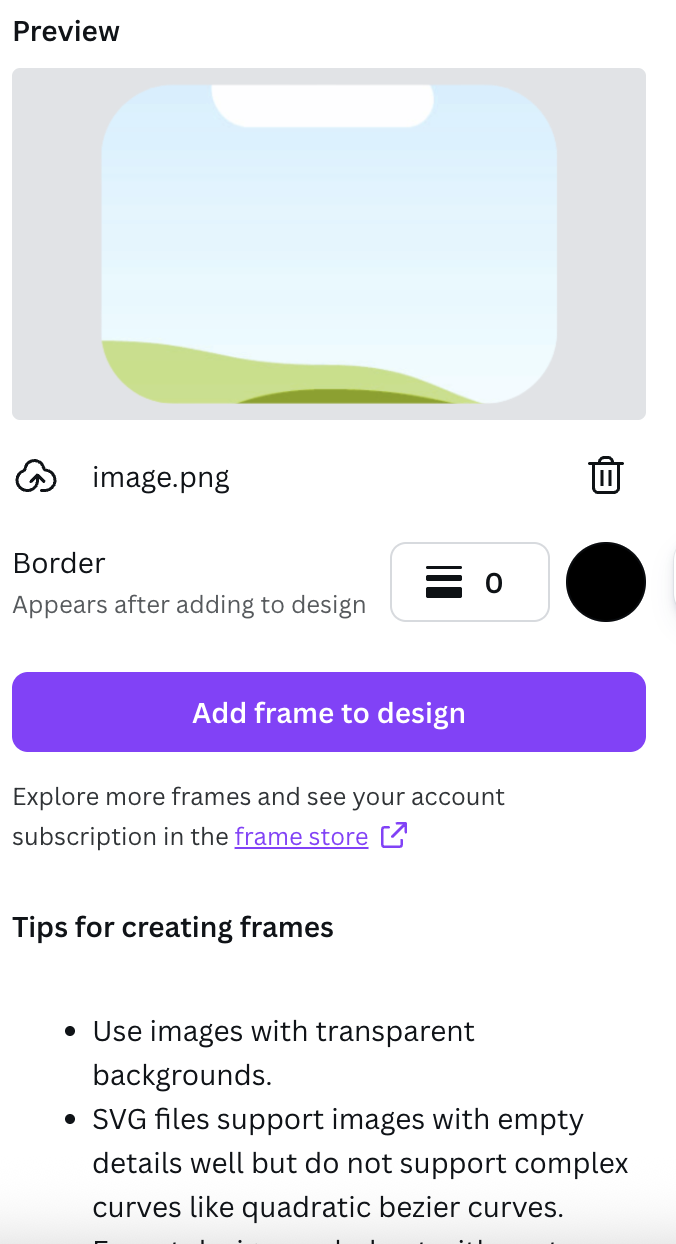
The app shows a preview of the frame it will create. Not happy? Remove it and pick another image.
Adjust border **weight** (0–50) and **color**. Note: the border only shows after the frame is added to your design, not in the preview.
Click **Add frame to design**. The app converts your image into frame data and places it on your Canva page.
Drag any photo or video into the new frame — it crops to the shape instantly.
* **Formats:** PNG, SVG, JPG (up to **5MB** per file).
* **One-click convert:** add an image, click **Add frame to design**, and the frame appears.
* **True-to-outline frames:** if the image has a transparent background, the frame follows its real shape (not a rectangle).
* **Border control:** set border weight and color.
* **Frame Store:** a library of ready-made frames.
## Three ways to bring in an image
Use an image from your device — SVG, PNG, or JPG, up to 5MB.
Pick a single image already on your Canva page.
Export the whole page as a transparent PNG to combine several elements into one frame.
## Step-by-step
Launch Image to Frames from the Canva **Apps** panel. It signs you in automatically through your Canva account.
Click **Upload**, click **Export design**, or select an image already on the page.
The app shows a preview of the frame it will create. Not happy? Remove it and pick another image.
Adjust border **weight** (0–50) and **color**. Note: the border only shows after the frame is added to your design, not in the preview.
Click **Add frame to design**. The app converts your image into frame data and places it on your Canva page.
Drag any photo or video into the new frame — it crops to the shape instantly.
 ## The most important tip: remove the background first
If your image still has a white or colored background, the frame comes out as a **rectangle**. **Remove the background first** (with Canva Pro or a background-removal app), then convert — so the frame hugs the real outline of your image.
Transparent-background images give the best results. **SVG** suits simple line shapes; very complex, tangled shapes may not convert.
## The Frame Store
If you'd rather not build a frame, open the **Frame Store** — a library of ready-made frames you can drop straight into your design. (Special SVG frames from the store are recognized by the app and loaded as the correct frame.)
## Free vs Pro
Without Pro, the app shows an upgrade screen with a demo, a **Try Image to Frame Pro** button (opens the sign-up page), and a free offer for students and teachers. After upgrading on the web, click **Restart Image to Frame** so the app re-checks your status and opens the main screen. Pro users go straight to the workspace and unlock the Frame Store.
## Troubleshooting
The image had a background. Remove the background, then convert again so the frame follows the outline.
Files must be 5MB or smaller. Compress or resize the image and try again.
The app accepts a single PNG. Export one page as a transparent PNG, not multiple pages or another format.
Very complex shapes may not convert. Try a simpler image, or grab a frame from the Frame Store instead.
## Use cases
* Turn a **logo** into a frame and fill it with a product photo.
* Convert **handwriting** (scanned or drawn) into a frame.
* **Puzzle frames** — each piece a frame with a different image.
* A **custom shape** from a PNG icon → a unique polygon frame.
Turn any image into a custom Canva frame in one click.
## The most important tip: remove the background first
If your image still has a white or colored background, the frame comes out as a **rectangle**. **Remove the background first** (with Canva Pro or a background-removal app), then convert — so the frame hugs the real outline of your image.
Transparent-background images give the best results. **SVG** suits simple line shapes; very complex, tangled shapes may not convert.
## The Frame Store
If you'd rather not build a frame, open the **Frame Store** — a library of ready-made frames you can drop straight into your design. (Special SVG frames from the store are recognized by the app and loaded as the correct frame.)
## Free vs Pro
Without Pro, the app shows an upgrade screen with a demo, a **Try Image to Frame Pro** button (opens the sign-up page), and a free offer for students and teachers. After upgrading on the web, click **Restart Image to Frame** so the app re-checks your status and opens the main screen. Pro users go straight to the workspace and unlock the Frame Store.
## Troubleshooting
The image had a background. Remove the background, then convert again so the frame follows the outline.
Files must be 5MB or smaller. Compress or resize the image and try again.
The app accepts a single PNG. Export one page as a transparent PNG, not multiple pages or another format.
Very complex shapes may not convert. Try a simpler image, or grab a frame from the Frame Store instead.
## Use cases
* Turn a **logo** into a frame and fill it with a product photo.
* Convert **handwriting** (scanned or drawn) into a frame.
* **Puzzle frames** — each piece a frame with a different image.
* A **custom shape** from a PNG icon → a unique polygon frame.
Turn any image into a custom Canva frame in one click.