> ## Documentation Index
> Fetch the complete documentation index at: https://docs.qrdyai.com/llms.txt
> Use this file to discover all available pages before exploring further.
# Getting Started
> Learn how to install Image to Frames in Canva and create your first frame in minutes. Three simple methods to get started.
Get started with Image to Frames in just a few minutes. This guide will walk you through installing the app in Canva and creating your first frame.
## Prerequisites
* A Canva account
* Image to Frames app installed in Canva
* Image to Frames Pro subscription (required - free users cannot use the app)
Image to Frames requires a Pro subscription. Free users cannot access any features. Students and teachers can get a free 1-year Pro subscription.
## Install Image to Frames in Canva
Log in to your Canva account and open any design or create a new one.
Click on "Apps" in the left sidebar of Canva.
Type "Image to Frames" in the search bar and select the app from the results.
Click "Add" or "Use" to install Image to Frames in your Canva workspace.
## Opening Image to Frames
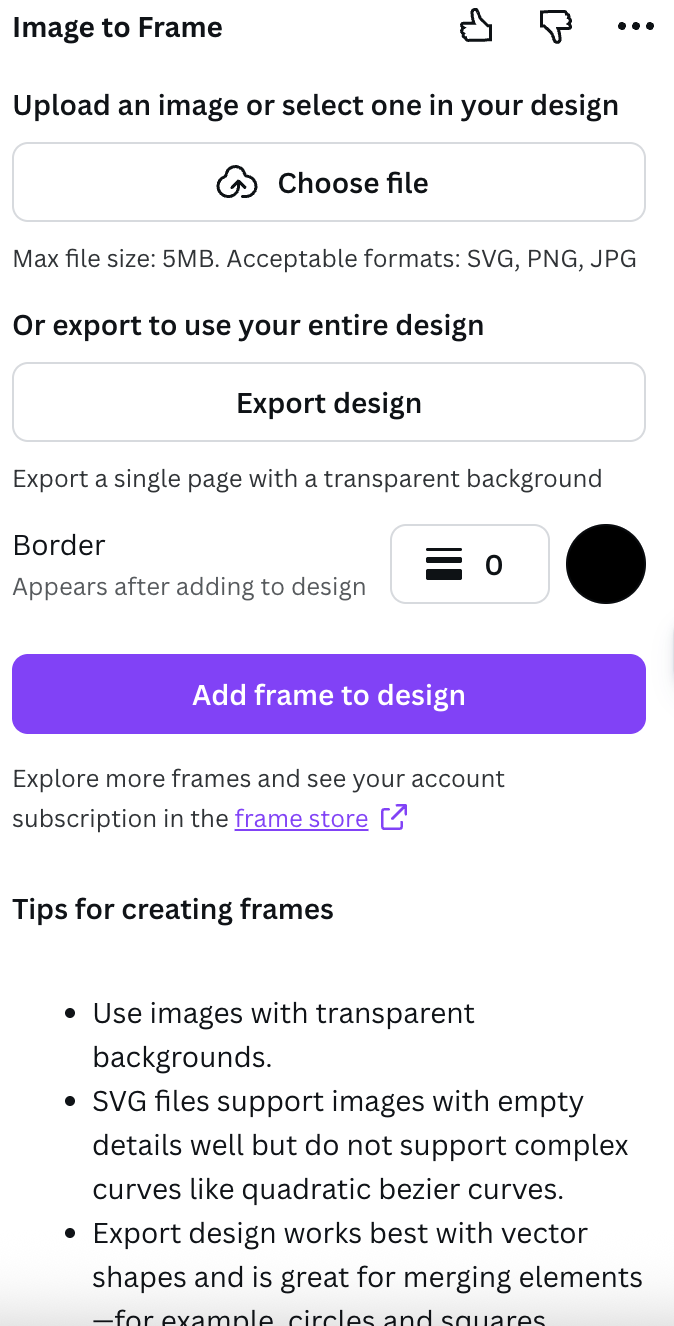
Once you've installed the app, here's what you'll see when you open Image to Frames:
## Three ways to create frames
Image to Frames offers three methods to create frames. Choose the one that works best for your workflow:
### Method 1: Use image from Canva design (Recommended)
Click on any image in your Canva design that you want to convert into a frame.
Open the Image to Frames app from your Apps panel.
Click the convert button. Your image is instantly transformed into a frame!
This is the fastest method because you don't need to upload anything.
### Method 2: Upload image or SVG file
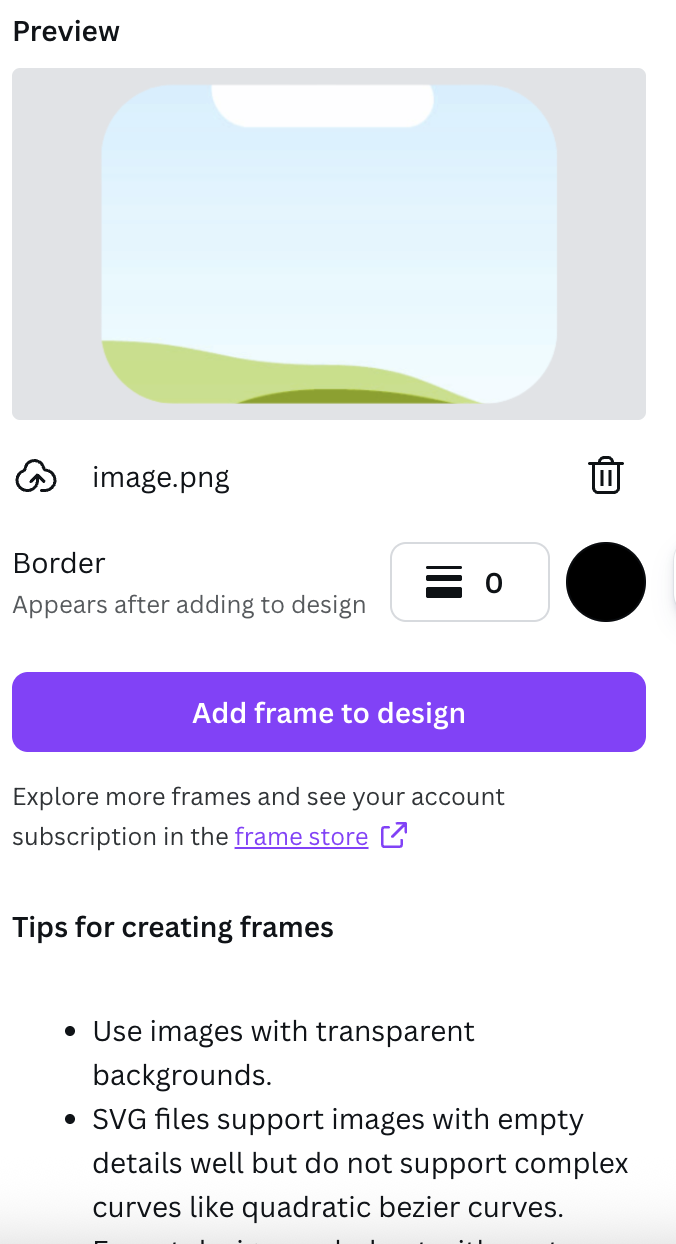
Open the Image to Frames app from your Apps panel in Canva.
Click "Upload" and select an image (PNG, JPG) or SVG file from your device.
Click convert. Your uploaded file is instantly transformed into a frame.
This method is perfect for importing SVG files and converting them to frames.
### Method 3: Import from Frame Store
Visit the [Frame Store](https://frames.qrdyai.com/frames) and browse our collection of 40,000+ premium frames and growing.
Use the search bar to find frames by tags like animal, map, heart, cute, or man.
Click download to save the SVG frame file to your device.
Open Image to Frames app in Canva and import the downloaded SVG file.
You must import the frame into the Image to Frames app in Canva. Simply downloading the SVG won't work - it needs to be imported into the app to display correctly.
## Using your frames
Once you've created a frame:
Your converted frame appears in your Canva design automatically.
Drag any image into the frame to crop it to the frame's shape.
Resize, reposition, or style your frame and image as needed.
## Video tutorial
Watch our complete tutorial to see Image to Frames in action:
This comprehensive tutorial covers all features and functions of Image to Frames, including:
* Installing the app in Canva
* All three methods to create frames
* Using the Frame Library
* Tips and best practices
## Next steps
Learn how to browse, search, and download frames from our premium library.
Discover creative ways to use Image to Frames in your projects.
Learn about all Pro features and benefits.
Find answers to common questions.
 ## Three ways to create frames
Image to Frames offers three methods to create frames. Choose the one that works best for your workflow:
### Method 1: Use image from Canva design (Recommended)
## Three ways to create frames
Image to Frames offers three methods to create frames. Choose the one that works best for your workflow:
### Method 1: Use image from Canva design (Recommended)