> ## Documentation Index
> Fetch the complete documentation index at: https://docs.qrdyai.com/llms.txt
> Use this file to discover all available pages before exploring further.
# Image to Frames free for students: redeem your student code
> Got an Image to Frames student code? Open the app in Canva, tap Free for students & teachers, enter your code at checkout and unlock Image to Frames Pro for free.
Students and teachers can use **Image to Frames Pro free**. Once you have your student code, redeeming it takes about a minute: open the app in Canva, go to the student page, and apply the code at checkout.
Don't have a code yet? Get one from the [Qrdy Student Pack](https://qrdyai.com/studentpack) first, then come back to this guide.
## Redeem your student code in 3 steps
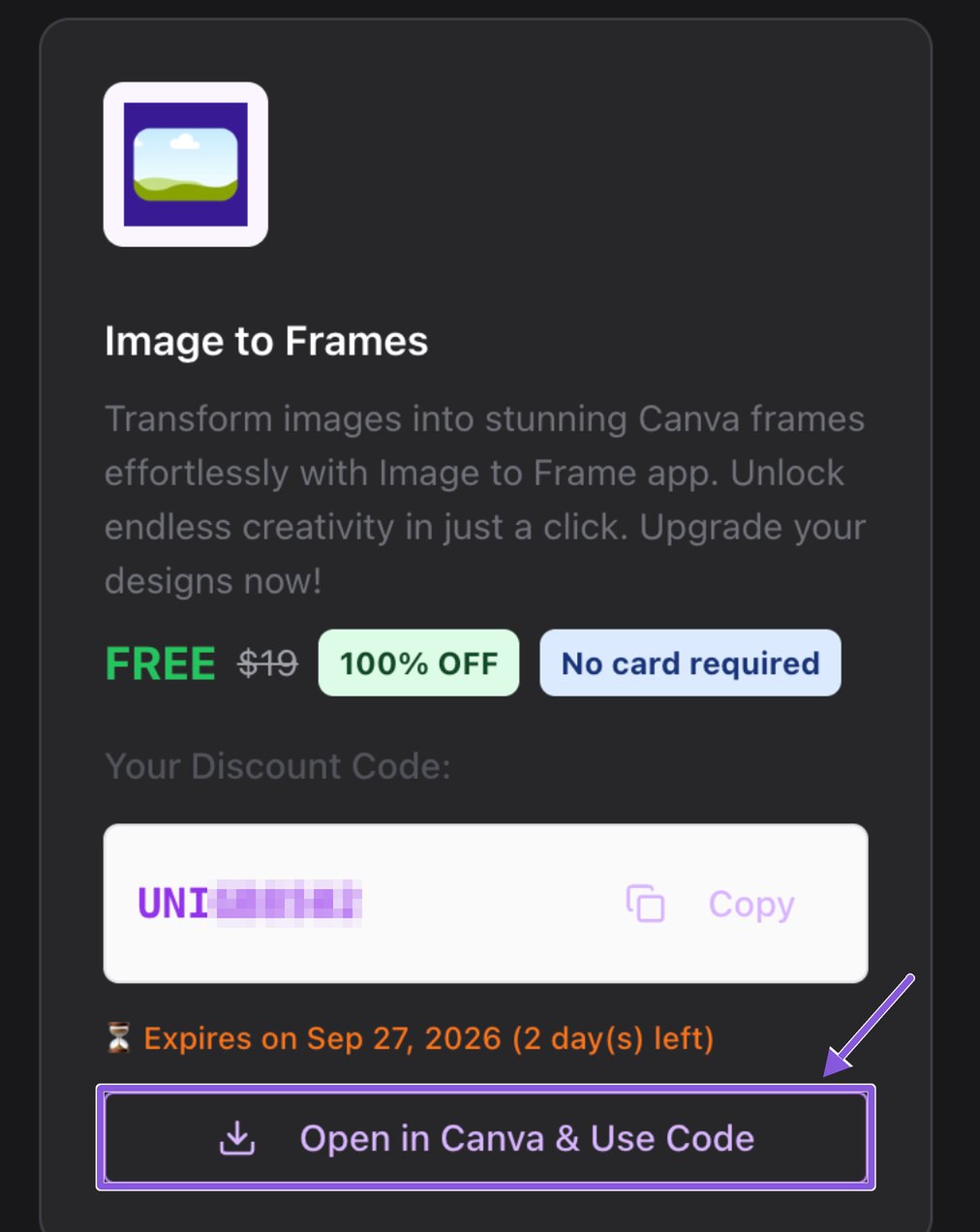
On your code card, click **Open in Canva & Use Code**. You're taken straight to the Image to Frames app inside Canva.
 You can also open Canva, go to **Apps** in the left sidebar, search for **Image to Frames**, and open it.
Codes expire. Check the expiry date on your card and redeem before it runs out.
In the app panel, find the line **Free for students & teachers – learn more** under *Image to Frame Pro* and click **learn more**.
You can also open Canva, go to **Apps** in the left sidebar, search for **Image to Frames**, and open it.
Codes expire. Check the expiry date on your card and redeem before it runs out.
In the app panel, find the line **Free for students & teachers – learn more** under *Image to Frame Pro* and click **learn more**.
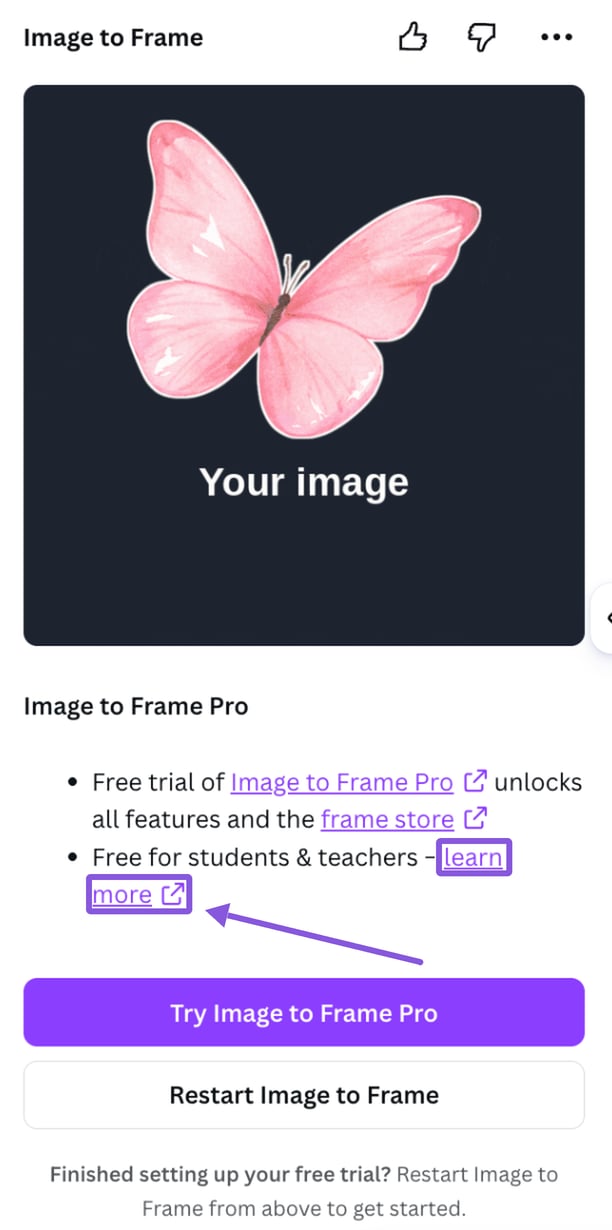 This opens the **Image to Frames for students** page.
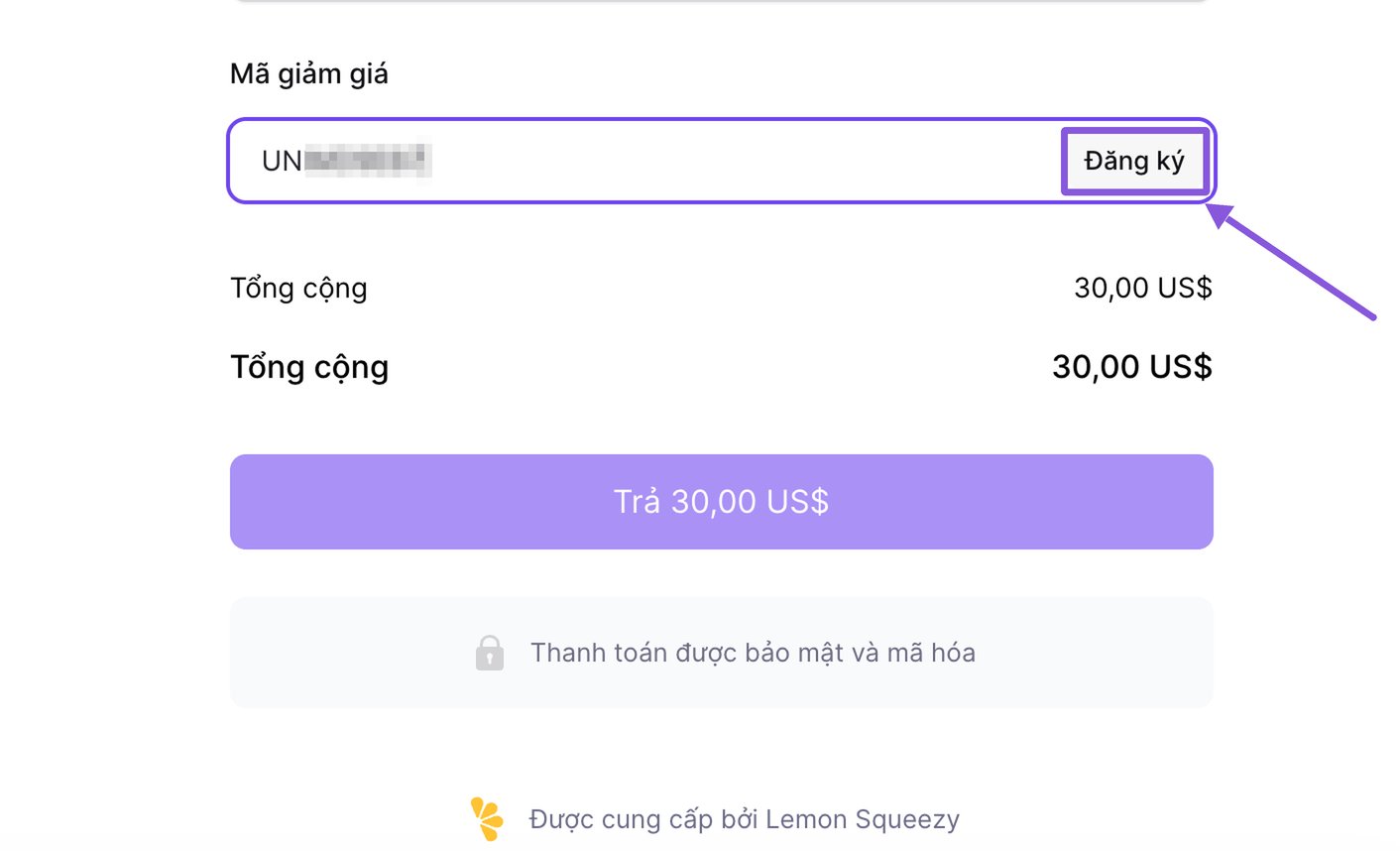
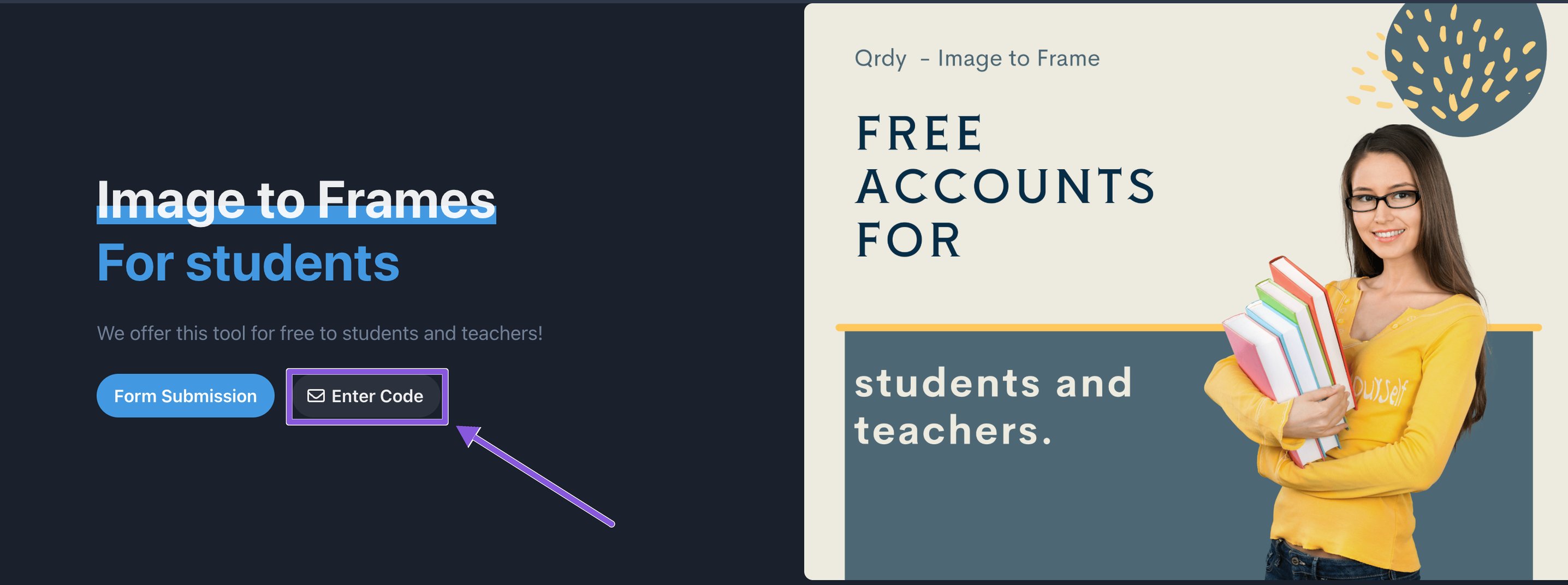 Click **Enter Code**. On the checkout page, scroll to the bottom, paste your code into the **Discount code** field, and click **Apply**. The total drops to \$0 — finish checkout and Pro is unlocked.
 Done! Go back to Canva, click **Restart Image to Frame** in the app panel, and start creating with Pro.
## Quick checklist
* [ ] Clicked **Open in Canva & Use Code** (or found Image to Frames in Canva Apps)
* [ ] Clicked **Free for students & teachers – learn more**
* [ ] Clicked **Enter Code** and applied your code at the bottom of checkout
* [ ] Restarted the app in Canva
## Troubleshooting
Each code has an expiry date shown on your code card. Copy the code again using the **Copy** button to avoid typos or extra spaces. If it has expired, request a new one from the [Student Pack page](https://qrdyai.com/studentpack).
Make sure you clicked **Apply** after pasting the code. The discount only shows after it's applied.
Click **Restart Image to Frame** in the app panel. If Pro still doesn't show, close and reopen your Canva design.
## Keep going
See everything your free Pro plan unlocks.
Make your first custom frame in Canva.
Done! Go back to Canva, click **Restart Image to Frame** in the app panel, and start creating with Pro.
## Quick checklist
* [ ] Clicked **Open in Canva & Use Code** (or found Image to Frames in Canva Apps)
* [ ] Clicked **Free for students & teachers – learn more**
* [ ] Clicked **Enter Code** and applied your code at the bottom of checkout
* [ ] Restarted the app in Canva
## Troubleshooting
Each code has an expiry date shown on your code card. Copy the code again using the **Copy** button to avoid typos or extra spaces. If it has expired, request a new one from the [Student Pack page](https://qrdyai.com/studentpack).
Make sure you clicked **Apply** after pasting the code. The discount only shows after it's applied.
Click **Restart Image to Frame** in the app panel. If Pro still doesn't show, close and reopen your Canva design.
## Keep going
See everything your free Pro plan unlocks.
Make your first custom frame in Canva.