> ## Documentation Index
> Fetch the complete documentation index at: https://docs.qrdyai.com/llms.txt
> Use this file to discover all available pages before exploring further.
# Frames Lab: The Complete Guide (Every Feature, Step by Step)
> The full Frames Lab guide for Canva — build frames with Shape, Burst, Grid, Arc, and Diagonal modes, pick ready-made frames in Explore, and add effects in Style. Every control, with screenshots.
**Frames Lab** is a Canva app for building frames exactly the way you want — grids, arcs, sunbursts, diagonal layouts, or a frame from your own shape — then dropping any photo or video inside. Frames auto-fit your design, so you never resize by hand. This guide covers **every feature**, step by step, with screenshots.
## The three tabs
Build a new frame from five modes.
Pick a ready-made frame from themed collections.
Re-add a recent frame with blur, border, or inner shadow.
Open the **Apps** panel in Canva, search **Frames Lab**, and launch it.
## Create tab — five modes
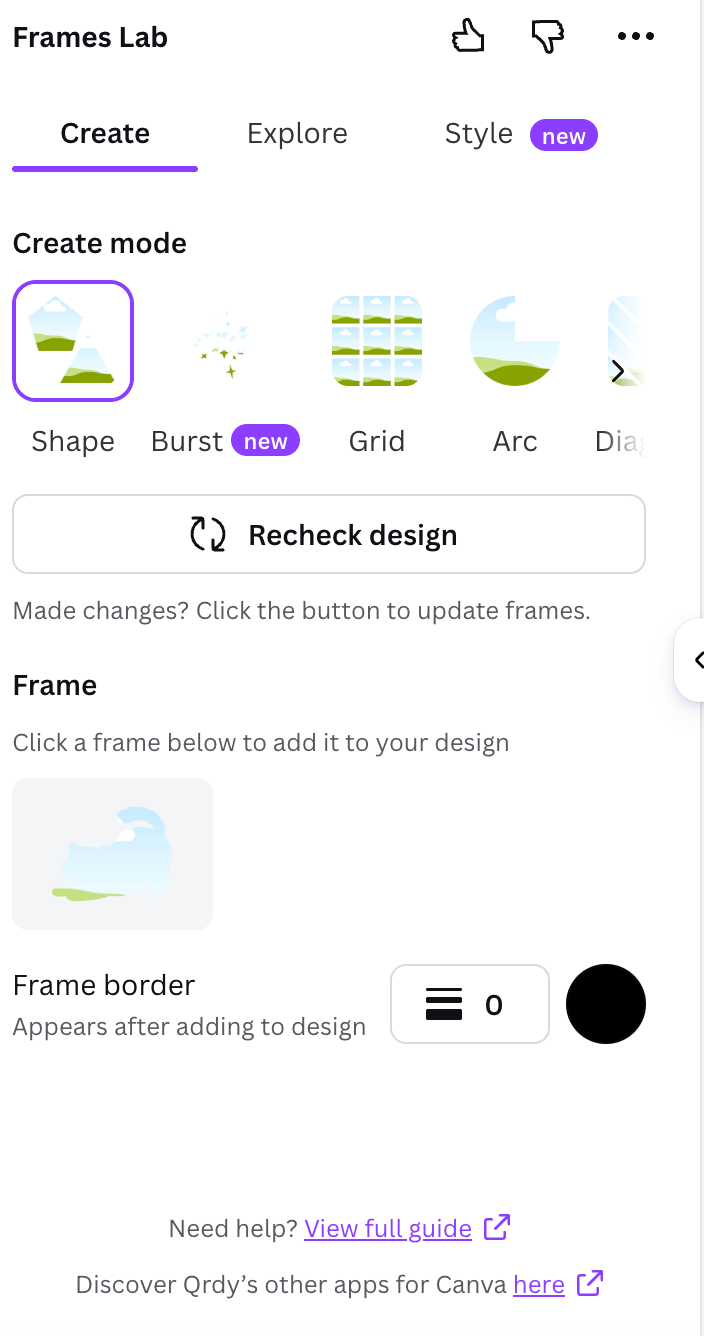 ### Shape — turn a shape into a frame
From **Elements → Shapes** or **Graphics**, add a shape to your design.
Click **Recheck design** so the app detects it.
Click the detected frame to place it. Set a **border** first if you want one.
Whenever you change a shape in your design, click **Recheck design** again to update.
### Burst — random sunburst frames
### Shape — turn a shape into a frame
From **Elements → Shapes** or **Graphics**, add a shape to your design.
Click **Recheck design** so the app detects it.
Click the detected frame to place it. Set a **border** first if you want one.
Whenever you change a shape in your design, click **Recheck design** again to update.
### Burst — random sunburst frames
 Burst generates random sunburst/spark frames. Tune them with the controls, and grab one you like — results are random, so each change makes new previews.

 Controls: **Style** (Spark, Bubble, Splash, Radial, Droplet, Leaf…), **Density**, **Size**, **Spread**, **Variation** (Clean/Natural/Wild), **Distribution** (Burst/Ring/Spiral/Scatter), and **Preview items**.
### Grid — collage frames
Controls: **Style** (Spark, Bubble, Splash, Radial, Droplet, Leaf…), **Density**, **Size**, **Spread**, **Variation** (Clean/Natural/Wild), **Distribution** (Burst/Ring/Spiral/Scatter), and **Preview items**.
### Grid — collage frames
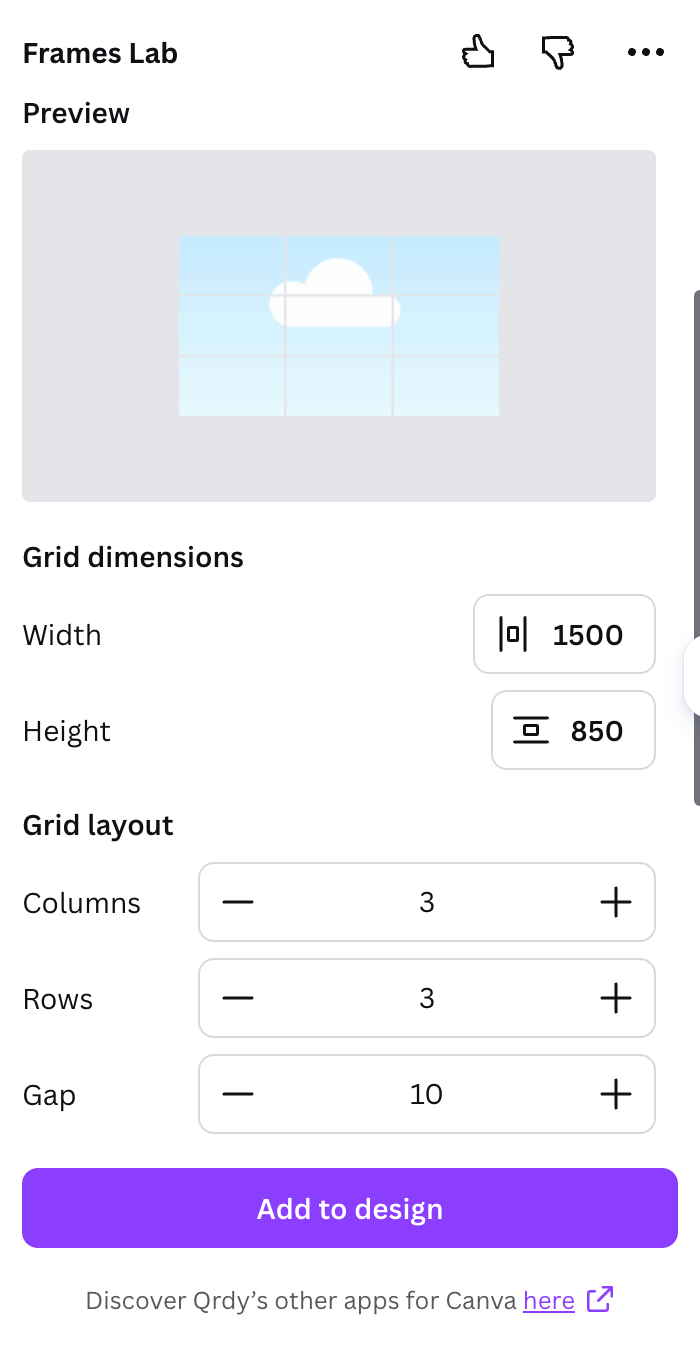 Adjust the grid **width** and **height**.
Choose **columns, rows, and gap**. The preview updates live.
Open **Wave effect** to curve the lines, or **Advanced options** for combined cells and corner radius.
Click **Add to design**, then drop a photo into each cell.
Adjust the grid **width** and **height**.
Choose **columns, rows, and gap**. The preview updates live.
Open **Wave effect** to curve the lines, or **Advanced options** for combined cells and corner radius.
Click **Add to design**, then drop a photo into each cell.
 Very complex grids (too many cells or a strong wave) get blocked — reduce the rows/columns or wave strength.
### Arc — curved frames
Very complex grids (too many cells or a strong wave) get blocked — reduce the rows/columns or wave strength.
### Arc — curved frames
 Set the **sweep angle** (how much of the arc, in degrees) and the **start angle**, add a border if you want, and click **Add to design**.
### Diagonal — angled grid
Set the **sweep angle** (how much of the arc, in degrees) and the **start angle**, add a border if you want, and click **Add to design**.
### Diagonal — angled grid
 Like Grid, but the strips run on an angle you control (spacing, gap, and angle), plus the same wave and advanced options.
## Explore tab — ready-made frames
Like Grid, but the strips run on an angle you control (spacing, gap, and angle), plus the same wave and advanced options.
## Explore tab — ready-made frames
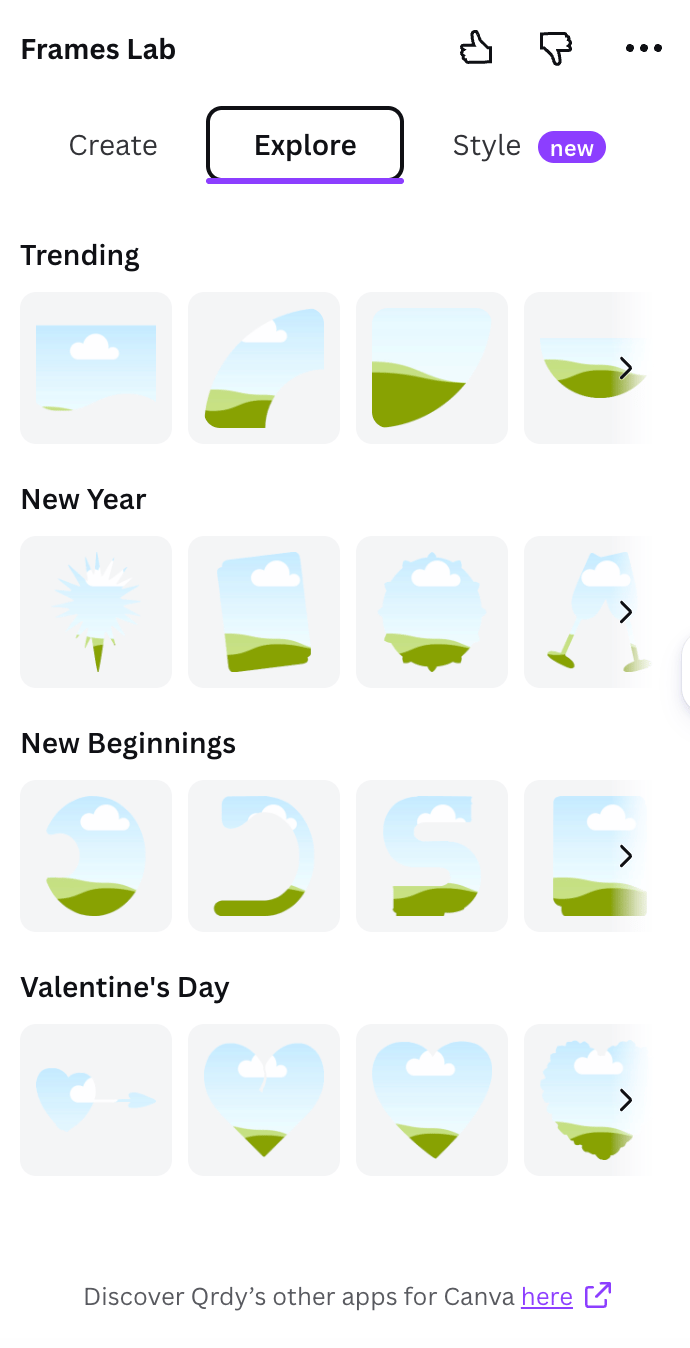 Open **Explore** and click any frame from the themed collections (Trending, seasonal sets, and more) to drop it straight into your design — no setup needed.
## Style tab — add effects
Open **Explore** and click any frame from the themed collections (Trending, seasonal sets, and more) to drop it straight into your design — no setup needed.
## Style tab — add effects
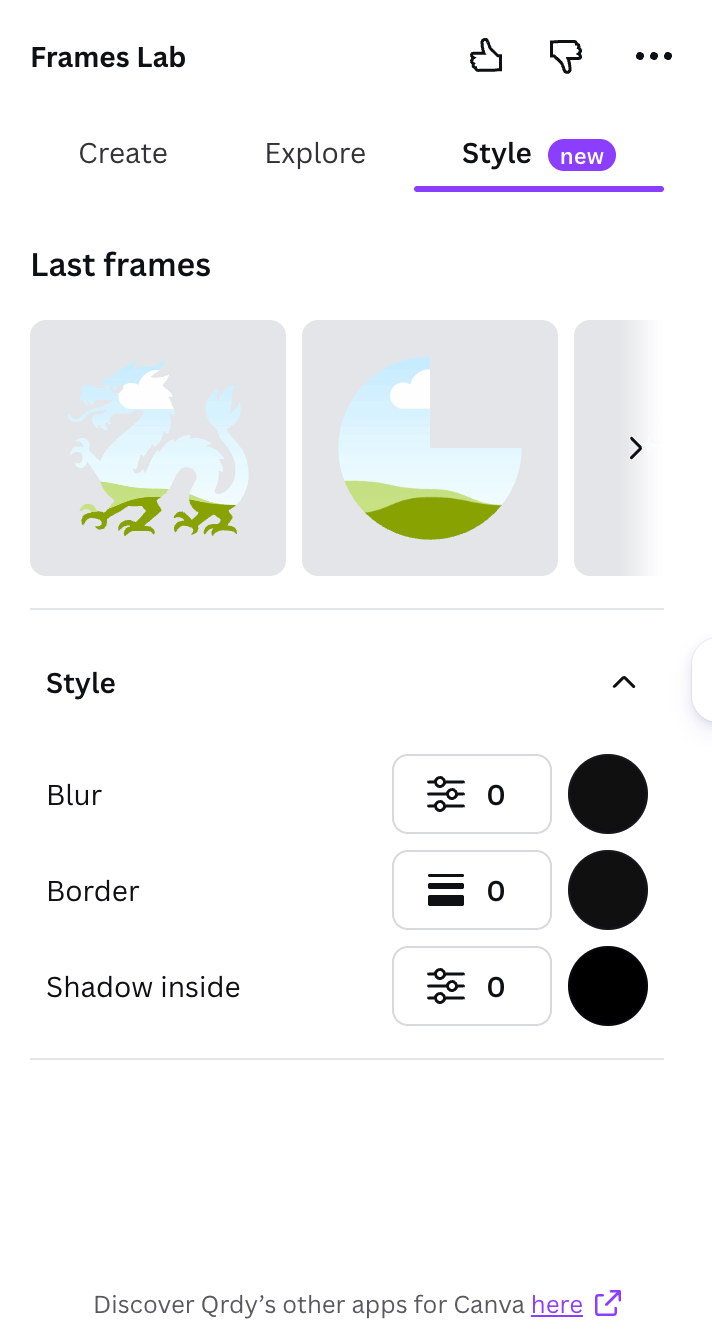 Every frame you add is saved under **Last frames** in the **Style** tab. Set **Blur**, **Border**, and/or **Inner shadow** (each with a color and strength), then click a frame to re-add it with the effects applied.
## Drop in your photo
After any frame is in your design, drag a photo or video onto it — it crops to the frame's shape automatically. Double-click to reposition inside.
## Free vs Pro
The free tier limits how many frames you can add; when you hit the limit, the app invites you to upgrade (the link opens qrdynamic.xyz in a new tab). Pro removes the limit. **More Qrdy** and **Need help** at the bottom link to other apps and support.
## Frequently asked questions
Add the shape from **Elements → Shapes/Graphics**, then click **Recheck design**.
It's too complex — reduce rows/columns or the wave strength and try again.
Burst is fully random. When you see one you like, add it right away — changing a control regenerates the previews.
Build grids, arcs, bursts, and custom frames in Canva.
Every frame you add is saved under **Last frames** in the **Style** tab. Set **Blur**, **Border**, and/or **Inner shadow** (each with a color and strength), then click a frame to re-add it with the effects applied.
## Drop in your photo
After any frame is in your design, drag a photo or video onto it — it crops to the frame's shape automatically. Double-click to reposition inside.
## Free vs Pro
The free tier limits how many frames you can add; when you hit the limit, the app invites you to upgrade (the link opens qrdynamic.xyz in a new tab). Pro removes the limit. **More Qrdy** and **Need help** at the bottom link to other apps and support.
## Frequently asked questions
Add the shape from **Elements → Shapes/Graphics**, then click **Recheck design**.
It's too complex — reduce rows/columns or the wave strength and try again.
Burst is fully random. When you see one you like, add it right away — changing a control regenerates the previews.
Build grids, arcs, bursts, and custom frames in Canva.