> ## Documentation Index
> Fetch the complete documentation index at: https://docs.qrdyai.com/llms.txt
> Use this file to discover all available pages before exploring further.
# How to Make a Weekly Schedule in Canva
> Make a weekly schedule in Canva with Calendar Maker. Use the Week tab to build a class timetable, work planner, or study schedule with the exact days and rows you need.
You can draw a weekly schedule in Canva by hand with a table, but lining up the weekdays, sizing every row, and re-typing labels gets tedious fast. The [Calendar Maker](/calendar-maker/what-is-calendar-maker) app has a dedicated **Week tab** that builds the grid for you — pick which days appear, set how many rows you need, style it, and drop it straight into your design.
This guide walks through making a weekly timetable, work planner, or study schedule using that Week tab.
## Make a weekly schedule with the Week tab
From the **Apps** panel in Canva, open Calendar Maker, then switch to the **Week** tab at the top. This mode builds a table organized by weekday rather than a full month grid.
Tick the weekdays you want in the schedule (Monday through Sunday). A five-day school or work timetable can drop the weekend; a habit tracker might keep all seven. You need at least one day selected.
Use **Number of rows** (1 to 27) to decide how many blank cells sit under each day — one row per class period, time block, or task line. More rows give you more room to write.
Click **Add to design**, then customize the fonts, colors, and headings. Add it once and the whole week is laid out for you.
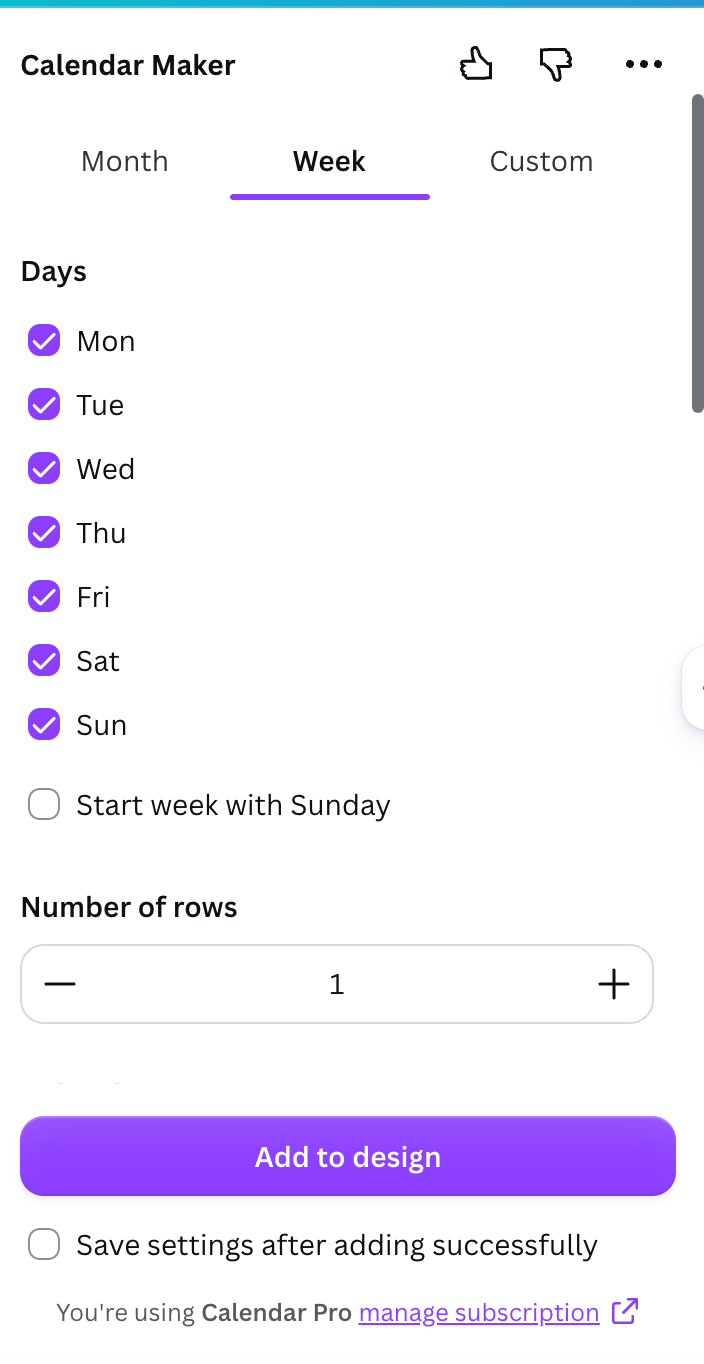 Build a weekly schedule with the exact days and rows you need.
## Two small options that save time
Toggle **Start week with Sunday** to move Sunday to the front for a US-style week. Calendar Maker also guesses the default from your region and language.
Turn on **Shorten labels** to abbreviate the weekday names — "Monday" becomes "Mon" — so a seven-day schedule stays readable in a narrow layout.
## Style it to match your class, brand, or planner
Every style change previews live before you add anything. In the header options you can set the font, bold/italic/underline, alignment, size, and color for the weekday labels. The background options control the header bar color and the alternating row colors, so odd and even rows read clearly.
If you don't want to style from scratch, the app ships with **30+ preset color themes** in a carousel — click one and the whole schedule recolors instantly. You can still fine-tune afterward.
Build a weekly schedule with the exact days and rows you need.
## Two small options that save time
Toggle **Start week with Sunday** to move Sunday to the front for a US-style week. Calendar Maker also guesses the default from your region and language.
Turn on **Shorten labels** to abbreviate the weekday names — "Monday" becomes "Mon" — so a seven-day schedule stays readable in a narrow layout.
## Style it to match your class, brand, or planner
Every style change previews live before you add anything. In the header options you can set the font, bold/italic/underline, alignment, size, and color for the weekday labels. The background options control the header bar color and the alternating row colors, so odd and even rows read clearly.
If you don't want to style from scratch, the app ships with **30+ preset color themes** in a carousel — click one and the whole schedule recolors instantly. You can still fine-tune afterward.
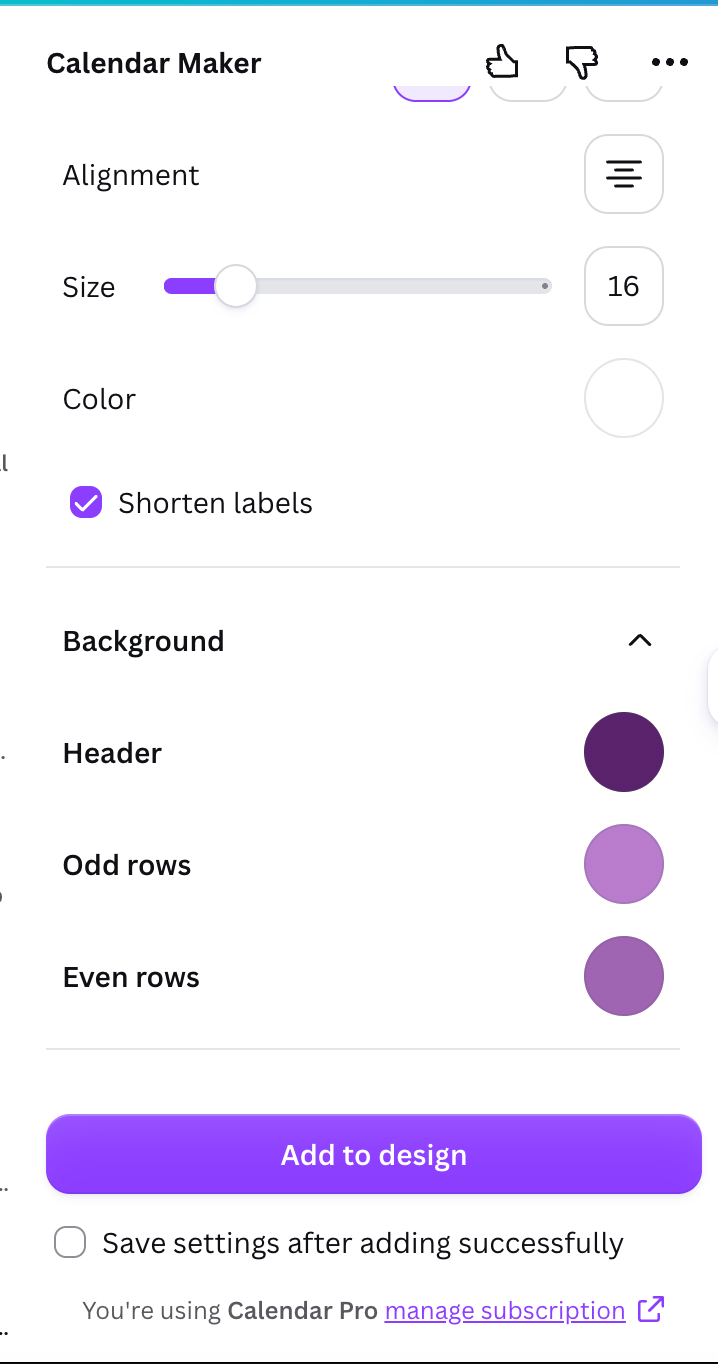 Turn on **Save settings after adding successfully** to store your setup. Each tab keeps a "Your saved setups" carousel, so next term you can reload the same timetable — days, rows, fonts, and colors — in one click.
## Common weekly schedules you can build
Five weekdays, one row per period. Add subjects or room numbers in each cell.
Monday–Friday with enough rows for time blocks or meetings.
All seven days with rows for subjects, revision blocks, and breaks.
Seven days, a handful of rows for meals, chores, or daily habits.
## Print or share your schedule
Once it looks right, download it as **PDF Print** for the cleanest printed result, or export a PNG to share digitally. Keep the design inside the printable margins if you're printing at home.
Need a month-at-a-glance layout instead of a week grid? See [How to Make a Calendar in Canva](/calendar-maker/how-to-make-calendar-in-canva) for the Month tab and printable monthly calendars.
## Frequently asked questions
Open the [Calendar Maker](/calendar-maker/what-is-calendar-maker) app, switch to the **Week** tab, tick the weekdays you want, set the number of rows, then click **Add to design** and style it.
Yes. In the Week tab you choose exactly which days appear, so you can build a Monday–Friday timetable and leave out Saturday and Sunday.
You can set anywhere from 1 to 27 rows under each day, giving you space for class periods, time blocks, or task lines.
Yes. Enable "Save settings after adding successfully" and Calendar Maker stores your setup in the "Your saved setups" carousel, so you can reload the same days, rows, and styling in one click.
Turn on **Save settings after adding successfully** to store your setup. Each tab keeps a "Your saved setups" carousel, so next term you can reload the same timetable — days, rows, fonts, and colors — in one click.
## Common weekly schedules you can build
Five weekdays, one row per period. Add subjects or room numbers in each cell.
Monday–Friday with enough rows for time blocks or meetings.
All seven days with rows for subjects, revision blocks, and breaks.
Seven days, a handful of rows for meals, chores, or daily habits.
## Print or share your schedule
Once it looks right, download it as **PDF Print** for the cleanest printed result, or export a PNG to share digitally. Keep the design inside the printable margins if you're printing at home.
Need a month-at-a-glance layout instead of a week grid? See [How to Make a Calendar in Canva](/calendar-maker/how-to-make-calendar-in-canva) for the Month tab and printable monthly calendars.
## Frequently asked questions
Open the [Calendar Maker](/calendar-maker/what-is-calendar-maker) app, switch to the **Week** tab, tick the weekdays you want, set the number of rows, then click **Add to design** and style it.
Yes. In the Week tab you choose exactly which days appear, so you can build a Monday–Friday timetable and leave out Saturday and Sunday.
You can set anywhere from 1 to 27 rows under each day, giving you space for class periods, time blocks, or task lines.
Yes. Enable "Save settings after adding successfully" and Calendar Maker stores your setup in the "Your saved setups" carousel, so you can reload the same days, rows, and styling in one click.