> ## Documentation Index
> Fetch the complete documentation index at: https://docs.qrdyai.com/llms.txt
> Use this file to discover all available pages before exploring further.
# Calendar Maker free for students: redeem your Edu Pack code
> Student or teacher? Get Calendar Maker for free with the Qrdy Edu Pack. Open the app in Canva, click Unlock to use, choose Already have a code, and apply your code at checkout.
Students and teachers can use **Calendar Maker for free** with the **Qrdy Edu Pack**. Once you have your code, redeeming it takes about a minute: open the app in Canva, click **Unlock to use**, and apply the code at checkout.
Don't have a code yet? On the Edu Pack page (Step 2), click **Get the free code** and submit the quick form with your school email. We'll send your code for Calendar Maker, plus a few other Qrdy tools.
## Redeem your student code in 3 steps
On your code card, click **Open in Canva & Use Code** — or open Canva, go to **Apps** in the left sidebar, search for **Calendar Maker**, and open it.
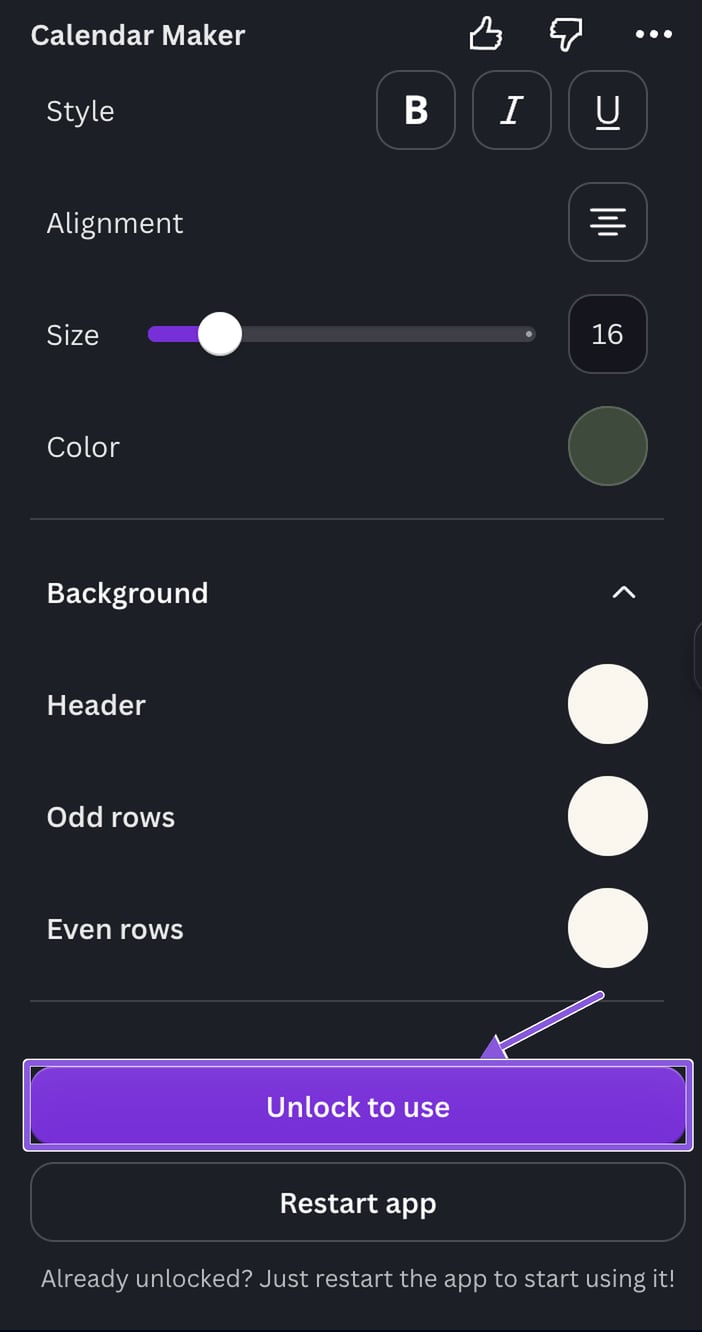
In the app panel, scroll to the bottom and click **Unlock to use**.
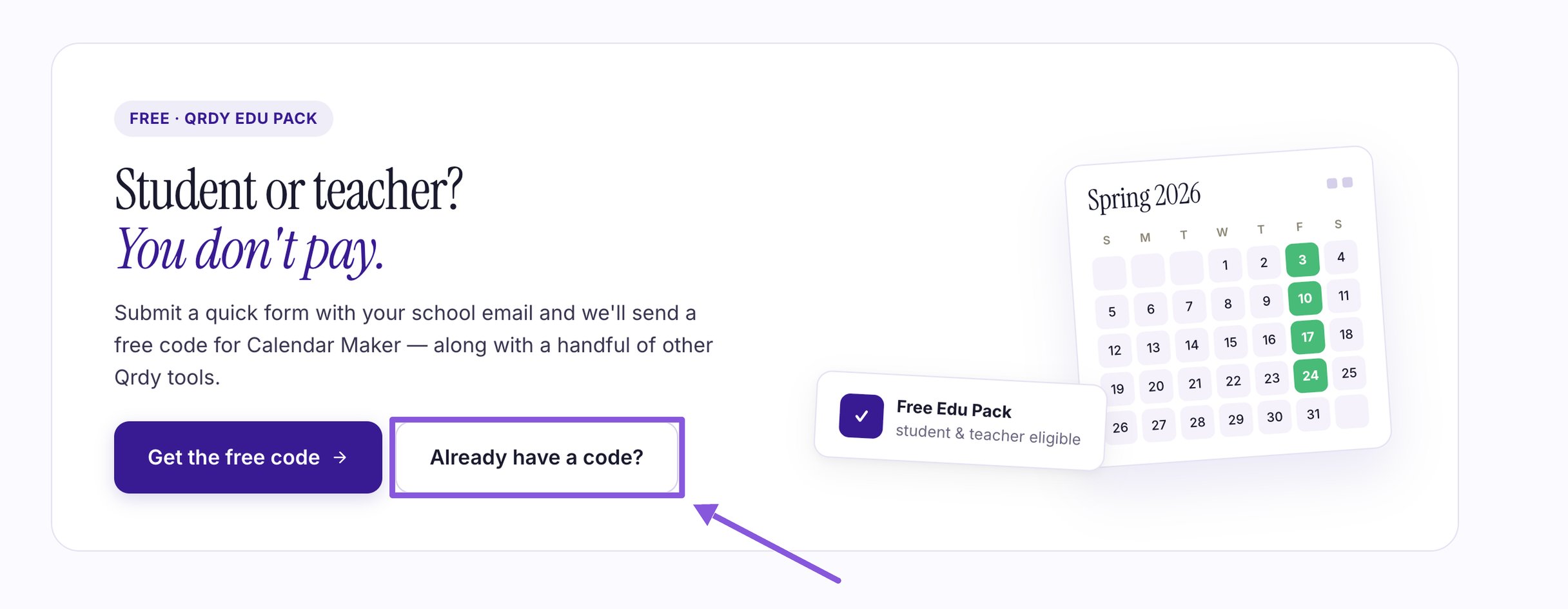
 On the unlock page, **scroll down to near the bottom of the page** — the **Free · Qrdy Edu Pack** section (*Student or teacher? You don't pay.*) sits below the pricing plans. Click **Already have a code?**
Don't see it at first? Keep scrolling — the Edu Pack section is near the end of the page, not at the top.
On the unlock page, **scroll down to near the bottom of the page** — the **Free · Qrdy Edu Pack** section (*Student or teacher? You don't pay.*) sits below the pricing plans. Click **Already have a code?**
Don't see it at first? Keep scrolling — the Edu Pack section is near the end of the page, not at the top.
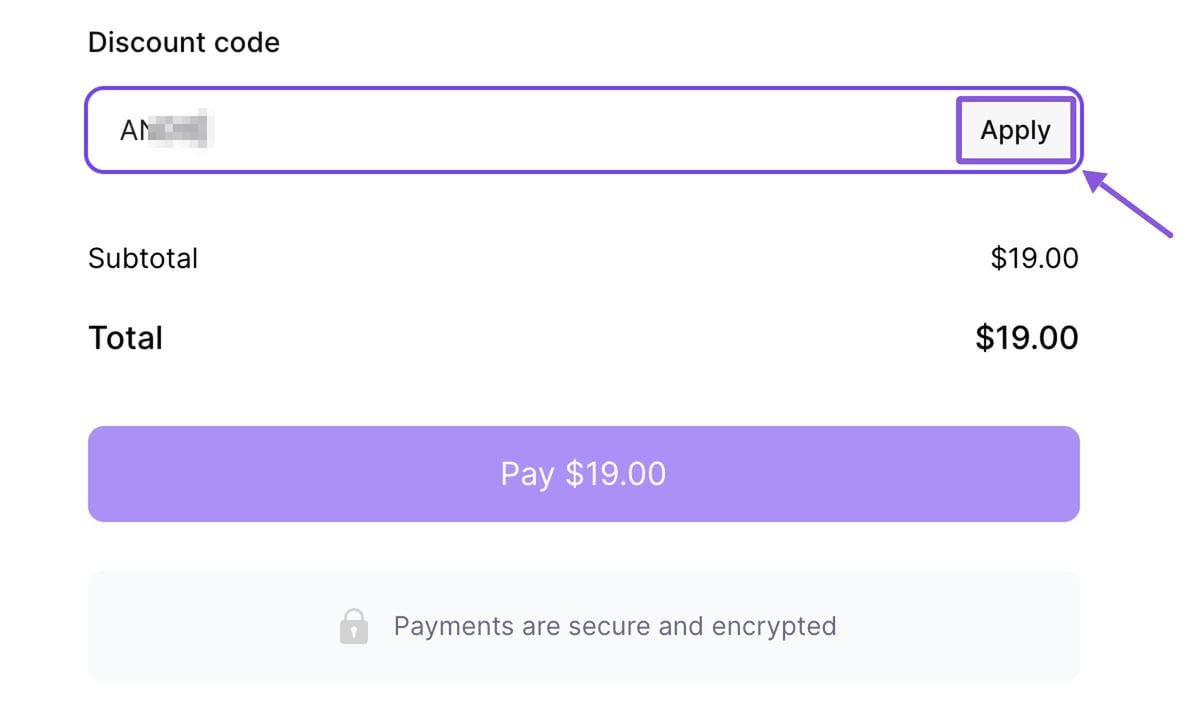
 On the checkout page, scroll to the bottom, paste your code into the **Discount code** field, and click **Apply**. The total drops to \$0 — finish checkout and Calendar Maker is unlocked.
 Done! Go back to Canva, click **Restart app** in the Calendar Maker panel, and start making calendars.
## Quick checklist
* [ ] Opened Calendar Maker in Canva
* [ ] Clicked **Unlock to use**
* [ ] Clicked **Already have a code?** in the Qrdy Edu Pack section
* [ ] Applied your code at the bottom of checkout
* [ ] Clicked **Restart app** in Canva
## Troubleshooting
Codes have an expiry date. Copy the code again to avoid typos or extra spaces. If it has expired, click **Get the free code** on the Edu Pack page to request a new one.
Make sure you clicked **Apply** after pasting the code. The discount only shows after it's applied.
Click **Restart app** at the bottom of the app panel. If it's still locked, close and reopen your Canva design.
Students and teachers. Submit the form with your school email to get your code.
## Keep going
Build your first calendar in seconds.
Plan your class week in Canva.
Done! Go back to Canva, click **Restart app** in the Calendar Maker panel, and start making calendars.
## Quick checklist
* [ ] Opened Calendar Maker in Canva
* [ ] Clicked **Unlock to use**
* [ ] Clicked **Already have a code?** in the Qrdy Edu Pack section
* [ ] Applied your code at the bottom of checkout
* [ ] Clicked **Restart app** in Canva
## Troubleshooting
Codes have an expiry date. Copy the code again to avoid typos or extra spaces. If it has expired, click **Get the free code** on the Edu Pack page to request a new one.
Make sure you clicked **Apply** after pasting the code. The discount only shows after it's applied.
Click **Restart app** at the bottom of the app panel. If it's still locked, close and reopen your Canva design.
Students and teachers. Submit the form with your school email to get your code.
## Keep going
Build your first calendar in seconds.
Plan your class week in Canva.