> ## Documentation Index
> Fetch the complete documentation index at: https://docs.qrdyai.com/llms.txt
> Use this file to discover all available pages before exploring further.
# Calendar Maker: The Complete Guide (Every Feature, Step by Step)
> The full Calendar Maker guide for Canva — month, week, and custom calendars, fonts, colors, page templates, saved setups, and printing — every feature with screenshots.
**Calendar Maker** is a Canva app that generates a ready-to-edit calendar — monthly, weekly, or for any custom date range — and drops it straight into your design. No drawing tables, no typing dates by hand. This guide covers **every feature**, step by step, with screenshots.
## Install and open Calendar Maker
Open any design, then select **Apps** in the left toolbar.
Search for **Calendar Maker** and open it. The app loads in the side panel.
At the top you'll see three tabs — **Month**, **Week**, and **Custom**. Each builds a calendar a different way.
## Tab 1 — Month (monthly calendars)
The Month tab builds the familiar month grid (weekdays across the top, dates in the cells).
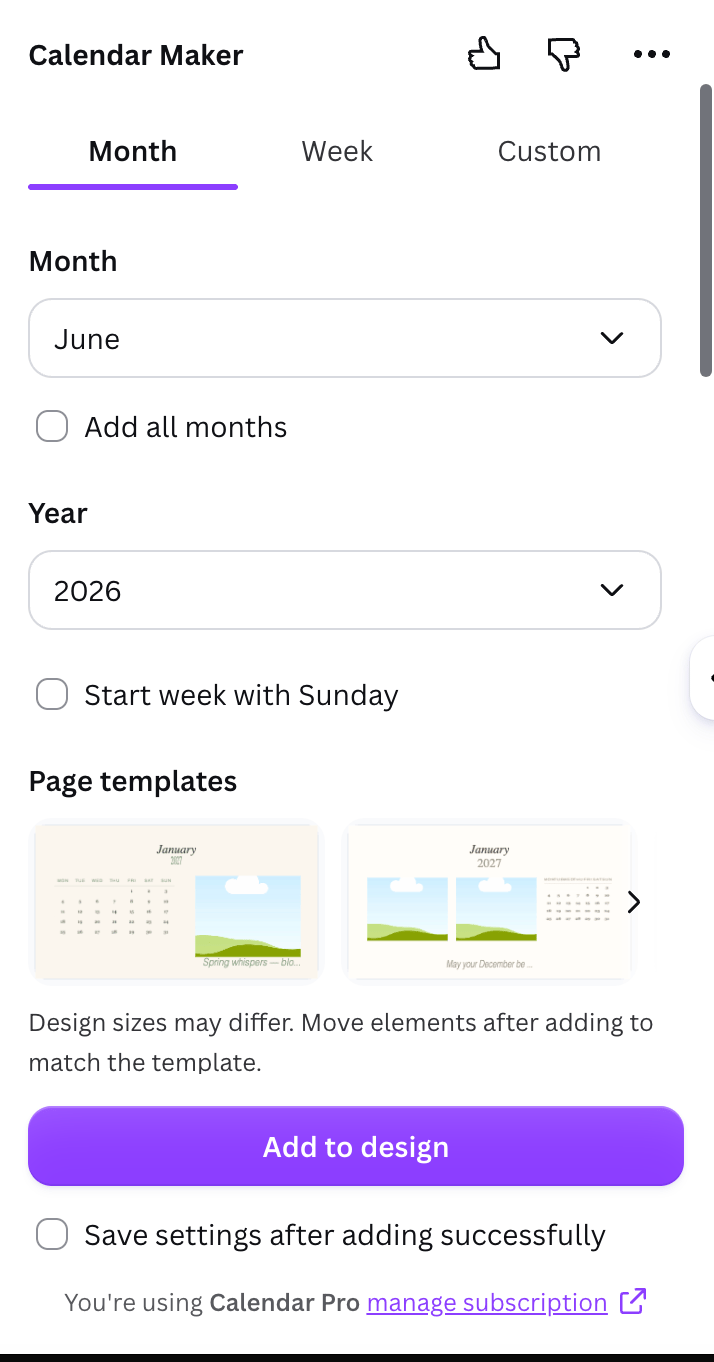 Pick the **month** and **year** (10 years before to 10 years after the current year).
Turn on **Add all months** to generate the whole year at once. Turn on **Each month on its own page** to place every month on a separate, auto-named page.
Toggle **Start week with Sunday** for the US layout (the app guesses your default by region).
Choose a decorated **page template** to place the calendar on a designed background.
## Tab 2 — Week (weekly planners & timetables)
The Week tab builds a table by weekday — great for class schedules and weekly planners.
Pick the **month** and **year** (10 years before to 10 years after the current year).
Turn on **Add all months** to generate the whole year at once. Turn on **Each month on its own page** to place every month on a separate, auto-named page.
Toggle **Start week with Sunday** for the US layout (the app guesses your default by region).
Choose a decorated **page template** to place the calendar on a designed background.
## Tab 2 — Week (weekly planners & timetables)
The Week tab builds a table by weekday — great for class schedules and weekly planners.
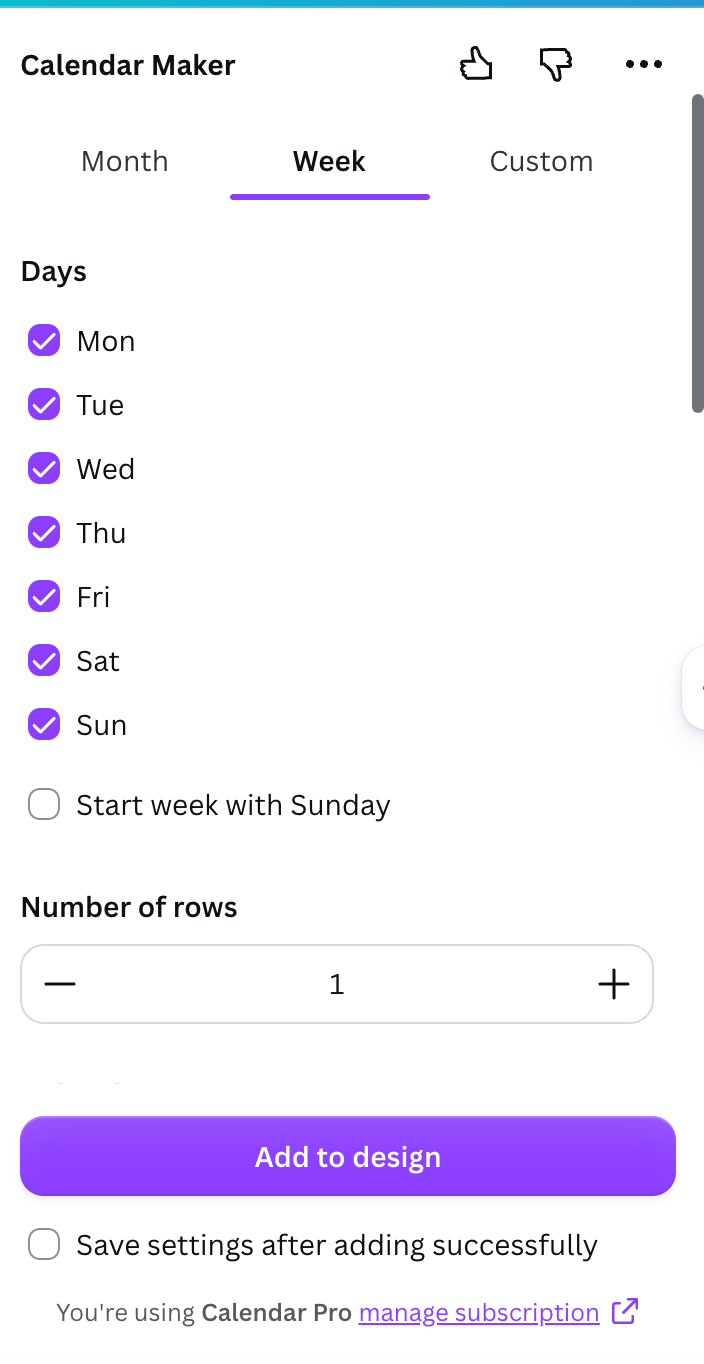 Check the weekdays you want (at least one). Use **Start week with Sunday** to move Sunday first.
Set **Number of rows** (1–27) to add blank rows under each day for notes or plans.
Turn on **Shorten labels** to abbreviate day names (e.g. "Monday" → "Mon").
## Tab 3 — Custom (any date range)
The Custom tab builds a calendar for any span of dates — a school term, a project timeline, a season.
Check the weekdays you want (at least one). Use **Start week with Sunday** to move Sunday first.
Set **Number of rows** (1–27) to add blank rows under each day for notes or plans.
Turn on **Shorten labels** to abbreviate day names (e.g. "Monday" → "Mon").
## Tab 3 — Custom (any date range)
The Custom tab builds a calendar for any span of dates — a school term, a project timeline, a season.
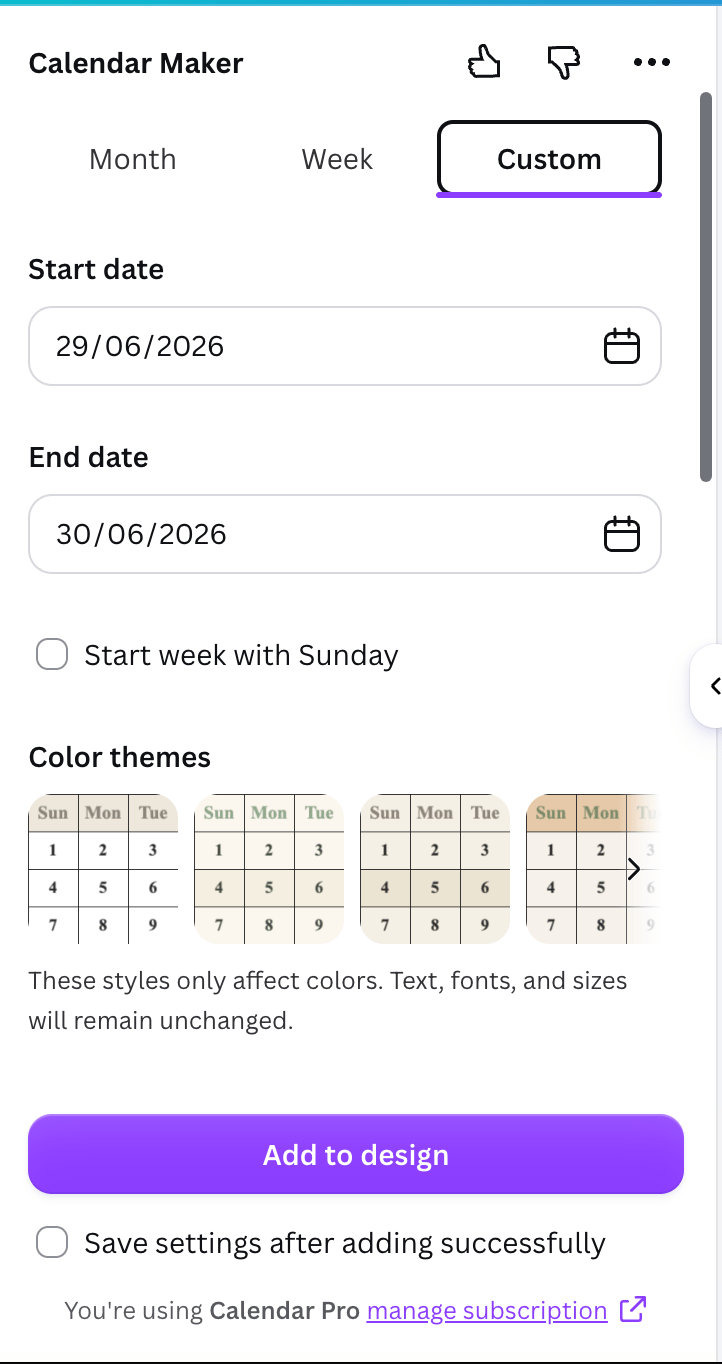 Choose a **Start date** and **End date**. The maximum span is **150 days** — beyond that the app shows an error on the date field.
Use **Start week with Sunday** as in the other tabs.
## Styling: fonts, sizes, and alignment
Every tab has style controls grouped in collapsible sections, with a **live preview** that updates as you adjust.
### Header text (weekday names)
Choose a **Start date** and **End date**. The maximum span is **150 days** — beyond that the app shows an error on the date field.
Use **Start week with Sunday** as in the other tabs.
## Styling: fonts, sizes, and alignment
Every tab has style controls grouped in collapsible sections, with a **live preview** that updates as you adjust.
### Header text (weekday names)
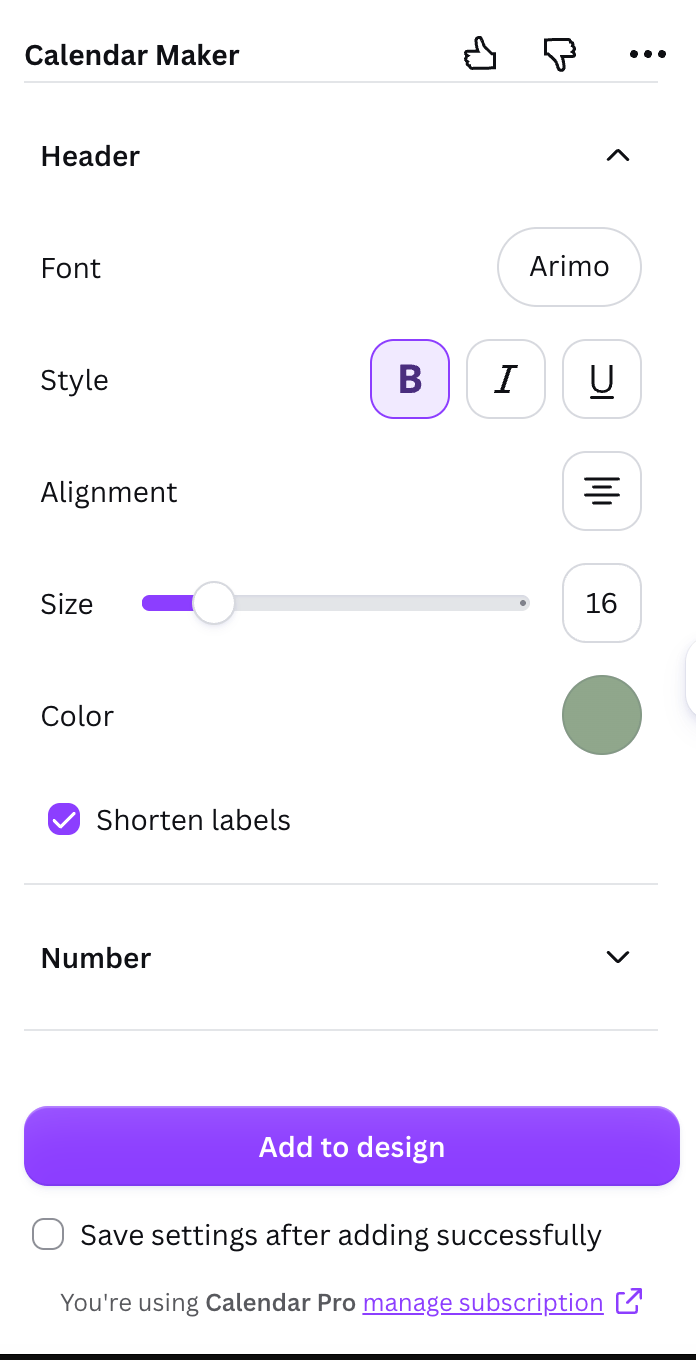 For the header (the weekday labels) you can set the **font**, **bold/italic/underline**, **alignment**, **size** (1–100), **color**, and **Shorten labels**.
### Number text (the dates)
For the header (the weekday labels) you can set the **font**, **bold/italic/underline**, **alignment**, **size** (1–100), **color**, and **Shorten labels**.
### Number text (the dates)
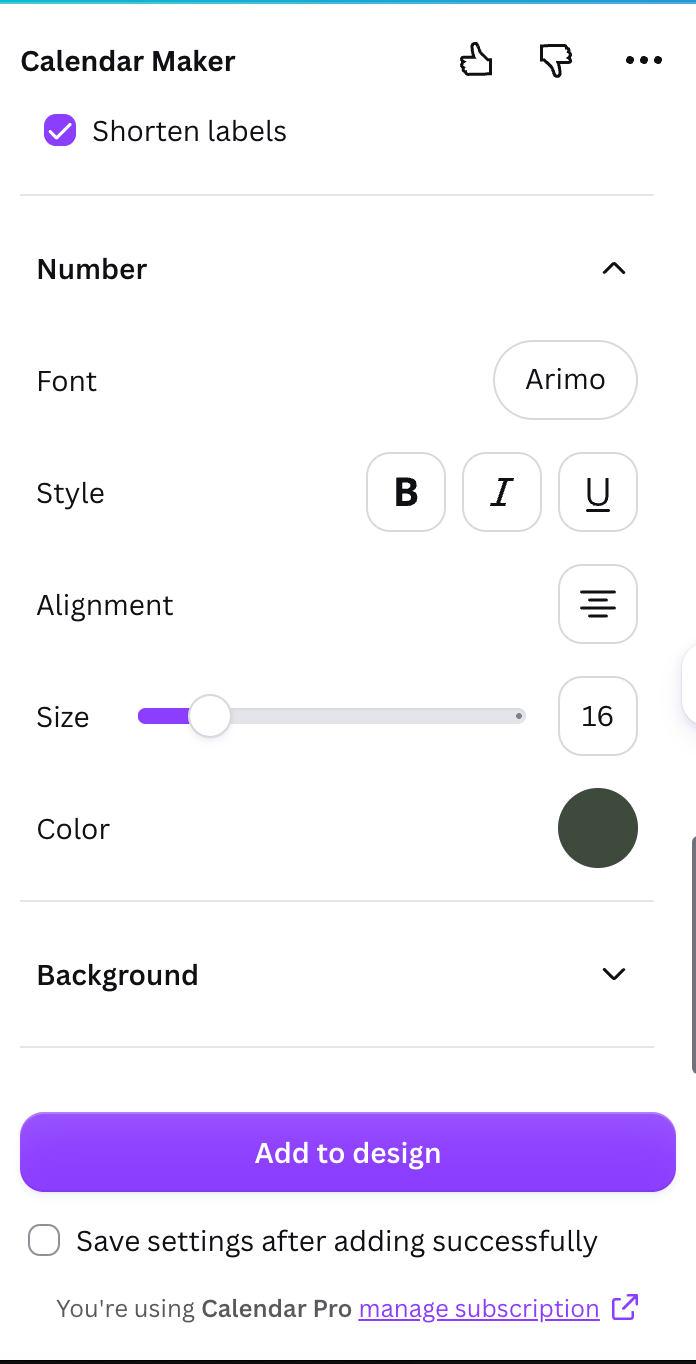 The **Number** section styles the date digits with the same controls: font, style, alignment, size, and color. (The Week tab only has a Header section, since a week table has no date numbers.)
## Styling: background colors
The **Number** section styles the date digits with the same controls: font, style, alignment, size, and color. (The Week tab only has a Header section, since a week table has no date numbers.)
## Styling: background colors
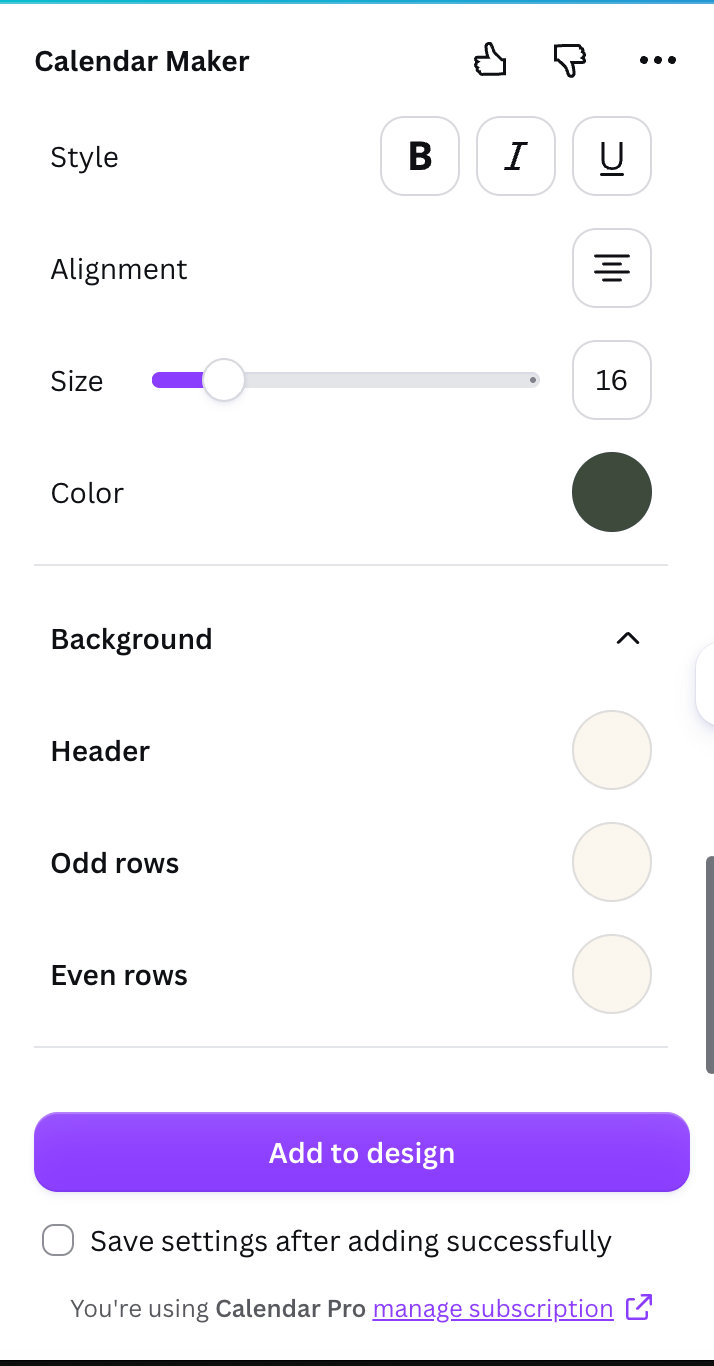 Set the **header bar** color and two **alternating row colors** (odd/even) to create an easy-to-read striped look.
## Preset color themes and live preview
Set the **header bar** color and two **alternating row colors** (odd/even) to create an easy-to-read striped look.
## Preset color themes and live preview
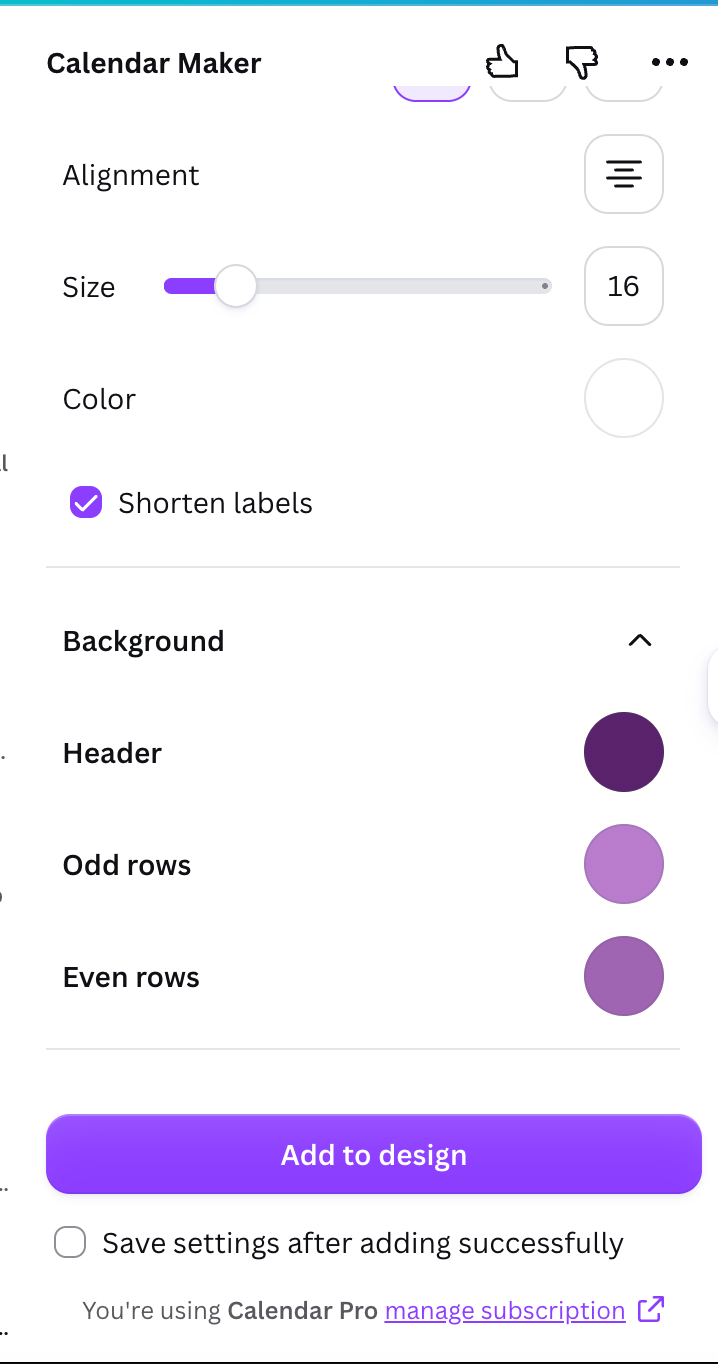
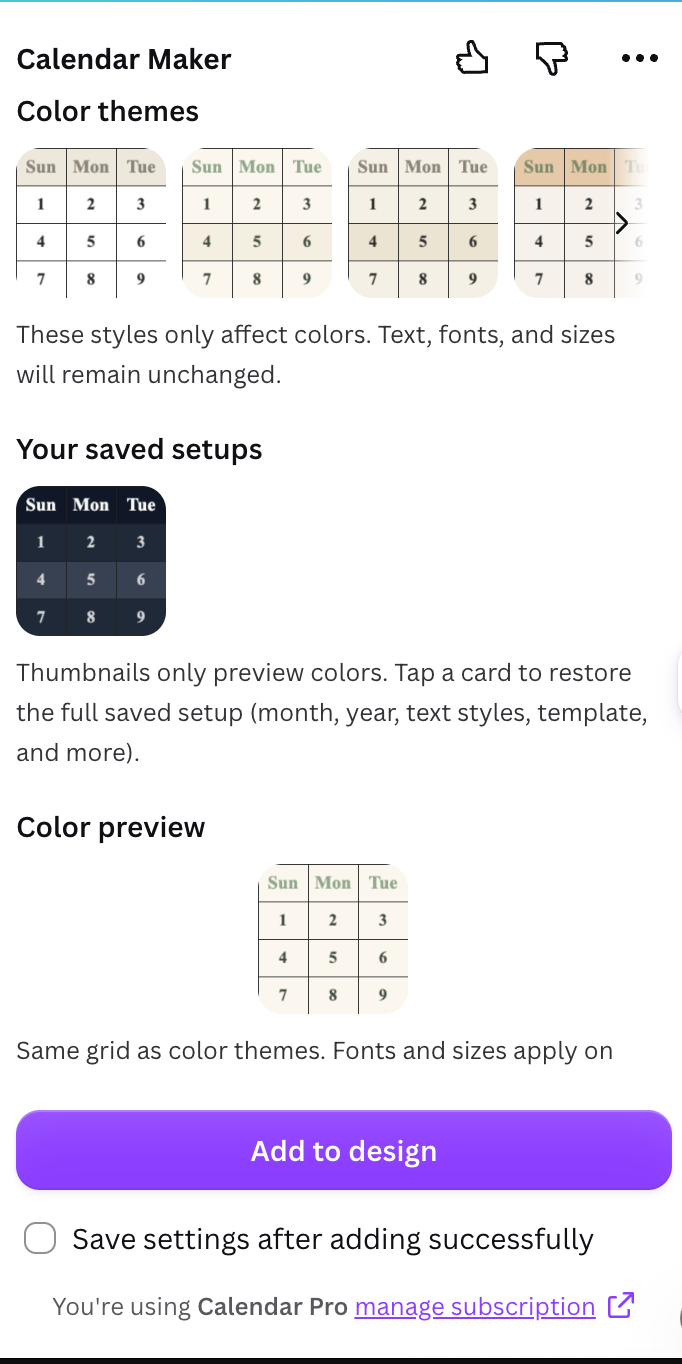 Instead of setting colors by hand, pick from **30+ preset color themes** (Scandi minimal, botanical, pastel, warm, cool, dark mode, and more) — one tap applies the whole palette, and you can still tweak it after. The **Color preview** shows the result before you add it. A purple example applied to the Week tab:
 ## Page templates (decorated layouts)
On the **Month** tab you can place the calendar on a pre-designed page (about 14 themes such as Botanical, Watercolor, Scandi Minimal, Midcentury, Coastal, Vintage Postcard). The app fills in the month and year and matches the calendar's colors to the template.
## Page templates (decorated layouts)
On the **Month** tab you can place the calendar on a pre-designed page (about 14 themes such as Botanical, Watercolor, Scandi Minimal, Midcentury, Coastal, Vintage Postcard). The app fills in the month and year and matches the calendar's colors to the template.
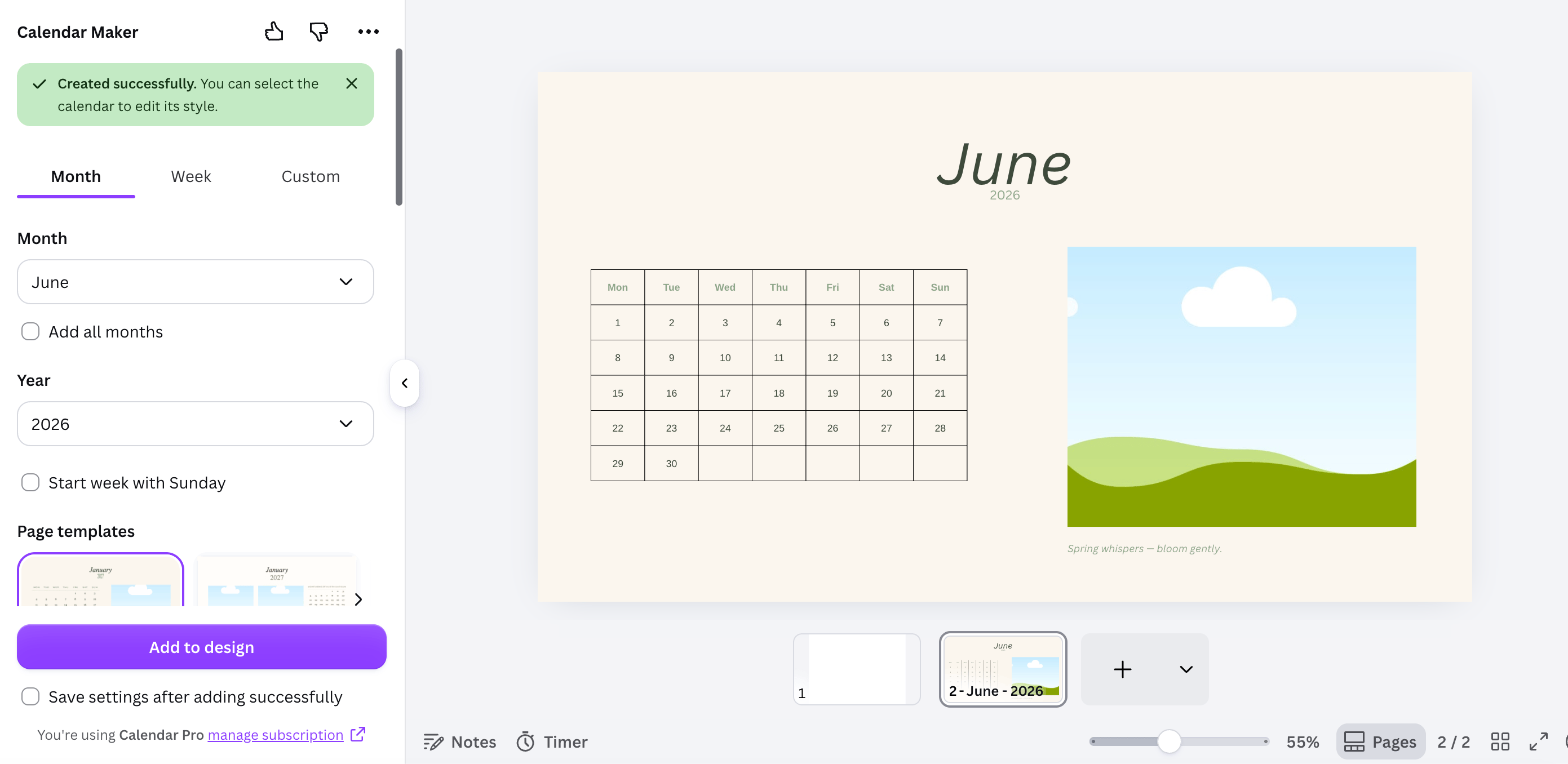 Design sizes may differ from the template, so you may need to nudge elements to line up after adding.
## Save and reuse your setups
Below **Add to design** there's a **Save settings after adding successfully** checkbox. When it's on, your full configuration is saved each time you add a calendar. Each tab keeps its own **Your saved setups** carousel — tap a saved card to restore everything (dates, fonts, colors, template). The app keeps your \~30 most recent setups per tab.
## Add the calendar to your design
When you're happy with the preview, click **Add to design**. The calendar (and a new page, if you used a template or multiple months) drops into your Canva design.
Select the calendar to keep adjusting its style directly in Canva.
Download as PDF Print for the cleanest result, then print at home or order prints.
## Free vs Pro
Pro users see the **Add to design** button and full access. Without Pro, you'll see **Unlock to use** (opens an upgrade page) and **Restart app** (re-checks your status after unlocking). The app checks your Pro status automatically through your Canva account.
## Languages
Calendar Maker is multilingual — month names, weekday names, and the interface follow your language, and the default week start (Monday or Sunday) is guessed from your region.
## Frequently asked questions
On the Month tab, set the year to 2026, generate each month (or use **Add all months**), add your holidays and notes, then download as PDF Print.
Yes — use the **Custom** tab and set a start and end date (up to 150 days).
Yes — turn on **Save settings after adding successfully**, then restore from **Your saved setups** on each tab.
That button is for Pro users. If you see **Unlock to use**, upgrade, then click **Restart app** to refresh your status.
Generate a calendar for any month, year, or date range in seconds.
Design sizes may differ from the template, so you may need to nudge elements to line up after adding.
## Save and reuse your setups
Below **Add to design** there's a **Save settings after adding successfully** checkbox. When it's on, your full configuration is saved each time you add a calendar. Each tab keeps its own **Your saved setups** carousel — tap a saved card to restore everything (dates, fonts, colors, template). The app keeps your \~30 most recent setups per tab.
## Add the calendar to your design
When you're happy with the preview, click **Add to design**. The calendar (and a new page, if you used a template or multiple months) drops into your Canva design.
Select the calendar to keep adjusting its style directly in Canva.
Download as PDF Print for the cleanest result, then print at home or order prints.
## Free vs Pro
Pro users see the **Add to design** button and full access. Without Pro, you'll see **Unlock to use** (opens an upgrade page) and **Restart app** (re-checks your status after unlocking). The app checks your Pro status automatically through your Canva account.
## Languages
Calendar Maker is multilingual — month names, weekday names, and the interface follow your language, and the default week start (Monday or Sunday) is guessed from your region.
## Frequently asked questions
On the Month tab, set the year to 2026, generate each month (or use **Add all months**), add your holidays and notes, then download as PDF Print.
Yes — use the **Custom** tab and set a start and end date (up to 150 days).
Yes — turn on **Save settings after adding successfully**, then restore from **Your saved setups** on each tab.
That button is for Pro users. If you see **Unlock to use**, upgrade, then click **Restart app** to refresh your status.
Generate a calendar for any month, year, or date range in seconds.